NAME
App::GUI::GoLP - A GUI for viewing and editing Life-like cellular automata, in Perl/Prima
VERSION
Version 1.3
SYNOPSIS
golp [<filename>]DESCRIPTION
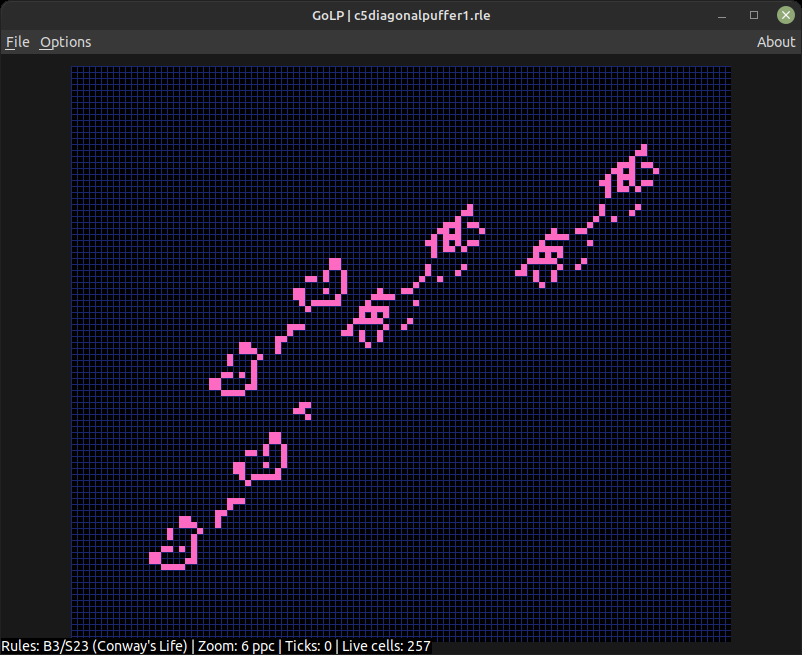
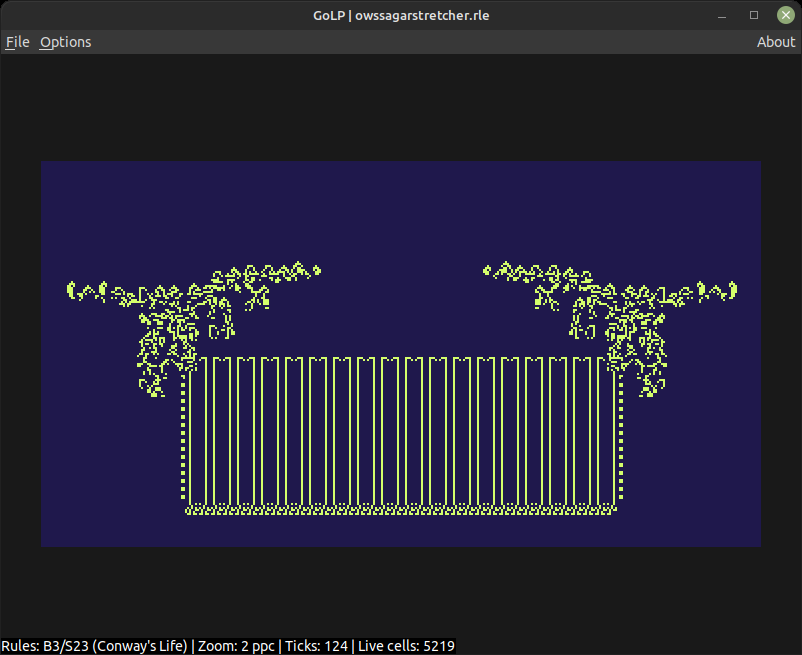
This program will load and run Life-like cellular automata from .rle or .cells files. A good source for files is https://conwaylife.com/wiki/Main_Page. It uses Game::Life::Faster for the engine and Prima for the GUI.
Menus
File
The New option allows the user to create a new board. Choose the width and height of the board and whether the initial cell status will be all 'dead', all 'live' or chosen at random according to a specified percentage chance. Use the Rules submenu in the Options menu to change the birth/survival rules used by the simulation.
The Open option provides a dialog box allowing the user to select a .rle or .cells format file to be loaded.
The Save option will save the current board in .rle or .cells format.
The Exit option exits the program.
Options
Play/Pause starts and pauses the simulation. This can also be done from the space bar.
Grid toggles the cell grid on and off.
Autogrow toggles the 'autogrow' on and off. When activated, the size of the board will be enlarged if there are live cells close to the edge of the board.
Status line toggles the status text which can be displayed along the bottom of the main window. This gives some information as to the current state of the simulation.
Snapshot board will create a .png image file of the board in the current working directory.
Loop delay presents a list of presets which affects the speed of the simulation.
Rules allows the user to select from a preset list of birth/survival rules, or use the Custom rule dialog to specify one.
Zoom opens the zoom dialog.
Color Scheme allows the user to select how live cells are colored. You can choose a static color, or one of several color maps that color cells dynamically based on their age (e.g. Plasma, Viridis, Inferno).
Live cell color allows the user to select the color of a 'live' cell (only if color scheme is set to static).
Dead cell color allows the user to select the color of a 'dead' cell.
Grid color allows the user to select the color of the grid.
Edit mode can be used to switch in and out of 'edit mode'. When in edit mode clicking the left mouse button on the board will toggle the state of the cell under the cursor (indicated by a highlighted cell). Entering edit mode pauses the simulation.
About
Provides a small 'about' dialog.
Mouse interaction
The mouse wheel can be used to adjust the zoom setting (otherwise use the menu option). If the zoom is such that the board is clipped, the user can click and drag within the window to move the viewed section of the board. When not in edit mode, this can be done with both left and right mouse buttons, but when in edit mode the left mouse button will edit the board and the right mouse button can be used to click and drag to move the board.
Keyboard commands
Pressing the space bar will play and pause the simulation.
When paused, the ']' key will step the simulation.
F1 enters 'Edit Mode'.
F5 takes a screenshot of the board.
SEE ALSO
AUTHOR
Matt Johnson, <mjohnson at affectivesilicon.com>
LICENSE AND COPYRIGHT
This software is Copyright (c) 2025 by Matt Johnson.
This is free software, licensed under:
The GNU General Public License, Version 3, June 2007