NAME
Term::Fabulous::Manual::Menus - Commands, menu bars, context menus and key references
DESCRIPTION
This page is part of Term::Fabulous::Manual. Previous page: Term::Fabulous::Manual::Feedback. Next page: Term::Fabulous::Manual::Charts.
A program that does more than a few things needs a way to show the user what it can do and which keys do it. This page explains the parts Term::Fabulous offers for that:
"COMMANDS": a table of everything the program can do, with the keys that do it. The keys work everywhere, and the same table feeds the menus.
"MENU BARS": a row of menus at the top of the screen, opened with the mouse,
F10orAltand a letter."CONTEXT MENUS": a menu that opens where the user right-clicks, or below a widget.
"MENUS ON THEIR OWN": a menu that stays on the screen, as a list of actions.
"KEY REFERENCES": a help screen that lists the keys of the program, made from the same table.
"LOOKS": the theme families of menus, menu bars and status bars.
"AN APPLICATION WINDOW": a menu bar, the content and a status bar together.
The reference pages are Term::Fabulous::Command, Term::Fabulous::Commands, Term::Fabulous::Widget::Menu, Term::Fabulous::Widget::MenuBar and Term::Fabulous::Widget::KeyReference. Complete programs are in Term::Fabulous::Cookbook::Menus. The status bar, which often sits below the content of such a program, is described in "STATUS BARS" in Term::Fabulous::Manual::Feedback.
The page assumes you know how key presses reach widgets ("KEYBOARD" in Term::Fabulous::Manual::Events) and what the keyboard focus is ("FOCUS" in Term::Fabulous::Manual::Events).
COMMANDS
A command is one thing the user can do: save, quit, cut, switch word wrap on. A Term::Fabulous::Command has an id for the program, a label for the user, the keys that run it, and the code that does it:
use Term::Fabulous::Commands;

my $commands = Term::Fabulous::Commands->new(
	commands => [
		{ id => 'save', label => 'Save',  keys => ['Ctrl+S'], run => sub { save_file() }, enabled => sub { $modified } },
		{ id => 'quit', label => 'Quit',  keys => ['Ctrl+Q'], run => sub { $ui->loop->stop } },
		{ id => 'wrap', label => 'Wrap long lines', keys => ['Alt+w'], run => sub { $wrap = !$wrap }, checked => sub { $wrap } },
	],
);
The Term::Fabulous::Commands table holds the commands of a program in one place. Writing them down once has three advantages. The menus show the commands with their keys, so the menus and the keys always agree. A key that two commands claim dies when the second one is added, so a conflict shows up when the program starts. And the help screen that lists the keys comes from the same table (see "KEY REFERENCES").
Keys
$commands->listen($root) runs the commands when their keys reach the root. A key press goes to the widget that has the focus first and then bubbles up to the root (see "Return values and bubbling" in Term::Fabulous::Manual::Events). So a text field keeps the letters it types and the keys it edits with, and every key it does not use, such as Ctrl+S, reaches the root and runs its command. Listen on a part of the screen instead of the root for keys that should work only while the focus is in that part.
A key is named as "key_name" in Term::Fabulous::Event::KeyPress names it: 'Ctrl+S', 'F5', 'Alt+Left'. Alt with a letter is named with the letter as typed, so 'Alt+w' is Alt and W, and 'Alt+W' is Alt, Shift and W. A name that is not a key dies when the command is made, naming the command.
Commands that cannot run now
A command with an enabled code reference can run only while the code returns true: Save only while there are unsaved changes, Paste only while there is something to paste. A menu shows such a command dimmed and skips it, and its key does nothing. The key then goes on as if no command had it, so a program that wants to explain why nothing happened can listen for it further up, or handle the keys itself with command_for_key and is_enabled.
The table asks the code every time it needs to know, so the program never tells the commands that its state changed.
Settings that are on or off
A command with a checked code reference is a toggle: a setting that is on or off, such as word wrap. A menu shows a check mark in front of its label while the code returns true. Running the command does not switch anything by itself: its run code switches the setting, and the next time the menu is drawn, the mark follows.
MENU BARS
A Term::Fabulous::Widget::MenuBar is a row of menu titles. Each title opens a Term::Fabulous::Widget::Menu below it, whose items are commands, given by their ids in the table:
use Term::Fabulous::Widget::MenuBar;

my $menu_bar = Term::Fabulous::Widget::MenuBar->new(
	commands => $commands,
	caption  => 'notes.txt',
	menus    => [
		{ title => 'File', items => [ 'save', '-', 'quit' ] },
		{ title => 'View', items => ['wrap'] },
	],
);
$root->add_child( $menu_bar, $content, $status_bar );

my $ui = Term::Fabulous->new( root => $root );
$commands->listen($root);
$menu_bar->listen($root);
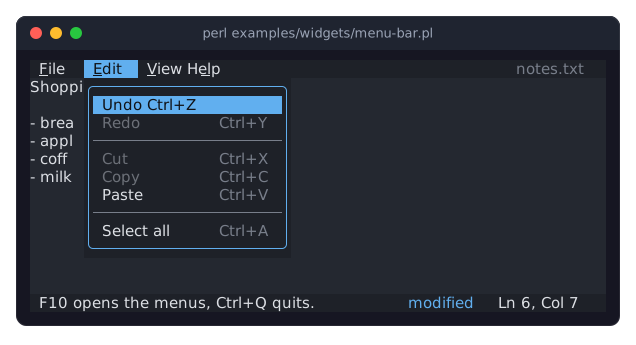
'-' draws a line between groups of items. The caption is a text at the right end of the bar, such as the name of the open file. The picture shows the bar of examples/widgets/menu-bar.pl with its Edit menu open:
Opening the menus
The mouse opens a menu with a click on its title. From the keyboard, F10 opens the first menu, and Alt with the underlined letter of a title (its mnemonic) opens that menu. The mnemonic is the first letter of the title unless the menu names another one with key. Two menus with the same letter die when the bar is built, and so does a letter whose Alt key is the key of a command.
F10 and the Alt keys come from wherever the focus is, so the bar needs to hear them: $menu_bar->listen($root) does that, as $commands->listen($root) does for the commands.
Inside an open menu
The arrow keys move the highlight up and down and skip separators and disabled items, Left and Right switch to the neighboring menus, and a letter jumps to the next item that starts with it. Enter runs the highlighted item, and Escape closes the menu. Keys with Ctrl or Alt close the menu and then do what they always do, so Ctrl+S saves even while a menu is open. With the mouse, a click on an item runs it, and so does pressing the button on a title, dragging down to an item and letting go.
The focus
The bar takes the keyboard focus only while one of its menus is open, so Tab never stops on it. When the menu closes, the focus goes back to the widget that had it before, and a click on a title does not take the focus from that widget either. The user goes on typing where they were.
A chosen item runs after the menu closed and the focus went back. So a command that opens a dialog works from the menu exactly as it does from its key, and the dialog gives the focus back to the right widget when it closes.
Listening to the menus
Every menu fires Choose (Term::Fabulous::Event::Choose) when an item is chosen, before the item's command runs. The menus of a bar are its children while they are open, so one listener on the bar, or on the root, hears every choice:
$menu_bar->on( Choose => sub ($event) {
	$status->message( 'Ran ' . $event->command->label );
	return Clay::UI::Enum::Result->CONTINUE;
} );
CONTEXT MENUS
A context menu offers what can be done with the thing under the pointer: copy a word, rename a file, delete a row. In Term::Fabulous it is a Term::Fabulous::Widget::Menu opened as a popup. The menu takes the items of a command table, or hash references for items it alone has:
use Term::Fabulous::Widget::Menu;
use Term::Fabulous::Termbox qw(TB_KEY_MOUSE_RIGHT TB_MOD_MOTION);

my $menu = Term::Fabulous::Widget::Menu->new(
	items => [
		{ label => 'Open',   run => sub { open_row() } },
		{ label => 'Delete', run => sub { delete_row() }, enabled => sub { $row_selected } },
	],
);

$table->on( Mouse => sub ($event) {
	return Clay::UI::Enum::Result->CONTINUE unless $event->key == TB_KEY_MOUSE_RIGHT && !( $event->modifiers & TB_MOD_MOTION );
	$menu->open( $ui, x => $event->x, y => $event->y );
	return;
} );
Items given as hash references belong to this menu alone. They may name keys to show next to their labels, but the menu does not make those keys work: put the commands into the Term::Fabulous::Commands table of the program for that, and give the menu their ids.
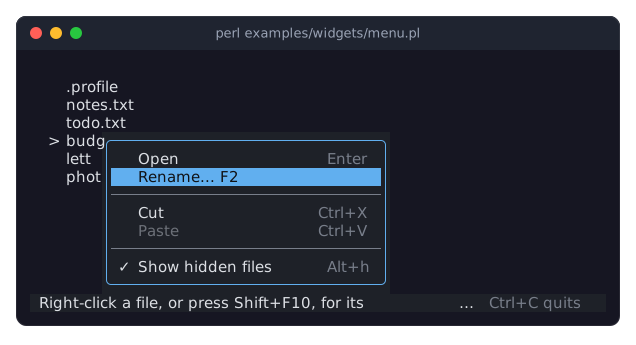
open( $ui, x => ..., y => ... ) puts the menu's top left corner at a cell of the screen, usually where the user clicked. open( $ui, below => $widget ) puts it below a widget, or above it when there is no room below. Either way, the menu moves left and up as far as it must to stay on the screen, also when the terminal shrinks while it is open. The picture shows the context menu of examples/widgets/menu.pl:
Opening a context menu from the keyboard
Users who work with the keyboard open context menus with the Menu key or with Shift+F10. Only terminals that speak the kitty keyboard protocol report the Menu key (see "THE KITTY KEYBOARD PROTOCOL" in Term::Fabulous::Event::KeyPress), so offer Shift+F10 as well. There is no pointer to open the menu at, so open it below the widget that has the focus, or below the root when nothing has the focus:
$commands->add(
	{
		id    => 'menu',
		label => 'Menu',
		keys  => [ 'Shift+F10', 'Menu' ],
		run   => sub { $menu->open( $ui, below => $ui->interaction->get_focused_widget // $ui->root ) },
	}
);
A text widget has no box of its own, so a menu cannot open below one. To open it at a line of text, give the cell with x and y, as examples/widgets/menu.pl does for the file under its cursor.
How a context menu closes
An open context menu has the keyboard focus. It closes when the user chooses an item, when the user presses Escape, and when the focus goes anywhere else, for example because the user clicked outside the menu. That click goes on to whatever was clicked, as it would without the menu. The focus goes back to the widget that had it before the menu opened, except after such a click, which puts the focus where the user clicked.
While a context menu is open, it keeps every key for itself, as a dialog does: the shortcuts of the program wait until it is closed.
The release of the mouse button only chooses an item when the menu saw a press or a move of the pointer since it opened. A menu that opened at the pointer, or moved to stay on the screen, therefore does not choose the item that happens to be under the pointer when the user lets go of the right button that opened it.
MENUS ON THEIR OWN
A Term::Fabulous::Widget::Menu that is added to a box like any other widget stays on the screen. It is a list of actions, for example in a side panel. It takes the focus with Tab, and its keys and mouse work as in a popup. Escape and the keys it does not use go on to its parents, and choosing an item fires Choose, which bubbles up through the parents, and runs the command.
KEY REFERENCES
A Term::Fabulous::Widget::KeyReference is a dialog that answers the question "which key does what?". It shows a table of keys and what they do, in groups that say where the keys work, with a search field above it. Its rows come from two places: the commands of a Term::Fabulous::Commands table, one row for every command with keys, and a list of the keys that no command runs, such as those of a list or a text area:
use Term::Fabulous::Widget::KeyReference;

sub show_keys () {
	Term::Fabulous::Widget::KeyReference->new(
		commands => $commands,
		keys     => [
			[ 'The list', 'Up, Down', 'Another note' ],
			[ 'The list', 'Enter',    'Open the note' ],
		],
	)->open($ui);
	return;
}

$commands->add( { id => 'keys', label => 'Keys...', keys => ['F1'], run => \&show_keys } );
The commands are listed with their keys as the menus show them and with their labels, under the group Everywhere (or the group the program names). A label that ends in ... is shown without it. The rows are read from the table when the key reference is made. A program that makes a new one each time the user asks for it, as here, always lists the commands and keys it has now.
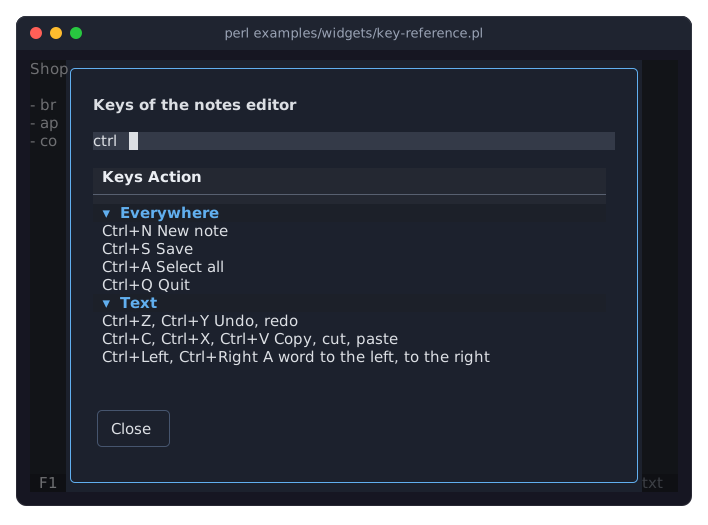
Typing into the search field leaves only the rows whose keys or action contain the text, so ctrl lists the keys with Ctrl and save the ways to save. Escape or the Close button closes the key reference, and the focus goes back where it was. The picture shows a key reference after the user typed ctrl (examples/widgets/key-reference.pl):
The recipe "Show the keys in a help screen (KeyReference)" in Term::Fabulous::Cookbook::Menus is a complete program.
LOOKS
Menus, menu bars and status bars have theme families of their own (see "Families, slots and states" in Term::Fabulous::Theme):
-
The list of a menu:
background, the border (border.color,border.styleandborder.enabled, which is true in the built-in themes),textwith itsdisabledstate for dimmed items,keysfor the keys on the right,separatorfor the lines, andhighlight.textandhighlight.backgroundfor the highlighted item. The family extendsinput, so it has the other input slots too. -
The bar:
background,textfor the titles,caption, andhighlight.textandhighlight.backgroundfor the title of the open menu. It extendsinput. status_bar-
The status bar:
background,text(for plain text andinfomessages),dim,accent,success,warninganddanger. It extendsbox.
In the built-in themes, the backgrounds are surface_low, the highlight is text_inverse on accent, and the hints (keys, lines, the caption, dim parts) are placeholder. Each widget also takes these colors as parameters, which win over the theme. See the class pages.
AN APPLICATION WINDOW
Most programs with menus have the same shape: a menu bar in the first row, the content in the middle, and a status bar in the last row. A box from top to bottom holds the three, and the content grows into the space between:
my $root = Term::Fabulous::Widget::Box->new( layout => { layout_direction => CLAY_TOP_TO_BOTTOM, sizing => { width => sizing_grow(), height => sizing_grow() } } );
$content->layout( { %{ $content->layout }, sizing => { width => sizing_grow(), height => sizing_grow() } } );
$root->add_child( $menu_bar, $content, $status_bar );
The menu bar and the status bar are one row high and as wide as the screen without being told. examples/widgets/menu-bar.pl is such a program, a small notes editor, and Term::Fabulous::Cookbook::Menus has the recipes. The theme editor (Term::Fabulous::ThemeEditor) is a larger one: its menus, keys and help screen all come from one table of commands. A program that keeps several documents open adds a row of document tabs between the menu bar and the content.
A program in which Ctrl+C copies, as most editors expect, makes its UI with stop_on_ctrl_c => 0 (see "new" in Term::Fabulous) and gives quitting a command of its own, usually Ctrl+Q.
SEE ALSO
This page is part of Term::Fabulous::Manual. Previous page: Term::Fabulous::Manual::Feedback. Next page: Term::Fabulous::Manual::Charts.
The class pages: Term::Fabulous::Command, Term::Fabulous::Commands, Term::Fabulous::Widget::Menu, Term::Fabulous::Widget::MenuBar, Term::Fabulous::Widget::StatusBar, Term::Fabulous::Widget::KeyReference, Term::Fabulous::Event::Choose. Term::Fabulous::Cookbook::Menus for complete programs, and "KEYBOARD" in Term::Fabulous::Manual::Events for key names and how keys reach widgets.