NAME
Term::Fabulous::Manual::Programs - The event loop, output without a terminal and testing
DESCRIPTION
This page is part of Term::Fabulous::Manual. Previous page: Term::Fabulous::Manual::KDL. Next page: Term::Fabulous::Manual::CustomWidgets.
This page is about the program around the widget tree: how the event loop runs your timers and other work next to the user interface, how a program ends and what happens when it dies, how to print a widget tree as text instead of running it interactively, and how to test a program without a terminal. The reference for all of it is Term::Fabulous (run, step), Term::Fabulous::Static and Term::Fabulous::Terminal::Memory; the recipes are on Term::Fabulous::Cookbook::LiveData and Term::Fabulous::Cookbook::Output.
THE EVENT LOOP
$ui->run starts an IO::Async::Loop and returns when it stops. While it runs, it draws a frame whenever something changed (checking every 1/30 second) and turns terminal input into events. See the description of run for the details. Instead of the whole screen, run can also use a few rows below the shell's output; see "INLINE MODE" in Term::Fabulous.
Timers and other asynchronous work
Term::Fabulous uses the process-wide IO::Async loop: IO::Async::Loop->new returns the same loop object every time. Add timers, sockets, child processes and other notifiers to it before calling run (or from a listener while it runs), and they run alongside the user interface:
use IO::Async::Loop;
use IO::Async::Timer::Periodic;
use POSIX qw(strftime);

my $clock = Term::Fabulous::Widget::Text->new( text => '', text_color => [ 255, 255, 255, 255 ] );

my $timer = IO::Async::Timer::Periodic->new(
	interval       => 1,
	first_interval => 0,
	on_tick        => sub { $clock->text( strftime( '%H:%M:%S', localtime ) ) },
);
$timer->start;
IO::Async::Loop->new->add($timer);

$ui->run;
Never block in a listener or timer (no sleep, no long computations, no blocking network calls): while your code runs, no frame is drawn and no input is read. Use IO::Async's non-blocking facilities instead, such as IO::Async::Process or Future-returning methods.
The widgets that move by themselves, such as a Term::Fabulous::Widget::Spinner or an indeterminate Term::Fabulous::Widget::ProgressBar, need no timer: they read the application's clock and ask for a frame when their next one is due ("request_frame_at" in Term::Fabulous). A widget of your own can do the same; see "ANIMATION" in Term::Fabulous::Widget::Display.
The cookbook has complete programs: the recipes Update the screen from a timer and Show the output of a running command.
Quitting
run returns when the loop stops. That happens
when your code calls
$ui->loop->stop(the methodloopreturns the loop of the running UI), usually in a listener for a key (see "Quit with q or Escape" in Term::Fabulous::Cookbook::GettingStarted);when the user presses
Ctrl+C;when the process receives
SIGINT,SIGTERMorSIGHUP(the terminal window was closed).
After run has returned, the terminal is back to normal, and the handlers your program had set in %SIG for these signals are back in place (unless an IO::Async::Signal of your program still watches one). The program can print to the terminal, ask questions on the command line, or call run again.
Errors and terminal restore
If a listener, a timer or other code inside the loop dies, run restores the terminal and then dies with the same error, so the message appears on the normal screen. The terminal is also restored when code inside the loop calls exit. When the terminal's input ends without a SIGHUP reaching the process (a terminal that went away while the process is not in its session, or input from a pipe), run dies with Term::Fabulous: the terminal was closed (end of input). When the terminal cannot be opened at all, for example because the process has no terminal, run dies before it changes anything; see the description of run for the messages.
Catch errors around run if your program should continue:
use Feature::Compat::Try;

try { $ui->run }
catch ($error) { warn "The UI stopped with an error: $error" }
RENDERING WITHOUT A TERMINAL
Term::Fabulous::Static lays out and draws a widget tree once and returns the result as text, without opening the terminal or running an event loop. It is useful for reports, command-line tools that print boxes and tables, and for tests:
use Term::Fabulous::Static;

my $page = Term::Fabulous::Static->new( root => $root, width => 60 );
$page->print;                                    # colored if STDOUT is a terminal
my @lines = $page->render_lines( colors => 0 );  # plain character strings
The output has as many rows as the content needs, provided the root uses sizing_fit() for its height (the default of a box). A root with sizing_grow() fills the whole layout height, which is 4096 rows unless you pass a height. Static uses exactly the same layout and drawing code as the interactive UI, so the text shows what the terminal would show:
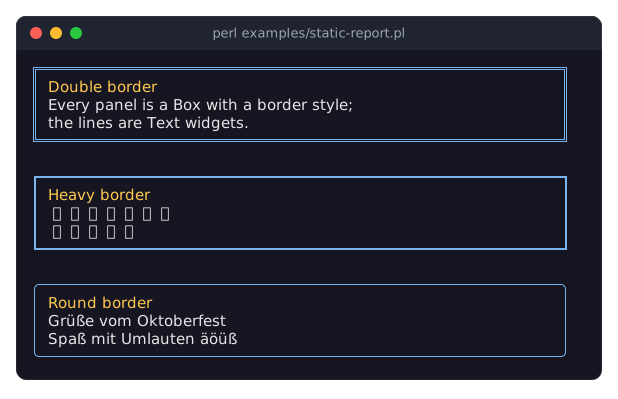
The picture shows examples/static-report.pl. The recipe Render a report to a file or pipe writes a report to a file or a pipe, and charts and tables print the same way (the recipes Print charts in a report and Print a table as a report).
TESTING
You can test widgets and whole programs without a terminal:
Run the program's widget tree on a Term::Fabulous::Terminal::Memory, a terminal in memory. Queue keys, clicks and resizes on it, let
stephandle them asrunwould, and compare what the screen shows.Lay out and draw a tree once with Term::Fabulous::Static and compare the lines it returns, for output that takes no input.
This test builds a text field above an OK button, types into the field and clicks the button:
use v5.32;
use warnings;
use feature 'signatures';
no warnings 'experimental::signatures';

use Test2::V0;
use Clay::XS qw(CLAY_TOP_TO_BOTTOM);
use Term::Fabulous;
use Term::Fabulous::Terminal::Memory;
use Term::Fabulous::Widget::Box;
use Term::Fabulous::Widget::Button;
use Term::Fabulous::Widget::Text;
use Term::Fabulous::Widget::TextField;

# The widget tree of the program: a text field above an OK button.
my $field = Term::Fabulous::Widget::TextField->new;
my $ok    = Term::Fabulous::Widget::Button->new;
$ok->add_child( Term::Fabulous::Widget::Text->new( text => 'OK', text_color => [ 255, 255, 255, 255 ] ) );
my $root = Term::Fabulous::Widget::Box->new( layout => { layout_direction => CLAY_TOP_TO_BOTTOM } );
$root->add_child( $field, $ok );

my $saved = 0;
$ok->on( Activate => sub ($event) { $saved = 1; return } );

my $terminal = Term::Fabulous::Terminal::Memory->new( width => 40, height => 10 );
my $ui       = Term::Fabulous->new( root => $root, width => 40, height => 10, terminal => $terminal );
$ui->step;    # opens the terminal, fires Start, draws the first frame

# Focus the field, type "hi", press Left, click the OK button.
$terminal->press_key('Tab')->type_text('hi')->press_key('Left');
$terminal->click( 1, 1 );
$ui->step;

is $field->value, 'hi', 'typed text';
like [ $terminal->lines ]->[0], qr/hi/, 'the text is shown';
ok $saved, 'the click activated the button';

done_testing;
The input goes through everything real input goes through: keys go to the focused widget, Tab and Shift+Tab move the focus, a click is hit-tested against the last frame, focuses what it hits and presses and releases it (OnPress, OnRelease), the wheel scrolls the scroll box under the pointer, and a resize fires Resize. step draws every frame that is due, so after it the screen and the widgets are in the state a user would see. It returns the number of frames it drew, which shows whether something changed.
A few things differ from run, because there is no event loop: Ctrl+C fires its KeyPress but stops nothing, timers you added to the loop do not run (call the code they would run from the test), and a resize is applied at once instead of after the size settled. Mouse events are dropped when the program runs without the mouse (as a real terminal would not send them), for example in inline mode.
To test the key handling of a single widget in isolation, you can fire events at it directly with fire_event. Such an event goes to the widget's listeners and bubbles to its ancestors, but nothing around it happens: nothing is focused, Tab does nothing, and a Term::Fabulous::Event::Mouse fired this way is not hit-tested and does not press anything.
use Term::Fabulous::Event::KeyPress;
use Term::Fabulous::Termbox::Event;

my %fields = Term::Fabulous::Event::KeyPress->fields_for_name('Ctrl+Left');
$field->fire_event( Term::Fabulous::Event::KeyPress->of( Term::Fabulous::Termbox::Event->new(%fields) ) );
An input needs to have been laid out at least once (a step, or render_lines of Term::Fabulous::Static) before it paints anything, because its size comes from the layout.
The cookbook has a longer test file, which also checks Change events and max_length: the recipe Test a widget without a terminal.
SEE ALSO
This page is part of Term::Fabulous::Manual. Previous page: Term::Fabulous::Manual::KDL. Next page: Term::Fabulous::Manual::CustomWidgets.
Term::Fabulous, Term::Fabulous::Static, Term::Fabulous::Terminal::Memory, IO::Async::Loop, Term::Fabulous::Cookbook::LiveData, Term::Fabulous::Cookbook::Output.