NAME
Term::Fabulous::Manual::Feedback - Progress bars, spinners, toasts, status bars, prompts and file dialogs
DESCRIPTION
This page is part of Term::Fabulous::Manual. Previous page: Term::Fabulous::Manual::Forms. Next page: Term::Fabulous::Manual::Menus.
This page covers the widgets that tell the user what the program is doing: a progress bar for a task whose extent is known, or not, a spinner for one that just takes a while, toasts for messages that must not interrupt the user, and a status bar for messages and the program's state at the bottom of the screen. They take no input. The program sets their state, from a timer, a process or a listener, and they draw themselves. The ones that move do so on the application's clock, without a timer of their own (see "ANIMATION").
The section "PROMPTS" is about the other direction: a prompt stops the user to ask a question, and reports the answer. "FILE DIALOGS" are prompts of a special kind, which ask for a file to open or save, or for a folder.
The reference pages are the class pages: Term::Fabulous::Widget::ProgressBar, Term::Fabulous::Widget::Spinner, Term::Fabulous::Widget::Toast, Term::Fabulous::Widget::StatusBar, Term::Fabulous::Widget::Prompt and Term::Fabulous::Widget::FileDialog. The class the first two share, Term::Fabulous::Widget::Display, is the base of every widget that paints itself from its own state, and the one to derive from for a feedback widget of your own ("A widget that draws itself" in Term::Fabulous::Manual::CustomWidgets).
PROGRESS BARS
A Term::Fabulous::Widget::ProgressBar shows a value between min and max as a bar filled from the left, with the percentage (or a label of your own) next to it. The program sets the value as the work goes on:
use Term::Fabulous::Widget::ProgressBar;

my $progress = Term::Fabulous::Widget::ProgressBar->new(
	max    => $total_bytes,
	layout => { sizing => { width => sizing_grow() } },
);
$progress->value($bytes_so_far);    # from a timer or a process
The picture shows the forms a bar can take (examples/widgets/progress-bar.pl):
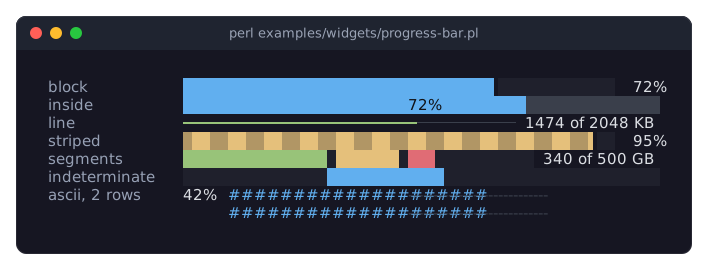
Styles.
block(the default) fills cells with blocks and moves in eighths of a cell;linedraws a thin line like a slider's track;asciiuses#and-.fill_glyph,track_glyphandstripe_glyphreplace the glyphs of a style. A layout that makes the bar more than one row high gives a thicker bar.The label. The percentage by default, right of the bar;
value_position => 'left'or'inside'move it, andvalue_formatformats it as asprintfstring of the percentage or with code that gets the value, for12 of 50 MB.show_value => 0hides it.Stripes.
stripedalternates two glyphs along the filled part, andanimatedmoves them: the bar then shows that the task is still running even while its value does not change.Indeterminate. A task whose extent is not known yet gets
indeterminate => 1: a runner bounces from end to end and the label is hidden. Switch it off, setmaxand the value once the extent is known.Segments.
segmentsstack several values in one bar, each in its own color: the used, reserved and free parts of a disk, the passed, failed and skipped tests.separatedleaves a cell of track between them, and the bar'svalueis their sum.
The colors are color (the filled part), track_color, text_color and, for a label inside the bar, inside_text_color; the program changes color to show a state, for example red below a threshold. In KDL:
ProgressBar "download" {
	max 2048
	value 860
	style "line"
	sizing width=grow
}
SPINNERS
A Term::Fabulous::Widget::Spinner shows that the program is busy with something it cannot measure: connecting, waiting, loading. It cycles through the frames of its style next to a label:
use Term::Fabulous::Widget::Spinner;

my $spinner = Term::Fabulous::Widget::Spinner->new( label => 'Connecting' );
$status_row->add_child($spinner);
# later:
$spinner->stop;
$status_row->remove_child($spinner);
The styles come in three sizes: one cell (dots, the default, made of Braille patterns; line, arc, circle, arrow, box, pulse, bar), a few cells (dots3, bounce, wave) and three rows (ring). frames of your own, of one or several rows, replace the style's, and interval sets the pace. stop freezes the spinner at its first frame; a stopped spinner costs nothing. The picture shows every style (examples/widgets/spinner.pl):
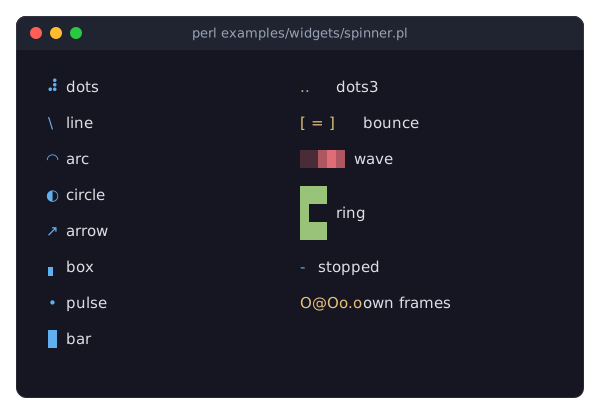
In KDL:
Spinner "busy" {
	style "arc"
	label "Loading"
}
TOASTS AND ALERTS
A Term::Fabulous::Widget::Toast is a short message in a corner of the screen that goes away by itself: a box with an icon, a title, a message and a close mark, in the color of its kind (info, success, warning or danger). show floats it over everything else, where it lines up below the toasts shown there before, and takes it away after timeout seconds; a click on the close mark or hide takes it away at once. Toasts take no focus and no keys:
use Term::Fabulous::Widget::Toast;

$save->on( Activate => sub ($event) {
	save();
	Term::Fabulous::Widget::Toast->new( kind => 'success', title => 'Saved', message => 'Written to disk.' )->show($ui);
	return;
} );
An important toast is filled with its color, for messages that must not be missed; timeout => undef keeps a toast until it is closed; position chooses the corner (or the top or bottom center), and every corner stacks its own toasts. The same widget is an alert when it is added to the layout as a child instead of being shown: it then stays where it is put, with or without a close mark. The picture shows toasts of every kind, an important one and an alert box (examples/widgets/toast.pl):
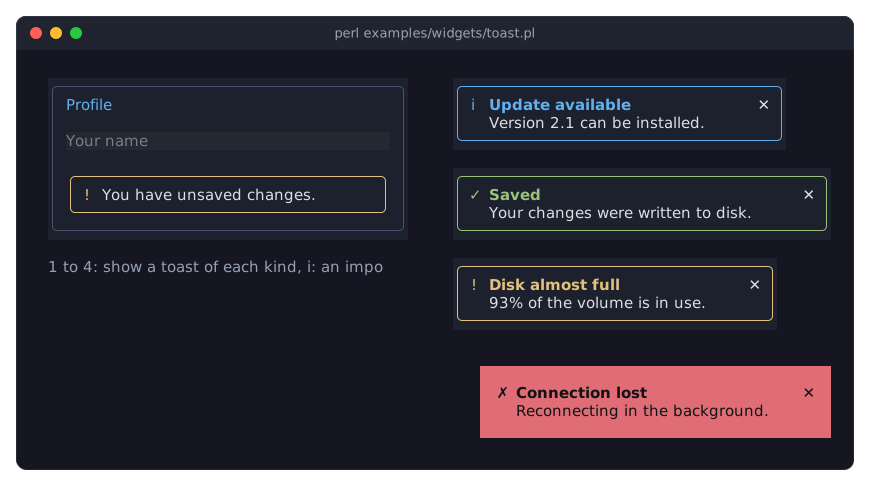
A toast fires Close (Term::Fabulous::Event::Close) when it goes, whichever way. In KDL a toast is an alert box inside its parent:
Toast "unsaved" {
	kind "warning"
	message "You have unsaved changes."
	closable #false
}
STATUS BARS
A Term::Fabulous::Widget::StatusBar is one row, usually the last row of the screen. On its left it shows a message: what just happened, or what a key does now. On its right it shows parts, short texts about the state of the program, such as the position of the cursor or a marker for unsaved changes.
A message has one of the kinds a toast has, which gives it its color: info for plain news (drawn like normal text), success, warning and danger. Parts have these kinds as well, plus dim for a hint that should not draw the eye and accent for one that should:
use Term::Fabulous::Widget::StatusBar;

my $status = Term::Fabulous::Widget::StatusBar->new(
	message => 'Ready.',
	timeout => 5,
	parts   => sub { ( ( $modified ? [ 'modified', 'accent' ] : () ), "Line $line", [ 'F1 help', 'dim' ] ) },
);
$root->add_child( $content, $status );

$status->message( 'Saved notes.txt.', 'success' );
A message stays until the next one replaces it, or for timeout seconds when the bar has a timeout. The parts may be a list, which the program sets again when the state changes, or a code reference, which the bar calls whenever a frame is drawn. A code reference keeps the parts up to date without any code that updates them, because a frame is drawn after every key and every click. When the message and the parts do not fit side by side, the message is cut and ends in an ellipsis. The picture shows status bars of the kinds success, warning and danger (examples/widgets/status-bar.pl):
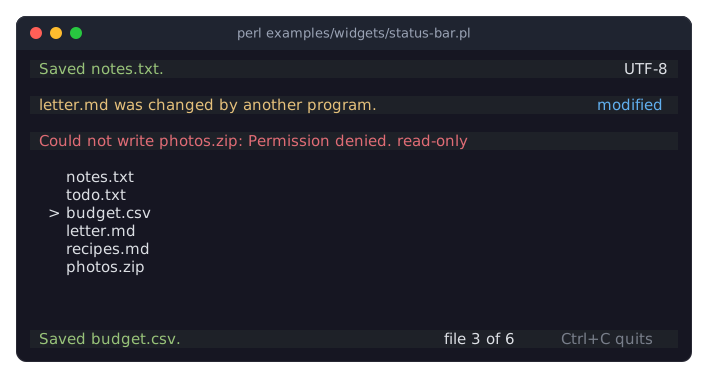
A toast and a status bar both report what happened. A toast floats over the screen and draws the eye, so it suits news the user must not miss. A status bar does not move anything on the screen, so it suits the steady stream of small news that an editor or a browser of files produces. The recipe "Show messages and state in a status bar (StatusBar)" in Term::Fabulous::Cookbook::Menus is a complete program. A status bar can also be part of a KDL layout file, with message, kind and timeout:
StatusBar "status" {
	message "Ready."
	timeout 5
}
PROMPTS
A Term::Fabulous::Widget::Prompt is a dialog that asks the user something and waits for the answer: whether to delete a file, what to call it, or simply that something went wrong. It has a title, a message, optional input fields and a row of buttons. Like every Term::Fabulous::Widget::Dialog, it opens over the screen and keeps the keyboard focus until it closes.
The three most common prompts take one call each. alert says something and has an OK button, confirm asks a question with OK and Cancel, and ask asks for one value:
use Term::Fabulous::Widget::Prompt;

Term::Fabulous::Widget::Prompt->confirm(
	$ui,
	title   => 'Delete notes.txt?',
	message => 'It cannot be restored.',
	ok      => 'Delete',
	focus   => 'cancel',
)->on( Answer => sub ($event) {
	unlink 'notes.txt' if $event->button eq 'ok';
	return;
} );
When the user presses a button, the prompt closes, gives the focus back to the widget that had it, and fires Answer (Term::Fabulous::Event::Answer) with the id of the button and the values of the fields. Escape answers with the button cancel.
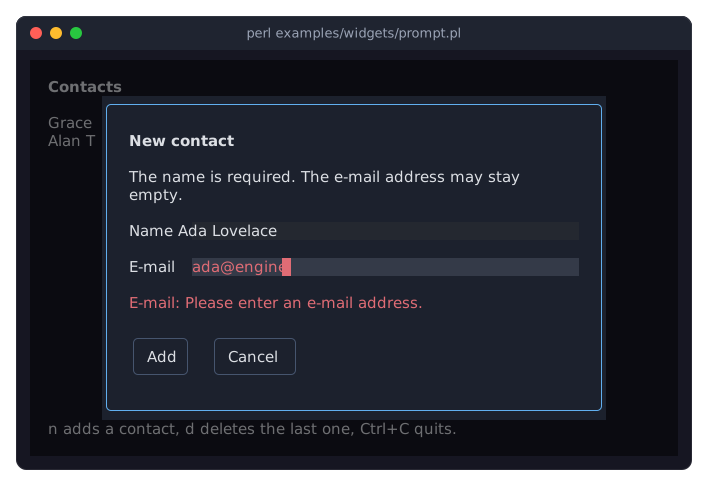
A prompt of your own takes any input widgets as its fields, each with a name and a label. The inputs check their own values, with required and validator (see "Checking input" in Term::Fabulous::Manual::Forms), and a button marked as primary asks them before it answers. While a value is wrong, the prompt stays open, says which field is wrong and why, and moves the focus to that field. A check of the whole prompt catches what involves more than one field. The picture shows a prompt whose e-mail field holds an address that is not valid (examples/widgets/prompt.pl):
The recipes "Confirm before quitting (Prompt)" in Term::Fabulous::Cookbook::Forms and "Ask for a number and check it (Prompt, validator)" in Term::Fabulous::Cookbook::Forms are complete programs. For a dialog that is not a question, build a Term::Fabulous::Widget::Dialog and fill it with any widgets.
FILE DIALOGS
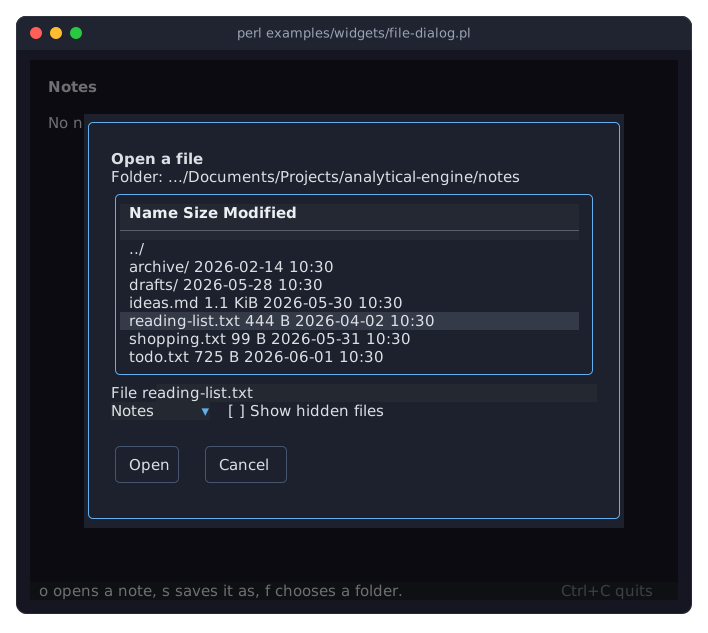
A Term::Fabulous::Widget::FileDialog asks the user for a file to open, a name to save a file under, or a folder. It lists the folders and files of a folder, with their sizes and the times they were last modified, and has a field for a name or a path. The user walks through the folders with Enter and Backspace or the mouse, picks an entry with the cursor, or types a name. Like a prompt, it opens over the screen, keeps the focus while it is open, and reports the result with one Answer event after it closed:
use Term::Fabulous::Widget::FileDialog;

Term::Fabulous::Widget::FileDialog->new(
	mode      => 'open',
	directory => $notes_folder,
	filters   => [ [ 'Notes' => '*.txt *.md' ], [ 'All files' => '*' ] ],
)->on( Answer => sub ($event) {
	open_note( $event->value('path') ) if $event->button eq 'open';
	return;
} )->open($ui);
The mode decides what the user chooses. In open mode it is a file that exists, in save mode a name in a folder that exists, and in folder mode a folder; the list then shows folders only. The button of the answer is the mode's, open, save or choose, and $event->value('path') is the absolute path, as bytes: exactly what the file system uses, ready for open. The list shows the names decoded from UTF-8. Cancel answers cancel, and so does Escape, which also sets dismissed.
Filters decide which files the list shows. Each has a label and patterns such as *.txt *.md; with two or more, a dropdown below the field switches between them. Folders always show, and names that start with a dot show only while the Show hidden files checkbox is checked. In save mode, the dialog starts in the field with the name selected up to its extension, default_extension adds an extension to a name without a dot, and an existing file is replaced only after a question, which starts on Cancel. The file the document already has, given as current_file, is the exception: saving to it again asks nothing. The picture shows the dialog to open a note, with the cursor on a file (examples/widgets/file-dialog.pl):
The dialog only chooses a path. It checks that a file to open is there, and that the folder of a file to save is there and the file is not a folder, but reading and writing are up to the program. The recipe "Open and save a file (FileDialog)" in Term::Fabulous::Cookbook::Forms is a complete program.
ANIMATION
Spinners, and progress bars that are indeterminate or animated, move by themselves. They need no timer: a moving widget reads the application's clock ("now" in Term::Fabulous) and asks for a frame at the moment its next frame is due ("request_frame_at" in Term::Fabulous); Term::Fabulous draws it at the next tick of its frame timer, and nothing is drawn in between. In a test, the clock parameter of "new" in Term::Fabulous moves the animation on, and the screenshot tools of Term::Fabulous::Examples run it on a virtual clock. A widget of your own animates the same way; see "ANIMATION" in Term::Fabulous::Widget::Display.
SEE ALSO
This page is part of Term::Fabulous::Manual. Previous page: Term::Fabulous::Manual::Forms. Next page: Term::Fabulous::Manual::Menus.
The class pages: Term::Fabulous::Widget::ProgressBar, Term::Fabulous::Widget::Spinner, Term::Fabulous::Widget::Toast, Term::Fabulous::Widget::StatusBar, Term::Fabulous::Widget::Prompt, Term::Fabulous::Widget::FileDialog, Term::Fabulous::Widget::Display. "Timers and other asynchronous work" in Term::Fabulous::Manual::Programs for the timers that drive a bar, and Term::Fabulous::Cookbook::LiveData for complete programs that update the screen while they work.