NAME
Term::Fabulous::ThemeEditor - Edit Term::Fabulous themes with a live preview of every widget
SYNOPSIS
From the shell, with the program that comes with the distribution:
fabulous-theme-editor                        # a new theme
fabulous-theme-editor themes/ocean.kdl       # edit a theme file
fabulous-theme-editor themes/*.kdl           # every theme of a folder, one per tab
From Perl:
use Term::Fabulous::ThemeEditor;

Term::Fabulous::ThemeEditor->new( files => ['themes/ocean.kdl'] )->run;

# Preview the theme on the screens of your own program:
Term::Fabulous::ThemeEditor->new(
	files   => ['themes/mine.kdl'],
	preview => sub ($editor) { return build_main_screen() },
)->run;

# A program then loads the file:
my $ui = Term::Fabulous->new( root => $root, theme => Term::Fabulous::Theme->from_file('themes/mine.kdl') );
DESCRIPTION
The theme editor makes and changes the theme files of Term::Fabulous::Theme: the KDL files that set the palette of a theme and the colors, border styles and borders of every widget family. It opens each theme in a tab of its own. The left side of the screen shows a widget of every family drawn in the theme of the tab you are on, and you can try them out: type into the fields, open the dropdown, move the slider, press the buttons, open the dialog. The right side shows the theme's settings, either as a form, a list of every setting with its value and where the value comes from, or as the text of the file. Every change shows in the preview at once, and every change can be undone.
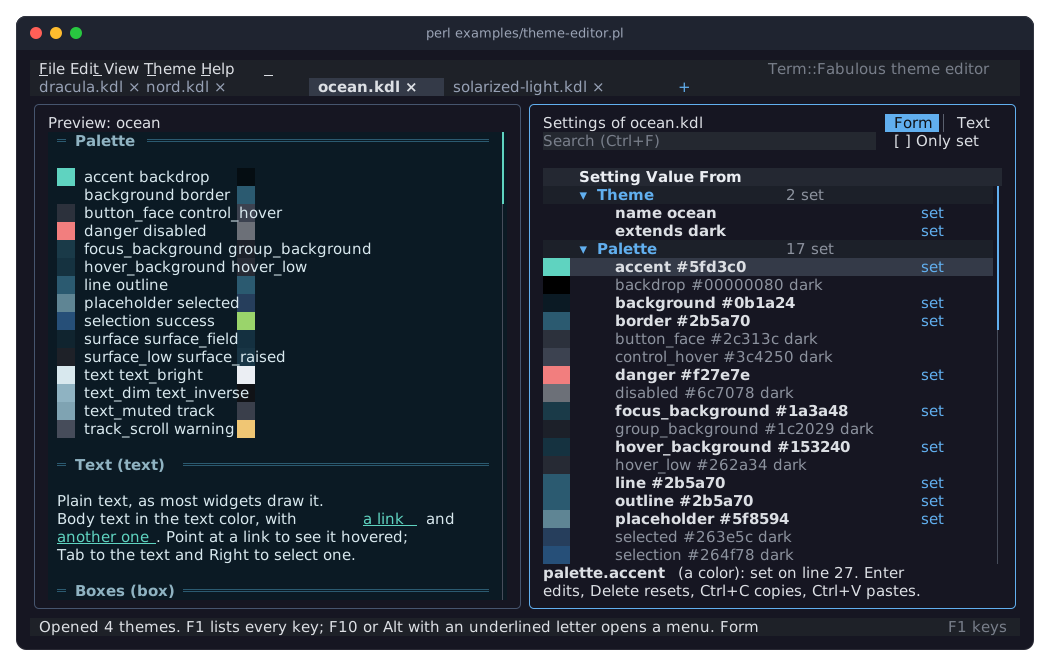
The picture shows examples/theme-editor.pl, which opens the theme files of examples/themes/. The editor itself is drawn in its own theme (the built-in dark unless you choose another), the preview in the theme being edited, so an unreadable theme never makes the editor unreadable.
The editor is a Term::Fabulous program like any other. The script fabulous-theme-editor starts it from the shell; this page describes the editor and how to start it from Perl.
THE SCREEN
From top to bottom:
-
File,Edit,View,ThemeandHelp, with every command and its keys (a Term::Fabulous::Widget::MenuBar).F10opens the first menu,Altwith a menu's underlined letter opens that menu (Alt+FforFile), and a click opens a menu with the mouse. Commands that cannot run now (Revertof a theme without a file,Undowith nothing to undo) are dimmed. - The tab strip
-
A tab per open theme (a Term::Fabulous::Widget::DocumentTabs): its file's name (
untitled-Nbefore it is saved), a dot while it has unsaved changes or an exclamation mark while its text has errors, and a close button. A click selects a tab, a click on its close button or a middle click closes it, the+at the end makes a new theme. - The preview (left)
-
A widget of every family in sections: the palette with a swatch of every token, text and links, boxes, buttons (one of them with the class
primary), text fields (one with an invalid value, one disabled, a text area with a scrollbar), check boxes, radio buttons, a segmented control, a slider, a star rating and a dropdown, a color picker, tabs, document tabs, an accordion, a table with groups, a filter row and pages, progress bars and a spinner, toasts, a menu bar, a menu and status bars, a button that opens a dialog, dividers, an image, and a sample of every variant the theme defines. The background behind them is the theme'sbackgroundtoken. The title of the pane says which theme it shows; while the text of the theme has errors, it shows the theme as it was before them and says so.When the cursor of the form moves to a setting, the gallery scrolls to the section that shows the setting's family.
F7hides the preview, so the settings take the whole width (useful on a narrow terminal), and shows it again. - The settings (right)
-
The form or the text of the theme; the switch at the top right (or
F2) changes between them, and the other mode opens at the same setting. The pane that has the keyboard focus has its frame drawn in the accent color. - The status line
-
What the last action did, in the colors the editor's theme gives success, warnings and errors, and on the right the number of errors in the text, whether the theme has unsaved changes, the line and column of the cursor in text mode, and the mode. A message too long for the line ends in an ellipsis.
THE FORM
The form lists every setting a theme can have, in sections: the theme node (the theme's name and the built-in theme it extends), the palette (every token), and one section per widget family with every slot of the family in every state it has (see "VOCABULARY" in Term::Fabulous::Theme). A family's section holds a section for each of its variants, with every slot again. A section opens with Right, +, Enter or a click on its marker and closes with Left or -; a section row says how many of its settings the theme sets.
Each row shows four things:
- a swatch
-
the color the setting has in the theme, or the corner and edges of its border style;
- the setting
-
the token or the slot and state, as the theme file names them (
border.color.focused); rows the theme sets are bold; - the value
-
a token name (
accent), a color (#5fd3c0), a border style (Round),trueorfalse(border.enabled),noneorreverse; - where the value comes from
-
setwhen the theme sets it;darkorlightfor a palette token the theme leaves to the built-in theme it extends;defaultfor a slot that has the default of the vocabulary;normalfor a state that looks like the slot's normal state;familyfor a variant's slot that follows its family.
A text too long for its column ends in ~. The line under the form explains the setting under the cursor: its kind, whether it is required, and the line of the file that sets it.
Changing a setting
Enter or a double click on a setting opens a dialog for its value, at the right edge of the screen and without dimming the screen behind it, so the preview shows the value in its true colors:
- a color slot
-
a Term::Fabulous::Widget::ColorPicker: a list of the palette's tokens with their colors (and
nonewhere the slot may have no color,reverseforbutton.background.pressed), and a color of its own: a field for#rrggbb,#rrggbbaa,rgb(...),hsl(...)or a color name, with a sample, sliders for red, green and blue or (switched withRGBandHSL) for hue, saturation and lightness, and a slider for alpha; - a palette token
-
the color picker without the list (a token is a color, never another token);
- a border style slot
-
the border styles with a sample of each (only those with joints for
tabs.line.style), andnonewhere the slot may have none; border.enabled-
trueandfalse: whether the widgets of the family have a border unless the program decides it; theme.nameandtheme.extends-
a field for the name, and the built-in themes to extend.
Every choice shows in the preview while the dialog is open; a state such as focused or hovered shows on a widget of the preview that has the focus or is under the pointer (F6 goes into the preview). Apply (or Enter in the list or a field) writes the value to the theme, Reset to default removes the setting, and Cancel or Escape leaves the theme as it was. A value the setting cannot take, or a text in the color field that is no color, is not applied; the dialog says why. A list in a dialog has its frame in the accent color while it has the keyboard focus.
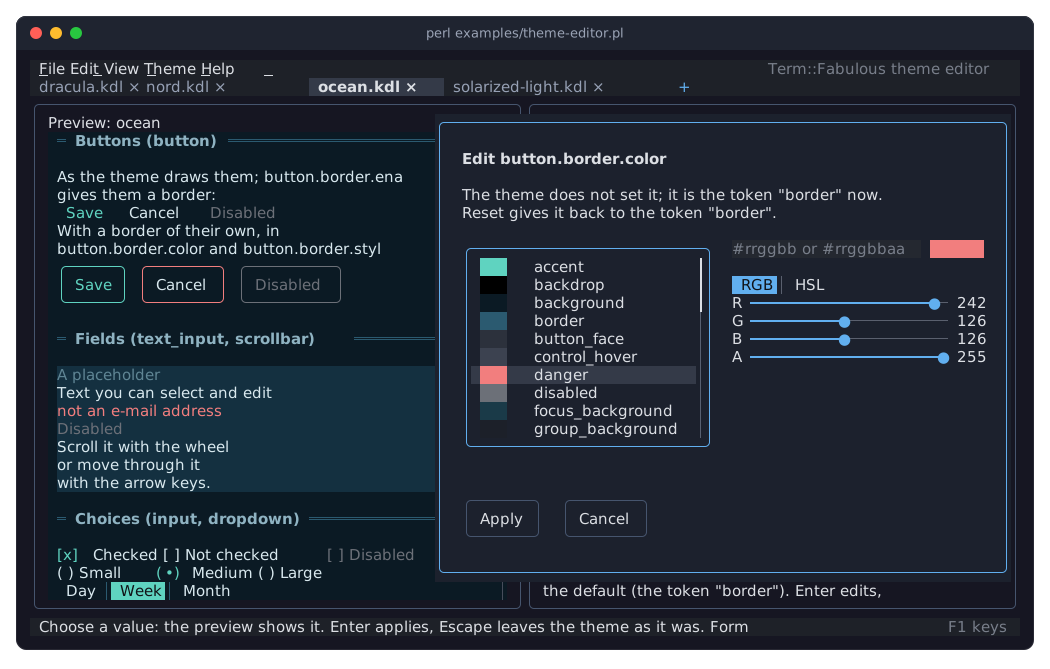
The picture shows the dialog of button.border.color with danger chosen in the list: the preview on the left draws the Cancel button's border in it before the value is applied.
Delete resets the setting under the cursor: the theme no longer sets it, and it follows what the From column then says (the status line tells which value that is). On a section, Delete resets every setting the section sets, after a question. Theme > Reset whole theme removes every setting but the name and the base.
Finding settings
The search field above the form (Ctrl+F) shows only the rows whose setting, value, origin or full key (such as button.border.color) contain the text, in any case, with their sections; Enter or Down goes to the first of them and Escape empties the field. The check box Only set (Alt+L) shows only the settings the theme sets.
Variants
A variant changes some settings of a family for the widgets whose classes name it (see "Variants and classes" in Term::Fabulous::Manual::Looks). Theme > Add variant asks for the family and the name and adds a section for the variant; the theme file holds the variant once one of its settings is set. Theme > Remove variant removes the variant under the cursor with everything it sets. The gallery shows a sample of every variant the theme defines at its end.
When the text has errors
While the text of the theme has errors, the form shows the last state of the theme without errors, takes no changes, and a line above it says how many errors there are; F8 shows the first one in text mode.
THE TEXT
Text mode (F2) shows the theme file as it is, comments and all, in a text area: the editing keys of "KEYS" in Term::Fabulous::Widget::TextArea work, and a few keys help with KDL (see "KEYS"): Enter keeps the indentation and indents one level more after an opening brace; a } typed into the indentation of a line takes the line back one level; Tab indents the selected lines or, without a selection, inserts one level of indentation at the cursor, and Shift+Tab outdents the cursor's line or the selected lines. A tab in the text is shown two columns wide.
The text is read again when you stop typing for a moment, and the preview, the form and the error list follow. The first three mistakes are listed under the text with their line numbers (and how many more there are), as "errors" in Term::Fabulous::Theme::Document reports them: a KDL syntax error at the line where the parser stopped, and every mistake of the theme (an unknown token, family, slot or state, a value a slot cannot take, a setting given twice) at the line that holds it. F8 moves to the next error. Ctrl+F finds a text and F3 finds it again.
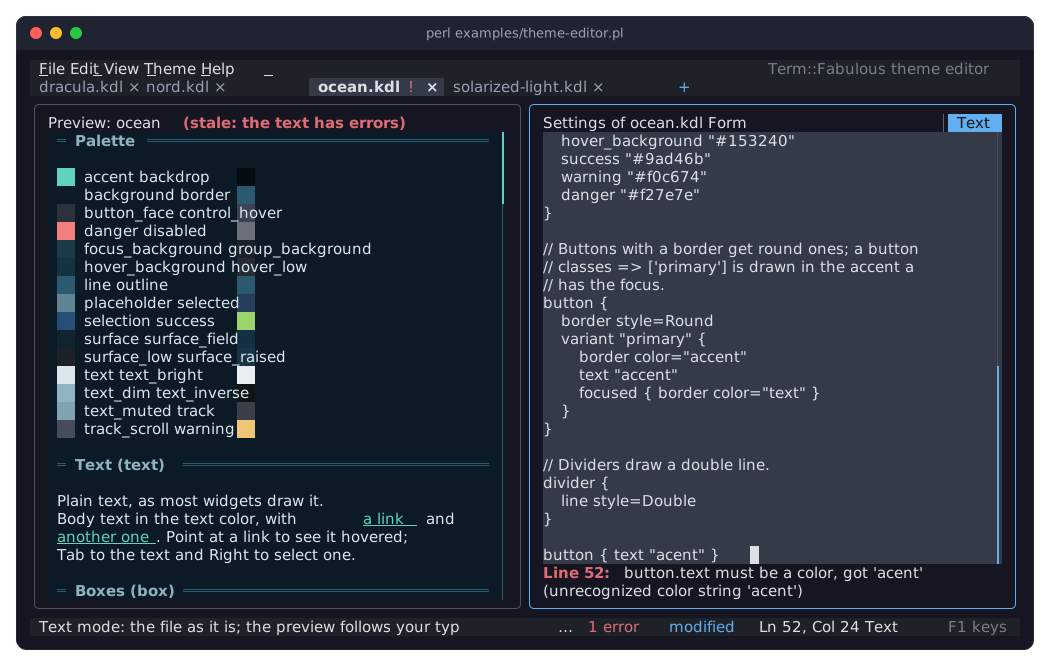
The form and the text change the same file. A change in the form rewrites only the lines that hold the setting (or adds it where it belongs: a slot to its family's block, a state to its state block), so comments, blank lines, indentation and the order of everything else stay as you wrote them; see Term::Fabulous::Theme::Document.
UNDO AND REDO
Ctrl+Z and Ctrl+Y undo and redo every change to a theme, made in the form or in the text, in one history per tab: a change in the form, a paste, a reset or a revert is one step; typing is undone a word at a time. Each tab keeps up to 100 steps. After an undo in form mode, the cursor goes to the setting that changed.
COPY AND PASTE
The clipboard holds text, so settings travel between tabs, between the form and the text mode, and out of the editor in a form you can read.
- In the form
-
Ctrl+Ccopies the setting under the cursor, with the value it has now, as a piece of a theme file:button { focused { border color="accent" } }On a section, it copies every setting the section sets (a family's variants included).
Ctrl+Xcopies and resets.Ctrl+Vpastes: a single copied setting gives its value to the setting under the cursor, so a color copied from one token or slot can be pasted onto any other; several settings, or one with the cursor on a section, are set at their own keys.Alt+Palways pastes at the copied keys, which copies a setting from one theme to the same setting of another. A plain value on the clipboard (#ff8800,accent,Round) pastes onto the setting under the cursor, too. - In text mode
-
Ctrl+C,Ctrl+XandCtrl+Vcopy, cut and paste text, as in any text area; settings copied in the form paste as their text.
The clipboard is the one of the text inputs of Term::Fabulous ("clipboard" in Term::Fabulous::Editor), not the clipboard of your desktop.
FILES
Ctrl+S saves the theme of the tab to its file; a new theme asks where (as Alt+S, Save as, does; a name without an extension gets .kdl, and saving over another file that exists asks first). File > Save all saves every theme with unsaved changes. A file is written to a temporary file first and then renamed over the old one, so it is never half written; it keeps its permissions and its line ends (CRLF when every line of it ended in CRLF), a symbolic link keeps pointing to its file, and a read-only file is not replaced. Saving asks first when the theme has errors (a program could not load it) and when another program changed the file since the editor read it.
Ctrl+O opens theme files. The open and save dialogs (a Term::Fabulous::Widget::FileDialog) list the folders and the *.kdl files of a folder (all files when All files is chosen instead of Theme files, hidden ones with Show hidden files), and take a name or a path; a file that is open already shows its tab. A file with errors opens in text mode. Ctrl+R reverts a theme to its file (after a question when it has unsaved changes; undo takes it back). Ctrl+N makes a new theme based on dark or light, and File > Duplicate as new theme copies the theme of the tab into a new, untitled one.
Ctrl+W closes a tab and Ctrl+Q quits; both ask whether to save unsaved changes first. Ctrl+C does not quit the editor: it copies. When the editor is ended by a signal (TERM, INT, HUP), the text of every theme with unsaved changes is written to FILE.unsaved (for a new theme, untitled-N.kdl.unsaved in the folder of the directory parameter, by default the current one), and the files are listed on the standard error.
KEYS
F1 shows this list in the editor, with a search field (a Term::Fabulous::Widget::KeyReference). Keys that a focused widget uses itself (a text field, the text of the theme, a dialog) do what that widget does; the others reach the editor.
Everywhere
  Ctrl+N               New theme
  Ctrl+O               Open
  Ctrl+S               Save
  Alt+S                Save as
  Ctrl+R               Revert to saved
  Ctrl+W               Close tab
  Ctrl+Q               Quit
  Ctrl+Z, Ctrl+Y       Undo, redo
  Ctrl+X, Ctrl+C       Cut, copy
  Ctrl+V               Paste
  Ctrl+F, F3           Find, find next
  F8                   Go to the next error
  F2                   Form or text
  F6                   Preview or settings
  F7                   Show or hide the preview
  Alt+PageUp           Previous tab
  Alt+PageDown         Next tab
  Alt+1 to Alt+9       The first to the ninth tab
  F1                   Key reference
  F10                  Open the menu bar
  Alt+F, Alt+E, Alt+V, Alt+T, Alt+H    Open a menu
  Tab, Shift+Tab       Move the focus (in text mode: indent, outdent)

Menus
  Left, Right, Tab     Another menu
  Up, Down, Home, End  Another command
  Enter, Space         Run the command
  Escape, F10          Close the menu

The form
  Up, Down, PageUp, PageDown, Home, End    Move between settings
  Right, +             Open a section; Right on an open one goes into it
  Left, -              Close a section; on a setting, go to its section
  Enter, Space         Edit the setting; open or close a section
  Delete               Reset the setting, or every setting of a section
  Ctrl+C, Ctrl+X       Copy (cut) the setting, or what a section sets
  Ctrl+V               Paste onto the setting, or at the copied keys
  Alt+P                Paste at the copied keys
  Alt+L                Show only the settings the theme sets
  Ctrl+F, Escape       Search the settings; empty the search

Text mode
  Enter                New line, indented like the last (more after {)
  Tab                  Indent the selected lines; without a selection,
                       insert one level of indentation
  Shift+Tab            Outdent the line or the selected lines
  }                    Typed into the indentation: one level back
  Alt+Backspace        Delete the word before the cursor
  Ctrl+F, F3, F8       Find, find next, next error
  (and the keys of a text area: selection, Ctrl+A, Ctrl+U, Ctrl+K, ...)

The preview
  F6                   Into the preview, back to the settings
  Tab, Shift+Tab       Between the widgets
  PageUp, PageDown     Scroll
  Ctrl+Home, Ctrl+End  To the top, to the end

Dialogs
  Tab, Shift+Tab       Between fields and buttons
  Enter                Choose (in a list), press the button
  Escape               Cancel

Files (the open and save dialogs)
  Enter                Open a folder, choose a file
  Backspace            The parent folder
Some terminals keep F1, F10 or Alt combinations for themselves. Every command is in a menu, which Alt with the underlined letter or a click opens too.
USING THE EDITOR FROM PERL
Starting it
use Term::Fabulous::ThemeEditor;

my $editor = Term::Fabulous::ThemeEditor->new(
	files    => [ 'themes/ocean.kdl', 'themes/new.kdl' ],    # new.kdl is made when saved
	ui_theme => 'light',                                     # the editor's own look
);
$editor->run;
say 'Unsaved work was kept in ', join ', ', $editor->recovered_files if $editor->recovered_files;
run returns when the user quits. The program examples/theme-editor.pl does the same with the theme files of the distribution:
# The theme editor with the theme files of examples/themes/, one per tab,
# as `fabulous-theme-editor examples/themes/*.kdl` would start it. The
# left side previews the theme of the tab you are on with a widget of
# every family; the right side edits its settings, as a form or as the
# text of the file. F1 lists every key, F10 opens the menus, Ctrl+Q
# quits and asks about unsaved changes first. See
# Term::Fabulous::ThemeEditor.

use v5.32;
use warnings;

use FindBin;
use Term::Fabulous::ThemeEditor;

my @files = sort glob("$FindBin::Bin/themes/*.kdl");
Term::Fabulous::ThemeEditor->new( files => \@files )->run;
A preview of your own screens
The gallery shows every family, but a theme is made for a program. Give the editor the screens of your program with preview, and the left side shows them, drawn in the theme being edited, live as you change it. examples/cookbook/theme-editor-preview.pl previews a sign-in form, with the editor drawn in the light theme:
use v5.32;
use warnings;
use feature 'signatures';
no warnings 'experimental::signatures';

use Clay::XS qw(sizing_grow CLAY_TOP_TO_BOTTOM);
use Term::Fabulous::ThemeEditor;
use Term::Fabulous::Widget::Box;
use Term::Fabulous::Widget::Button;
use Term::Fabulous::Widget::Checkbox;
use Term::Fabulous::Widget::Divider;
use Term::Fabulous::Widget::Text;
use Term::Fabulous::Widget::TextField;

# The screen of your program, as the program builds it. No widget here is
# given a color, so the theme decides them all.
sub sign_in_screen () {
	my $form = Term::Fabulous::Widget::Box->new(
		bordered => 1,
		layout   => {
			layout_direction => CLAY_TOP_TO_BOTTOM,
			sizing           => { width => sizing_grow( 0, 44 ) },
			padding          => { left  => 1, right => 1 },
			child_gap        => 1,
		},
	);
	my $name     = Term::Fabulous::Widget::TextField->new( placeholder => 'E-mail address', validator => 'email' );
	my $password = Term::Fabulous::Widget::TextField->new( placeholder => 'Password',       mask      => '*' );
	my $sign_in  = Term::Fabulous::Widget::Button->new( classes => ['primary'], bordered => 1, layout => { padding => { left => 1, right => 1 } } );
	$sign_in->add_child( Term::Fabulous::Widget::Text->new( text => 'Sign in' ) );
	my $cancel = Term::Fabulous::Widget::Button->new( bordered => 1, layout => { padding => { left => 1, right => 1 } } );
	$cancel->add_child( Term::Fabulous::Widget::Text->new( text => 'Cancel' ) );
	my $buttons = Term::Fabulous::Widget::Box->new( layout => { child_gap => 2 } );
	$buttons->add_child( $sign_in, $cancel );

	$form->add_child(
		Term::Fabulous::Widget::Divider->new( text => 'Sign in', text_position => 'start' ),
		$name, $password,
		Term::Fabulous::Widget::Checkbox->new( label => 'Keep me signed in' ),
		$buttons,
	);
	return $form;
}

# The editor shows the screen on its left, in the theme being edited,
# instead of its gallery of widgets; the editor itself is drawn in the
# built-in light theme. The theme file is the first argument, or
# sign-in.kdl in the current directory, which is made when you save.
Term::Fabulous::ThemeEditor->new(
	files    => [ $ARGV[0] // 'sign-in.kdl' ],
	preview  => sub ($editor) { sign_in_screen() },
	ui_theme => 'light',
)->run;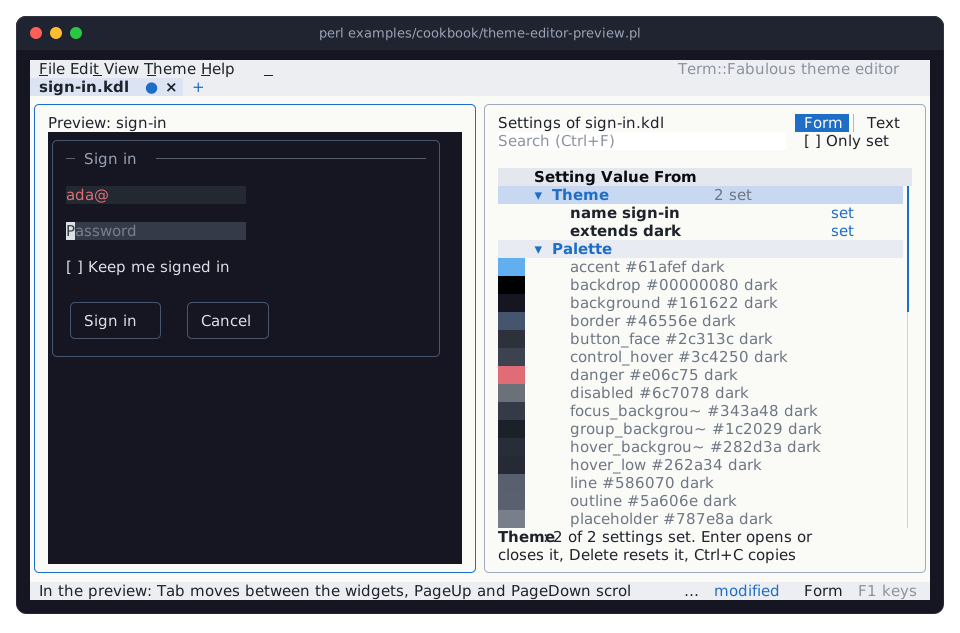
The widgets of the preview are yours: they can have listeners, change while the editor runs, and take the keyboard (F6 goes into the preview). Give them no colors of their own where the theme should decide. The preview scrolls in both directions when it is larger than its pane, with the mouse wheel and with PageUp, PageDown, Ctrl+Home and Ctrl+End. Unlike the gallery, it does not scroll to the family of the setting under the form's cursor.
Using the theme
The editor writes ordinary theme files. A program loads one with "from_file" in Term::Fabulous::Theme and gives it to its UI, or switches to it at run time:
my $theme = Term::Fabulous::Theme->from_file('themes/mine.kdl');
my $ui    = Term::Fabulous->new( root => $root, theme => $theme );
$ui->theme('light');    # later: another theme
To check or change theme files from a script (in a test of your distribution, or to make a set of themes that differ in their accent), use Term::Fabulous::Theme::Document, which the editor uses too:
use Term::Fabulous::Theme::Document;

my $document = Term::Fabulous::Theme::Document->read_file('themes/mine.kdl');
die join "\n", map {"line $_->{line}: $_->{message}"} $document->errors unless $document->is_valid;
$document->with_setting( 'palette.accent', '#e5c07b' )->write_file('themes/mine-gold.kdl');
Driving it from a program or a test
The editor runs on any terminal of Term::Fabulous, so a test can give it a Term::Fabulous::Terminal::Memory, press keys and look at the screen with "step" in Term::Fabulous, and every command runs from Perl by its id (see "COMMANDS"):
use Term::Fabulous::Terminal::Memory;
use Term::Fabulous::ThemeEditor;

my $terminal = Term::Fabulous::Terminal::Memory->new( width => 120, height => 36 );
my $editor   = Term::Fabulous::ThemeEditor->new(
	files    => ['ocean.kdl'],
	terminal => $terminal,
	width    => 120,
	height   => 36,
);
$editor->set_setting( 'palette.accent', '#ff8800' );
$terminal->press_key('Ctrl+S');
$editor->ui->step;    # reads the key: the theme is saved
print join "\n", $terminal->lines;
CONSTRUCTOR
new
my $editor = Term::Fabulous::ThemeEditor->new(%parameters);All parameters are optional; unknown parameters die.
files-
An array reference of theme files, each opened in a tab, in order. Default: none, which starts with a new theme based on
dark. A file that does not exist becomes a new theme that is written there when it is saved; a file with errors opens in text mode. A file that cannot be read, or is not UTF-8 text, dies. ui_theme-
The theme the editor itself is drawn in: a Term::Fabulous::Theme or the name of a built-in theme. Default:
dark. The preview always shows the theme being edited. preview-
What the left side shows: a Term::Fabulous::Widget without a parent, or a code reference that gets the editor and returns one. Default: the gallery of every widget family. The widget is drawn in the theme being edited and is put into a scroll box that scrolls in both directions.
directory-
The folder the Open and Save as dialogs show for a theme without a file, where new themes are recovered after a signal, and against which the status line shortens paths. Default: the current directory. A folder that does not exist dies.
terminal,width,height-
The terminal to run on and its size before it is opened, as for "new" in Term::Fabulous. Default: the real terminal; 80 by 24 until it tells its size. Tests pass a Term::Fabulous::Terminal::Memory.
METHODS
run
$editor->run;Runs the editor until the user quits or a signal ends it; returns the editor. See "FILES" for what happens to unsaved changes.
recovered_files
my @files = $editor->recovered_files;The files the last "run" wrote the unsaved text of themes to, because a signal ended it; empty when it ended normally.
is_quitting
1 after the user quit (or confirmed quitting), else 0.
ui
The Term::Fabulous object of the editor (a Term::Fabulous::ThemeEditor::UI): for "step" in Term::Fabulous in tests, or to look at the terminal.
tabs, active_tab
foreach my $tab ( $editor->tabs ) {
	printf "%s%s\n", $tab->title, $tab->is_modified ? ' (changed)' : '';
}
The open themes as Term::Fabulous::ThemeEditor::Tab objects, in the order of the tab strip, and the one shown (undef when none is open). A tab knows its path, title, text, document (a Term::Fabulous::Theme::Document), mode and is_modified.
select_tab
$editor->select_tab(0);Shows the tab with an index (counted from 0; an index past either end wraps around). Returns 1, or 0 when no tab is open.
open_file
my $tab = $editor->open_file('themes/nord.kdl');Opens a theme file in a new tab, or shows the tab it is open in, and returns the tab. A file that does not exist becomes a new theme saved there. Dies when the file cannot be read or is not UTF-8.
The path is a byte string, as the file system has it (as on the command line and in a Term::Fabulous::Widget::FileDialog answer); a character string with characters above 255 dies. The editor shows paths and file names (tab titles, messages) decoded from UTF-8, with a byte that is no UTF-8 shown as \xHH.
new_theme
my $tab = $editor->new_theme( name => 'sunset', extends => 'light' );A new, untitled theme in a new tab, with a name (default untitled-N) and a built-in theme to extend (default dark; another name dies). Returns the tab.
close_tab
$editor->close_tab;        # the active tab
$editor->close_tab(2);
Closes a tab, after a question when it has unsaved changes.
set_mode
$editor->set_mode('text');Shows the active tab as a form (form) or as text (text), at the place the other mode was at: text mode opens at the line of the setting under the form's cursor, and the form at the setting on the text cursor's line (or the nearest one above it). Another mode dies.
set_setting, reset_setting
$editor->set_setting( 'button[primary].border.color', 'accent' );
$editor->reset_setting('palette.accent');
Change a setting of the active tab's theme, as the form does: one undo step, shown at once, with a message in the status line. The keys and values are those of "Setting keys" in Term::Fabulous::Theme::Document. A value the setting cannot take, and a theme whose text has errors, change nothing; the status line says why. Both return 1 when the theme changed, else 0.
run_command, command_enabled, commands
$editor->run_command('save');
say 'can undo' if $editor->command_enabled('undo');
say "$_->{id}: $_->{label} (@{ $_->{keys} })" foreach $editor->commands;
Run a command by its id as its menu entry would (commands that ask, ask in a dialog); whether a command can run now; and every command with its label (without a trailing ...) and keys, in the order of the menus. run_command returns 1 when the command ran, 0 when it could not run now; an unknown id dies.
key_list
foreach my $key ( $editor->key_list ) {
	my ( $where, $keys, $action ) = @$key;
}
Every key of the editor, as the key reference (F1) lists it.
form, status
The form (Term::Fabulous::ThemeEditor::Form) and the status line (Term::Fabulous::Widget::StatusBar), for programs and tests that look at what the editor shows: $editor->form->go_to($key) puts the cursor on a setting, $editor->status->message is the last message.
COMMANDS
The ids of "run_command, command_enabled, commands", with their menu entries and keys:
File    new           New theme...               Ctrl+N
        open          Open...                    Ctrl+O
        save          Save                       Ctrl+S
        save_as       Save as...                 Alt+S
        save_all      Save all
        revert        Revert to saved            Ctrl+R
        duplicate     Duplicate as new theme
        close         Close tab                  Ctrl+W
        quit          Quit                       Ctrl+Q
Edit    undo          Undo                       Ctrl+Z
        redo          Redo                       Ctrl+Y
        cut           Cut                        Ctrl+X
        copy          Copy                       Ctrl+C
        paste         Paste                      Ctrl+V
        paste_keys    Paste at the copied keys   Alt+P
        edit          Edit value...              Enter (in the form)
        reset         Reset to default           Delete (in the form)
        find          Find...                    Ctrl+F
        find_next     Find next                  F3
        next_error    Go to the next error       F8
View    toggle_mode   Form or text               F2
        switch_pane   Preview or settings        F6
        toggle_preview  Show or hide the preview  F7
        only_set      Only set settings          Alt+L
        open_all      Open all sections
        close_all     Close all sections
        previous_tab  Previous tab               Alt+PageUp
        next_tab      Next tab                   Alt+PageDown
Theme   rename        Rename theme...
        rebase        Change base theme...
        add_variant   Add variant...
        remove_variant  Remove variant
        reset_section Reset section...
        reset_theme   Reset whole theme...
Help    keys          Key reference              F1
        about         About
HOW IT WORKS
For people who extend the editor or wonder how it keeps two themes apart:
The text of a tab is the one truth about its theme. The form, the preview and the error list are made from it by Term::Fabulous::Theme::Document, and a change in the form is a change of the text (of the lines that differ), made through the text area's editor, so form and text share one undo history.
The editor is a subclass of Term::Fabulous, Term::Fabulous::ThemeEditor::UI, whose theme_for gives the widgets of the preview (and the dialog and toasts it opens) the theme being edited, and every other widget the editor's own theme.
The editor is made with
stop_on_ctrl_c => 0(see "new" in Term::Fabulous), soCtrl+Ccopies; and its text area keepsTabthroughcaptures_tab(see "Keys Term::Fabulous handles itself" in Term::Fabulous::Manual::Events).
SEE ALSO
fabulous-theme-editor, Term::Fabulous::Theme, Term::Fabulous::Theme::Document, "THEMES" in Term::Fabulous::Manual::Looks, Term::Fabulous.