NAME
Term::Fabulous::Manual::Events - Events, keyboard, focus, mouse and scrolling
DESCRIPTION
This page is part of Term::Fabulous::Manual. Previous page: Term::Fabulous::Manual::Looks. Next page: Term::Fabulous::Manual::Forms.
This page explains how a program reacts to the user. "EVENTS" covers listeners, bubbling and return values, and lists every event with the widget it is fired on and its fields. "KEYBOARD" explains which widget receives a key, the names of the keys (including the additional keys of the kitty keyboard protocol) and application shortcuts. "FOCUS" covers the Tab order, focusing from code and custom focus orders. "MOUSE" describes what the terminal reports and how clicks, hover and presses reach the widgets, and "SCROLLING" the scroll box.
Related pages: the recipes on Term::Fabulous::Cookbook::KeyboardAndMouse, such as Bind a key to an action; the class pages of the events (Term::Fabulous::Event::KeyPress, Term::Fabulous::Event::Mouse, ...); and Term::Fabulous::Widget::Button and Term::Fabulous::Widget::Dialog. Writing widgets that take the focus or fire events of their own is covered in Term::Fabulous::Manual::CustomWidgets.
EVENTS
Events tell your code that something happened: a key was pressed, the mouse was clicked, the terminal was resized, the user changed an input field. Every event has a name, such as KeyPress or Change, and is an object with fields that describe what happened.
Listening to events
Register a listener with on, giving the event name and a code reference. The listener receives the event object:
$field->on(
	Change => sub ($event) {
		say 'The text is now: ', $event->value;
		return;
	}
);
You can register any number of listeners for the same event on the same widget; they run in the order they were registered. on returns the widget, so calls can be chained. There is no method to remove a listener; if a listener must become inactive, let it check a flag.
Several examples in this manual print with say to keep them short. While run is active, the terminal shows the user interface (full screen, or in some rows below the shell's output in inline mode), and printing to STDOUT writes over it. Real programs show messages in a widget (for example a status line made of a Text widget) or write them to a log file.
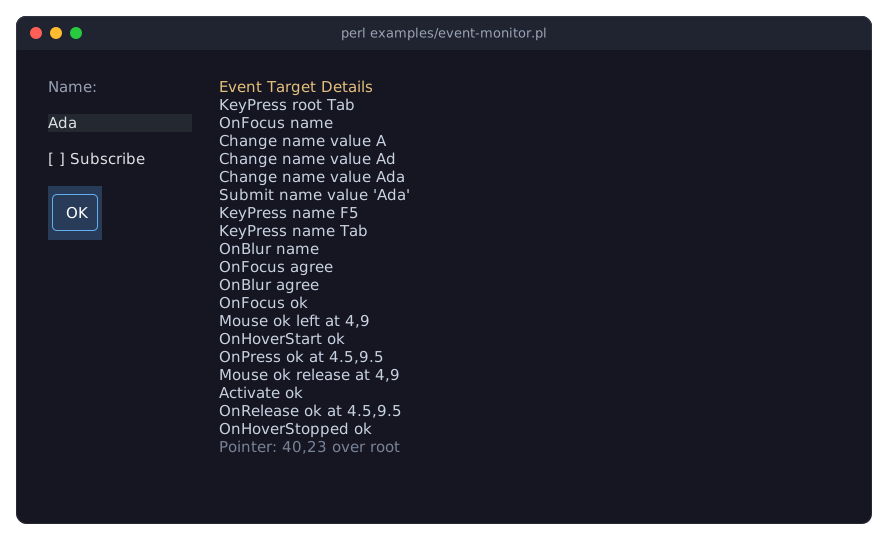
The example program examples/event-monitor.pl logs every event that reaches the root widget, with its target and its details. Run it to see which events a key press or a click produces, and in which order:
Every event object has these fields in addition to its own (see Clay::UI::Events::Event):
name-
The event name, for example
'KeyPress'. target-
The widget the event was fired on, for example the focused input field.
current_target-
The widget whose listener is running right now. It differs from
targetwhen the event has bubbled up from a child (see below). bubble_mode-
How the event travels to the ancestors: a Clay::UI::Enum::Bubble value,
IF_CONTINUEfor nearly all events (see below),NEVERfor the hover events. handled_by-
The widget at which the event stopped bubbling, or
undefwhile it has not stopped (and when it reached the root unstopped). The methodresultreturnsClay::UI::Enum::Result->HANDLEDwhenhandled_byis set,CONTINUEotherwise.
Return values and bubbling
An event is fired on one widget, its target. After the target's listeners have run, the event bubbles: it is passed to the parent, then to the parent's parent, and so on up to the root. This lets one listener on a container handle the events of all its children, for example a Change listener on a form box that sees every input inside it.
What a listener returns decides whether the event bubbles further:
return Clay::UI::Enum::Result->CONTINUE;passes the event on to the parent.Anything else stops it after the current widget: a plain
return;,return Clay::UI::Enum::Result->HANDLED;, or whatever value the last statement of the listener happens to produce.
The decision is made per widget: all listeners of the current widget run, and the event moves on to the parent only if every one of them returned CONTINUE. A widget without listeners for the event passes it on unchanged.
use Clay::UI::Enum::Result;

# Handle Ctrl+S here, let every other key bubble on.
$editor_box->on(
	KeyPress => sub ($event) {
		return Clay::UI::Enum::Result->CONTINUE unless ( $event->key_name // '' ) eq 'Ctrl+S';
		save_document();
		return Clay::UI::Enum::Result->HANDLED;
	}
);
Because Perl returns the value of the last statement when there is no return, always end a listener with an explicit return. Otherwise whether the event bubbles depends on an accident.
The widgets follow the same rule: they stop the keys and clicks they use, and pass on the rest. That is why an application shortcut on the root still works while a text field has the focus, as long as the text field does not use that key (see "Application shortcuts"). The listeners that the built-in widgets add to themselves run before the listeners you add, because they were registered first.
Two events never bubble: OnHoverStart and OnHoverStopped are only seen by the widget they are fired on. Their bubble mode is NEVER. A third mode, ALWAYS, makes an event of your own reach every ancestor whatever the listeners return (see "Firing your own events").
Event reference
All events Term::Fabulous and Clay::UI fire. The table is an overview; the sections below it describe each event.
Event            Fired on                          Bubbles
---------------  --------------------------------  ----------------
KeyPress         focused widget, else the root     yes
Mouse            widget painted under the pointer  yes
MouseMove        widget painted under the pointer  yes
Start            the root                          (no parent)
Resize           the root                          (no parent)
CanvasResize     the canvas                        yes
Change           input, radio group, color picker  yes
ValidityChange   the input                         yes
Submit           the text field or color picker    yes
Activate         the Button                        yes
Close            the Dialog, Toast or popup Menu   (no parent then)
Answer           the Prompt or FileDialog          (no parent then)
Choose           the Menu                          yes, not popups
Select           Accordion, Tabs, DocumentTabs     yes
TabClose         the DocumentTabs                  yes
TabAdd           the DocumentTabs                  yes
SeriesHover      the chart                         yes
OnFocus, OnBlur  the widget                        yes
OnPress          innermost pressable widget        yes
OnRelease        innermost pressable widget        yes
OnHoverStart     the widget                        never
OnHoverStopped   the widget                        never
OnScroll         the scroll box                    yes
CursorMove, ...  the Table (see below)             yes
"Yes" means: as long as the listeners on the way return CONTINUE (see "Return values and bubbling").
Terminal input
KeyPress(Term::Fabulous::Event::KeyPress)-
A key was pressed. Fired on the focused widget, or on the root widget when nothing has the focus. Fields:
key,char,modifiers(the raw termbox2 values); methodskey_name,main_key_nameandtext. See "KEYBOARD". Mouse(Term::Fabulous::Event::Mouse)-
A mouse button was pressed or released, the mouse was dragged, or the wheel was turned. Fired on the topmost widget painted under the pointer (see "MOUSE"). Fields:
key(which button or wheel direction),x,y(the cell),modifiers(Shift, Alt, Ctrl and the motion flag of a drag),released_button(which button a release released); methodsuse_wheelandwheel_used(see "SCROLLING"). MouseMove(Term::Fabulous::Event::MouseMove)-
The pointer moved with no button held. Fired on the topmost widget painted under the pointer, like
Mouse. Fields:x,y,modifiers.
The program and the terminal
Start(Term::Fabulous::Event::Start)-
runopened the terminal. Fired on the root widget once perrun(bystepinstead, whenstepopens the terminal), from inside the running loop, before the first frame and before any input event, when$ui->widthand$ui->heightalready hold the terminal size. A listener can use$ui->loop, to add timers or to stop the loop right away. Timers the program queued on the loop beforerunmay run before it. Fields:width,height. Resize(Term::Fabulous::Event::Resize)-
The terminal changed size. Fired on the root widget, twice per resize: first before the new size is applied (
is_pre_eventis true), then after it (is_post_eventis true). Fields:width,heightin cells. Resizes are debounced: while the user is still dragging the window edge, nothing is fired; the events come 1/10 second after the last size change. The layout adapts to the new size by itself; listen toResizewhen your program wants to change something more, for example hide a sidebar on narrow terminals. Here$bodyholds the main area and, to its right,$sidebar, a box:$root->on( Resize => sub ($event) { return unless $event->is_post_event; my $wide = $event->width >= 60; my $shown = defined $sidebar->parent; $body->add_child($sidebar) if $wide && !$shown; $body->remove_child($sidebar) if !$wide && $shown; return; } );To hide the sidebar, the listener removes it from the tree; to show it again, it adds it back.
add_childappends, so this keeps the order only because the sidebar is the last child. Do not hide a box withsizing_fixed(0)instead: Clay reads a maximum of 0 as "no maximum", so the box keeps the size of its content (see sizing).The starting size does not fire
Resize; it firesStart, so a program that lays itself out by the terminal size listens to both (see "Change the layout with the terminal size (Start and Resize events)" in Term::Fabulous::Cookbook::Layout).
Events of the widgets
CanvasResize(Term::Fabulous::Event::CanvasResize)-
A canvas (or a widget built on it: a pixel canvas, a chart, an input widget) got a new size from the layout. Fired on the canvas before the frame that shows the new size. Fields:
columns,rows. See "CANVASES" in Term::Fabulous::Manual::Charts. Change(Term::Fabulous::Event::Change)-
The user changed the value of an input widget. Fired on the input (for radio buttons, on their Term::Fabulous::Widget::RadioGroup). Field:
value. A Term::Fabulous::Widget::ColorPicker fires it on itself, with its new value, when the user types a color, moves a slider or picks a swatch. Not fired when your code sets a value withvalueorchecked; the methods that act like the user, such as$checkbox->toggle,$group->choose($button)and$dropdown->choose($index), do fire it. ValidityChange(Term::Fabulous::Event::ValidityChange)-
The message an input widget has about its value changed: the value became invalid, valid, or invalid for another reason. Fired on the input right after the
Changeit follows, and by$input->validate. Fields:is_valid,error. See "Checking input" in Term::Fabulous::Manual::Forms. Submit(Term::Fabulous::Event::Submit)-
The user pressed
Enterin a Term::Fabulous::Widget::TextField. Field:value, the text. A Term::Fabulous::Widget::ColorPicker fires it on itself, with its value, forEnterin its field or on a swatch. Activate(Term::Fabulous::Event::Activate)-
The user activated a Term::Fabulous::Widget::Button: clicked it, or pressed
EnterorSpacewhile it had the focus. Also fired by$button->activate. Fired on the button. No fields. Close(Term::Fabulous::Event::Close)-
A Term::Fabulous::Widget::Dialog was closed, by
Escapeor from code, a Term::Fabulous::Widget::Toast went away, by its timeout, its close mark or from code, or a Term::Fabulous::Widget::Menu that was opened as a popup closed. Fired on the dialog, the toast or the menu, after it has left the screen, so only listeners on it see it. No fields. Answer(Term::Fabulous::Event::Answer)-
A Term::Fabulous::Widget::Prompt was answered: the user pressed one of its buttons or
Escape, or the program calledanswerorclose. Or a Term::Fabulous::Widget::FileDialog was answered: the user chose a file or a folder, or cancelled. Fired on the prompt or the file dialog after it closed and gave the focus back, so only listeners on it see it. Fields:button, the id of the button (cancelfor Escape; for a file dialogopen,save,chooseorcancel),values, the values of the prompt's fields (for a file dialogpath, the chosen path), anddismissed, true when no button answered. Choose(Term::Fabulous::Event::Choose)-
The user chose an item of a Term::Fabulous::Widget::Menu, or of a menu of a Term::Fabulous::Widget::MenuBar: pressed
EnterorSpaceon it, or clicked it. Also fired by$menu->choose. Fired on the menu after a popup closed and before the item's command runs. Bubbles, except from a popup, which has left the tree. Fields:command, the Term::Fabulous::Command of the item, andindex. Select(Term::Fabulous::Event::Select)-
The user opened or closed an item of a Term::Fabulous::Widget::Accordion: clicked its header, or pressed
EnterorSpaceon it. Also fired by$accordion->choose. Fired on the accordion. Or the user chose another tab of a Term::Fabulous::Widget::Tabs: clicked it, or pressed an arrow key,Home,End,Ctrl+PageUporCtrl+PageDown. Also fired by$tabs->choose. Fired on the Tabs, with the page as the item; a Term::Fabulous::Widget::Tabs::Bar on its own fires it with the tab. Or the user clicked a tab of a Term::Fabulous::Widget::DocumentTabs, or an arrow at its end; the item is then the tab's hash. Fields:item,index,open. TabClose(Term::Fabulous::Event::TabClose)-
The user clicked the close mark of a tab of a Term::Fabulous::Widget::DocumentTabs, or clicked the tab with the middle button. Fired on the DocumentTabs, which removes nothing itself. Fields:
item, the tab's hash, andindex. TabAdd(Term::Fabulous::Event::TabAdd)-
The user clicked the
+button at the end of a Term::Fabulous::Widget::DocumentTabs. Fired on the DocumentTabs. No fields. TextClick(Term::Fabulous::Event::TextClick)-
A mouse button was pressed on a character of a Term::Fabulous::Widget::Text or Term::Fabulous::Widget::RichText. Fired on the text, after the
Mouseevent of the press. Fields:button,x,y,offset,word,word_start,word_end,spans,link,link_index. See "Clicks on text and links". LinkActivate(Term::Fabulous::Event::LinkActivate)-
The user followed a link of a Term::Fabulous::Widget::RichText: clicked it, or pressed
Enterwhile the RichText had the focus and the link was selected. Also fired by$rich_text->activate_link. Fired on the RichText. Fields:link(the link's target),index,start,end. SeriesHover(Term::Fabulous::Event::SeriesHover)-
The pointer moved onto another part of a chart (a line, a bar, a slice, a legend entry) or off all of them. Fired on the chart. Fields:
series,index,label,value,x. See "Hover and emphasis" in Term::Fabulous::Widget::Chart.
Focus, press, hover and scroll events
These events come from Clay::UI. Term::Fabulous hands the pointer to Clay::UI with every frame (up to 30 times a second), and Clay::UI fires the press, hover and scroll events while it draws that frame, shortly after the Mouse or MouseMove event of the same input. The focus events come at once, when the focus moves.
OnFocus,OnBlur(Clay::UI::Events::OnFocus, Clay::UI::Events::OnBlur)-
A widget got or lost the keyboard focus. Fired on that widget,
OnBlurfirst. No fields. See "FOCUS". OnPress,OnRelease(Clay::UI::Events::OnPress, Clay::UI::Events::OnRelease)-
The left mouse button went down over a pressable widget (a Button, an input widget), and went up again over the same widget. A press followed by a release on the same widget is a click; there is no separate click event. Fired on the innermost enabled pressable widget under the pointer. Fields:
x,y, the center of the cell (for example3.5), andbutton(always 1). OnHoverStart,OnHoverStopped(Clay::UI::Events::OnHoverStart, Clay::UI::Events::OnHoverStopped)-
The pointer came over a hoverable widget (a Button, an input widget, a chart, a table), or left it. Fired on that widget; never bubble. No fields.
OnScroll(Clay::UI::Events::OnScroll)-
A Term::Fabulous::Widget::ScrollBox scrolled (also the one inside a Term::Fabulous::Widget::Table; the event bubbles to the table). Fired on the scroll box. Fields:
delta_x,delta_y, how far the content moved, in cells (delta_yis -3 for one wheel notch down, 3 for one notch up; less at the end of the content). Notches turned between two frames add up to one event.
Table events
A Term::Fabulous::Widget::Table fires these events on itself when the user acts on it; changes from your program fire none (see "TABLES" in Term::Fabulous::Manual::Tables):
CursorMove(Term::Fabulous::Event::CursorMove)-
The user moved the table's cursor. Fields:
row_id(undefon a group header),group_path. SelectionChange(Term::Fabulous::Event::SelectionChange)-
The user changed which rows are selected. Fields:
selected_ids,added_ids,removed_ids. RowActivate(Term::Fabulous::Event::RowActivate)-
The user pressed
Enteron a row or double-clicked it. Fields:row_id,row(a copy of the row's data). SortChange(Term::Fabulous::Event::SortChange)-
The user sorted by a column. Field:
sort, the new sort. FilterChange(Term::Fabulous::Event::FilterChange)-
The user typed into a field of the table's filter row. Fields:
column,text,error. PageChange(Term::Fabulous::Event::PageChange)-
The user turned the page or chose another page size. Fields:
page,page_size. Expand,Collapse(Term::Fabulous::Event::Expand, Term::Fabulous::Event::Collapse)-
The user opened or closed a tree row or a group. Fields:
row_idfor a row,group_pathfor a group. ColumnsChange(Term::Fabulous::Event::ColumnsChange)-
The user showed or hid a column in the column chooser. Field:
visible, the keys of the visible columns.
Firing your own events
Any widget can fire events with fire_event. Events bubble like the built-in ones. For a simple event, create a Clay::UI::Events::Event with a name:
use Clay::UI::Events::Event;

$root->on( Saved => sub ($event) { $status->text('Saved.'); return } );
$panel->fire_event( Clay::UI::Events::Event->new( name => 'Saved' ) );
For an event with fields of its own, subclass it with Object::Pad (its class syntax is explained in Object::Pad in brief):
use Object::Pad 0.825;

class My::Event::Progress :isa(Clay::UI::Events::Event) {
	field $percent :param :reader;
	method event_name :common { 'Progress' }
}

$panel->fire_event( My::Event::Progress->new( percent => 40 ) );
fire_event returns Clay::UI::Enum::Result->HANDLED when a listener stopped the event, and CONTINUE when none did. An event object can be fired only once; firing it again dies with event already dispatched; build a fresh event to fire again, so create a new one for every dispatch. To make an event that only the target sees, pass bubble_mode => Clay::UI::Enum::Bubble->NEVER to new; to make one that reaches every ancestor whatever the listeners return, pass Clay::UI::Enum::Bubble->ALWAYS (use Clay::UI::Enum::Bubble;). A complete program is the recipe Fire your own events.
KEYBOARD
Which widget receives key presses
Every key press becomes a KeyPress event, fired on the widget that has the keyboard focus. When no widget has the focus, it is fired on the root widget. From there it bubbles up as described in "Return values and bubbling", so a listener on the root sees every key that the focused widget and its ancestors did not stop.
Key names
$event->key_name returns a readable name for the key and its modifiers, which makes key bindings easy to write:
use Clay::UI::Enum::Result;

my %action_for = (
	'Ctrl+S' => \&save,
	'F1'     => \&show_help,
	'Escape' => \&close_dialog,
	'q'      => \&quit,
);
$root->on(
	KeyPress => sub ($event) {
		my $action = $action_for{ $event->key_name // '' }
			or return Clay::UI::Enum::Result->CONTINUE;
		$action->();
		return;
	}
);
A key name is the name of the key with the names of the modifiers in front, joined with +, always in the order Ctrl, Alt, Shift, Super, Hyper, Meta: Ctrl+W, Ctrl+Shift+Left, Alt+Enter. The keys are named:
by the typed character, for keys that type one:
a,A,?,7,ü;Space,Enter,Tab,BackTab(Shift+Tab),Escape,Backspace,Insert,Delete,Home,End,PageUp,PageDown,Left,Right,Up,Down,F1toF12;after
Ctrl+, by the uppercase letter (Ctrl+AtoCtrl+Z) or the symbol:Ctrl+Space(also sent for Ctrl+@ and Ctrl+2),Ctrl+\,Ctrl+],Ctrl+^,Ctrl+_;only from terminals that speak the kitty keyboard protocol (see below):
F13toF35,CapsLock,ScrollLock,NumLock,PrintScreen,Pause,Menu, the keypad keys (Keypad0toKeypad9,KeypadEnter,KeypadAdd,KeypadLeft, ...) and the media keys (MediaPlayPause,RaiseVolume, ...).
key_name returns undef for keys without a name. The complete list of key names is on the KeyPress page.
What a terminal can report is limited, and the names reflect it, unless the terminal speaks the kitty keyboard protocol (see below):
Ctrlplus a letter arrives as one control byte. Most of them are namedCtrl+AtoCtrl+Z, but four are the same bytes as other keys and get their names:Ctrl+Harrives asBackspace,Ctrl+IasTab,Ctrl+MasEnterandCtrl+[asEscape.Ctrl+Shift+Wis the same byte asCtrl+W.Shiftplus a character arrives as the shifted character (A,?), without aShift+prefix.Altplus a key is namedAlt+x,Alt+Enter,Alt+üand so on. Terminals send it asEscapefollowed by the key in one go, which is how Term::Fabulous tells it from a realEscape; onlyAlt+[andAlt+Ocannot be bound, because they begin the escape sequences of other keys.Modifiers on the special keys (arrows,
Home,End,Insert,Delete,PageUp,PageDown,F1toF12) work in most terminals:Alt+Down,Ctrl+Left,Shift+Home,Ctrl+Shift+F5.
Terminals that speak the kitty keyboard protocol lift these limits. run switches the protocol on when the terminal has it (the kitty_keyboard parameter of "new" in Term::Fabulous turns that off, and kitty_keyboard_active tells whether it is on). Then every Ctrl combination has its own name (Ctrl+I, Ctrl+Shift+W, Ctrl+Enter, Ctrl+1), Shift+Enter is reported, Alt+[ can be bound, the modifiers Super+, Hyper+ and Meta+ follow Shift+, and the kitty keys listed above are reported. Keys typed without a modifier keep their names. Bindings that should treat the keypad keys like the main keyboard keys compare $event->main_key_name instead (KeypadEnter is Enter there), as the built-in widgets do. See "THE KITTY KEYBOARD PROTOCOL" in Term::Fabulous::Event::KeyPress.
For typing, use $event->text: it returns the typed character as a character string, or undef for keys that do not type anything and for keys pressed with Ctrl, Alt, Super, Hyper or Meta. See Term::Fabulous::Event::KeyPress for the complete details, and for the raw key, char and modifiers fields. To see the name of a key on your terminal, run examples/event-monitor.pl and press it.
Application shortcuts
Put application-wide shortcuts in a KeyPress listener on the root widget. The listener sees every key that was not used by the focused widget. The input widgets use the keys they need for editing (letters, arrows, Backspace, ...) and pass on the rest, so keys like Escape, F1 to F12 and Ctrl combinations they do not use reach the root. Each input page lists the keys it uses under KEYS. An open Term::Fabulous::Widget::Dialog is the exception: it stops every key, so the shortcuts behind it do not fire while it is open.
There is no way to see a key before the focused input widget handles it: an input's own key handling runs before any listener you add to it, and you cannot stop it. To change which keys an input uses, derive a class from it and override handle_key (see "SUBCLASS INTERFACE" in Term::Fabulous::Widget::Input).
Keys Term::Fabulous handles itself
Ctrl+C-
Fires its
KeyPress(key code 3) and then stops the loop, sorunreturns. Listeners cannot prevent this. Term::Fabulous looks at the key code only, soCtrl+Alt+Cand (with the kitty keyboard protocol)Ctrl+Shift+Cstop the loop as well. To clean up, put the code after$ui->run. A program that must ask before it quits, or that wantsCtrl+Cfor something else (copy, say), passesstop_on_ctrl_c => 0to "new" in Term::Fabulous:Ctrl+Cis then an ordinary key, and the program quits on a key of its own. TabandShift+Tab-
Fire their
KeyPressand then move the focus to the next or previous widget (see "FOCUS"). Listeners see the key but cannot prevent the move. As withCtrl+C, the key code decides:Alt+Tabmoves the focus likeTab, whileCtrl+Tab(reported only with the kitty keyboard protocol) does not.The one exception is a focused widget that keeps the keys itself: when the widget the key was fired on has a
captures_tabmethod and it returns true, the focus stays where it is. A widget of your own (a code editor that indents withTab, say) defines it:class My::CodeArea :isa(Term::Fabulous::Widget::TextArea) { method captures_tab () { return 1 } method handle_key :override ($event) { my $name = $event->main_key_name // ''; return $self->apply_edit( $self->editor->insert("\t") ) if $name eq 'Tab'; return $self->SUPER::handle_key($event); } }Such a widget must offer another way out, since
Tabno longer leaves it: the mouse, or a key your program binds to move the focus ($ui->interaction->focus_next).
FOCUS
The focused widget receives the key presses. At most one widget has the focus at a time. Widgets that can take the focus are the Term::Fabulous::Widget::Button, the input widgets, the Term::Fabulous::Widget::RadioGroup (one focus stop for all of its buttons; the radio buttons themselves do not take the focus) and the Term::Fabulous::Widget::Table. Widgets of your own can take it too (see "A box that takes the focus and reacts to the mouse" in Term::Fabulous::Manual::CustomWidgets).
Moving the focus
The focus moves:
with
Tab(next) andShift+Tab(previous), in tree order: the order in which the widgets appear when you walk the tree depth first, parents before their children. Widgets that cannot take the focus right now are skipped. The order wraps around at the end.when the user presses the left mouse button: the clicked widget, or its nearest ancestor that can take the focus, gets it. On text, the clicked widget is the Text itself, so a click on a Term::Fabulous::Widget::RichText with links focuses it. Clicking where no widget can take the focus clears the focus. Dragging and the other buttons do not move the focus.
A widget can keep the focus where it is when the user clicks it. It does so with a method
keeps_focus_on_clickthat returns true, and the widgets inside it then keep the focus as well. A Term::Fabulous::Widget::MenuBar works this way: a click on a menu title opens the menu, and the text field the user was typing in still has the focus when the menu closes. Use it for widgets that act on the focused widget rather than take its place, such as a toolbar:class My::Toolbar :isa(Term::Fabulous::Widget::Box) { method keeps_focus_on_click () { return 1 } }from your code, through the interaction tracker of the UI (Clay::UI::Interaction):
$ui->interaction->set_focused_widget($name_field); # focus a widget $ui->interaction->set_focused_widget(undef); # clear the focus $ui->interaction->focus_next; # like Tab $ui->interaction->focus_previous; # like Shift+Tab (BackTab) my $focused = $ui->interaction->get_focused_widget; # undef if noneset_focused_widgetdies for a widget that cannot take the focus right now (for example a disabled input), with a message that ends intarget is not currently focusable (can_focus returned false). You can call it beforerun, for example to start with the cursor in the first field.
To take a widget out of the focus order, pass can_focus => 0 to new (or can_focus #false in a layout file), or call $widget->can_focus(0) later; Tab skips it, a click does not focus it, and set_focused_widget dies for it. A widget that has the focus when it stops being able to take it loses the focus at once (OnBlur). Disabled widgets (the inputs, the radio groups and the Buttons, through Clay::UI::Role::Interaction::Disableable) cannot take the focus: while $widget->disabled(1) is in force, can_focus reads 0, and Clay::UI does not press them either. Once the widget is enabled again can_focus reads what it was last set to, also when that was set while the widget was disabled. To ask whether a widget can take the focus now, ask the tracker: $ui->interaction->can_take_focus($widget).
Reacting to focus changes
OnFocus and OnBlur are fired on the widget that gets and loses the focus, OnBlur first. They bubble, so a container can follow the focus of all its children; compare $event->target with the container if it should only react to its own focus. $widget->is_focused tells whether a widget has the focus now. The recipe Show a status line that follows the focus shows a help line for the focused field.
The input widgets show their focus themselves (a different background and a cursor). A Term::Fabulous::Widget::Button draws its border in its focus_border_color while it has the focus. For another look, use these listeners:
use Clay::UI::Enum::Result;

$button->on( OnFocus => sub ($event) { $button->background_color( [ 60, 90, 160, 255 ] ); return Clay::UI::Enum::Result->CONTINUE } );
$button->on( OnBlur  => sub ($event) { $button->background_color( [ 40, 45, 60, 255 ] );  return Clay::UI::Enum::Result->CONTINUE } );
A Term::Fabulous::Widget::Dialog keeps the focus inside itself while it is open: Tab and Shift+Tab cycle through its widgets only, keys do not reach the widgets and key bindings behind it, a click outside the dialog focuses the dialog's backdrop instead of a widget behind it, a focused widget that is disabled or removed hands the focus to the backdrop, and when the dialog closes the focus goes back to the widget that had it before.
Custom focus order
The default order follows the tree. To change it for part of the tree, compose Clay::UI::Role::Interaction::HasFocusOrder into a container class and implement get_next_focus and get_previous_focus. When the focus moves (with Tab, Shift+Tab, focus_next or focus_previous), the nearest ancestor of the focused widget that composes the role decides where it goes: its method returns the widget to focus, or undef to keep the focus where it is. A returned widget that cannot take the focus right now (a disabled one) also keeps it where it is; anything that is not a focusable widget of the same UI dies. The helpers default_next_focus and default_previous_focus return what the default order would pick, for everything you do not want to change. Given within => $self, they step through the focusable widgets inside the container only, wrapping around: that keeps Tab inside it, the way a Dialog does. To ask whether the focus is inside a widget, use $ui->interaction->has_focus_within($widget).
This form moves the focus through its fields in a fixed order, whatever order they have in the tree:
use Object::Pad 0.825;
use Clay::UI::Role::Interaction::HasFocusOrder;

class My::Form :isa(Term::Fabulous::Widget::Box) :does(Clay::UI::Role::Interaction::HasFocusOrder) {
	use List::Util qw(first);

	field @order;    # the fields, in focus order

	method set_order (@fields) { @order = @fields; return $self }

	method _step ($direction) {
		my $focused = $self->ui->interaction->get_focused_widget;
		my $index   = first { $order[$_] == ( $focused // 0 ) } 0 .. $#order;
		return $order[0] unless defined $index;
		return $order[ ( $index + $direction ) % @order ];
	}

	method get_next_focus ()     { return $self->_step(1) }
	method get_previous_focus () { return $self->_step(-1) }
}

my $form = My::Form->new;
$form->add_child( $street, $city, $zip );
$form->set_order( $street, $zip, $city );
The role takes over only while the focused widget is inside the container (or, when nothing has the focus, if the container is the root). A complete program is the recipe Change the Tab order.
MOUSE
Mouse support is on by default; pass mouse => 0 to Term::Fabulous->new to leave the mouse to the terminal, so the user can select and copy text as usual (see "Let the terminal handle the mouse (select and copy text)" in Term::Fabulous::Cookbook::GettingStarted). Inline mode ("INLINE MODE" in Term::Fabulous) has no mouse support.
What the terminal reports
Term::Fabulous asks the terminal to report every mouse event: a button pressed or released, the pointer moving (with or without a button held) and the wheel turning (also a horizontal wheel), with the Shift, Alt and Ctrl keys held at the time. Hover effects (OnHoverStart, OnHoverStopped, is_hovered) follow the pointer as it moves. Terminals report positions in cells; Term::Fabulous reads them in full, so terminals wider than 255 columns work.
Mouse events
Every report with a button or the wheel becomes a Mouse event (Term::Fabulous::Event::Mouse) with these fields:
key-
What happened, as a termbox2 constant:
TB_KEY_MOUSE_LEFT,TB_KEY_MOUSE_MIDDLE,TB_KEY_MOUSE_RIGHT(a button was pressed, or is held during a drag),TB_KEY_MOUSE_RELEASE(a button was released),TB_KEY_MOUSE_WHEEL_UP,TB_KEY_MOUSE_WHEEL_DOWN, and for a horizontal wheelTF_KEY_MOUSE_WHEEL_LEFTandTF_KEY_MOUSE_WHEEL_RIGHT. Import the constants from Term::Fabulous::Termbox:use Term::Fabulous::Termbox qw(TB_KEY_MOUSE_LEFT TB_KEY_MOUSE_RELEASE TB_MOD_MOTION); x,y-
The cell under the pointer, counted from 0 at the top-left corner of the terminal.
modifiers-
A bit mask:
TB_MOD_MOTIONis set while dragging, andTB_MOD_SHIFT,TB_MOD_ALTandTB_MOD_CTRLfor the keys held during the click. -
For
TB_KEY_MOUSE_RELEASE: the button that was released (TB_KEY_MOUSE_LEFT,TB_KEY_MOUSE_MIDDLEorTB_KEY_MOUSE_RIGHT), orundefwhen the terminal did not say.
A report of the pointer moving with no button held becomes a MouseMove event (Term::Fabulous::Event::MouseMove) with x, y and modifiers, fired on the same widget a Mouse event would go to. Terminals send a move for every cell the pointer crosses, so keep these listeners cheap.
The event is fired on the topmost widget that drew something in that cell in the last frame: its background, its border or its canvas. Text widgets do not receive Mouse and MouseMove events; a click on text goes to the box behind it, and then fires TextClick on the text (see "Clicks on text and links"). A box without a background color and without a border draws nothing, so clicks go through it to the widget behind it. When no widget drew the cell, the event is fired on the root widget. A left press moves the focus (see "Moving the focus") before its Mouse event is fired.
use Clay::UI::Enum::Result;
use Term::Fabulous::Termbox qw(TB_KEY_MOUSE_LEFT TB_MOD_MOTION);

$box->on(
	Mouse => sub ($event) {
		return Clay::UI::Enum::Result->CONTINUE unless $event->key == TB_KEY_MOUSE_LEFT;
		my $dragging = $event->modifiers & TB_MOD_MOTION;
		say sprintf '%s at %d,%d', $dragging ? 'drag' : 'press', $event->x, $event->y;
		return;
	}
);
A canvas converts the event's coordinates into its own cells with cell_at (and a pixel canvas into pixels with pixel_at); see "CANVASES" in Term::Fabulous::Manual::Charts and the recipe Paint with the mouse.
Clicks, hover and press
For buttons, Mouse events are too low level. Widgets that compose Clay::UI::Role::Interaction::Pressable (Button and the input widgets) get OnPress when the left button goes down over them and OnRelease when it goes up over the same widget. A Term::Fabulous::Widget::Button turns a complete click, and Enter or Space while it has the focus, into one Activate event, which is what most programs want:
$ok_button->on( Activate => sub ($event) { submit_form(); return } );Use OnRelease for a mouse-only action; the user can still cancel a click by releasing the button somewhere else.
$button->is_pressed is true while the button is held down over the widget, and $button->is_hovered while the pointer is over it. A Button inverts its colors while it is pressed and draws its border in focus_border_color while it has the focus; see Term::Fabulous::Widget::Button. Hovering changes no built-in look except on charts and tables (see hover on charts and the hover parameter of Term::Fabulous::Widget::Table); for a hover look of your own, listen to OnHoverStart and OnHoverStopped.
A press on a pressable widget fires both Mouse and OnPress. Mouse comes first, as soon as the terminal reports the press; OnPress follows when the next frame is drawn. A press and a release reported before the same frame (a quick tap) each get a frame of their own, so no click is too fast to be seen. Only the left button presses: releasing another button while the left one is held does not end the press. The two events can go to different widgets: Mouse goes to the widget that drew the cell, OnPress to the innermost pressable widget whose box contains the pointer, even if it draws nothing there. A disabled widget is not pressed.
Clicks on text and links
A button press on a character of a text (the left, middle or right button; not a drag, a release or the wheel) fires TextClick on the Term::Fabulous::Widget::Text after the Mouse event, which still goes to the widget behind the text. The event says which character was clicked (offset in the text, also on a wrapped line), the word it belongs to, and for a Term::Fabulous::Widget::RichText the spans and the link there. It bubbles, so a container can react to clicks on any text inside it:
$article->on(
	TextClick => sub ($event) {
		look_up( $event->word ) if defined $event->word;
		return;
	}
);
A left click on a link of a RichText then selects the link and fires LinkActivate on the RichText; the pointer over a link gives it its hovered look. See "LINKS" in Term::Fabulous::Widget::RichText for links, their looks and their keys. The recipes "Follow links in a text (RichText links)" in Term::Fabulous::Cookbook::KeyboardAndMouse and "React to a click on a word (TextClick)" in Term::Fabulous::Cookbook::KeyboardAndMouse are complete programs.
SCROLLING
A Term::Fabulous::Widget::ScrollBox is a box whose content may be larger than the box. The content is cut off at the box's edges, and the mouse wheel scrolls it:
use Clay::XS qw(sizing_grow CLAY_TOP_TO_BOTTOM);
use Term::Fabulous::Widget::ScrollBox;
use Term::Fabulous::Widget::Text;

my $log = Term::Fabulous::Widget::ScrollBox->new(
	id     => 'log',                      # required
	layout => {
		layout_direction => CLAY_TOP_TO_BOTTOM,
		sizing           => { width => sizing_grow(), height => sizing_grow() },
	},
);
$log->add_child( Term::Fabulous::Widget::Text->new( text => "Line $_", text_color => [ 220, 220, 220, 255 ] ) )
	foreach 1 .. 500;
Details:
The
idis required, because the scroll position is stored by id.Each notch of the mouse wheel scrolls the scroll box under the pointer by three rows. Scroll boxes scroll vertically by default;
vertical => 0switches vertical scrolling off.horizontal => 1lets content be wider than the box; a horizontal wheel (or a sideways tilt of the wheel) scrolls it by three columns per notch.A wheel notch scrolls the scroll box under the pointer unless a widget used it to scroll itself: a TextArea, a Slider or an open Dropdown list that moved calls
use_wheelon theMouseevent ("use_wheel" in Term::Fabulous::Event::Mouse), and the enclosing scroll box then stays put. One that is already at its end leaves the notch to the scroll box. Your own listeners do not change this: what they return only decides whether theMouseevent bubbles on.The scroll box fires
OnScrollwhen its position changed.Adding children does not move the view; it stays where the user scrolled to. To read or set the scroll position from code, ask the application object:
$ui->scroll_state($box)returns{ position, viewport, content }, and$ui->scroll_to( $box, { y => -10 } )scrolls ten rows down from the top (see "bounding_box, scroll_state, scroll_to" in Term::Fabulous). The recipe Scroll a ScrollBox from code uses them to keep a log at its newest line.A scrollbar in the last column inside the border shows how far the box is scrolled, and one in the last row when it scrolls sideways; the content keeps clear of them. A click on a scrollbar scrolls so that the thumb is centered under the pointer, and dragging with the left button keeps doing so.
scrollbar => 0removes them;track_colorandthumb_colorcolor them (see Term::Fabulous::Widget::Scrollbar).Scrolled content passes under the border, which is drawn on top of it.
To position the content yourself, set
child_offsetto{ x => 0, y => -$rows }(negative values move the content up); set it back toundefto give control back to the mouse wheel. See Term::Fabulous::Widget::ScrollBox.
There is no keyboard scrolling for ScrollBox. A Term::Fabulous::Widget::TextArea scrolls its own text, with keys, wheel and a scrollbar; the scroll box around it scrolls only when the area is already at its end. A Term::Fabulous::Widget::Table scrolls its rows with the keys, the wheel and its own scrollbar.
SEE ALSO
This page is part of Term::Fabulous::Manual. Previous page: Term::Fabulous::Manual::Looks. Next page: Term::Fabulous::Manual::Forms.
Term::Fabulous::Cookbook::KeyboardAndMouse, Term::Fabulous::Event::KeyPress, Term::Fabulous::Event::Mouse, Term::Fabulous::Widget::Button, Term::Fabulous::Widget::Dialog, Clay::UI::Events::Event, Clay::UI::Interaction.