NAME
Term::Fabulous::Examples - The example programs of the distribution, with pictures
DESCRIPTION
This page lists every example program that comes with Term::Fabulous, each with a picture of it running. An entry names the program, says what it shows and which classes it uses, lists the keys it reacts to, and links to the pages that explain the features it demonstrates. "RUNNING THE EXAMPLES" shows how to run the programs.
The programs are in three directories, and this page has one section for each:
- "THE DEMO PROGRAMS"
-
examples: demo programs, each showing one area of Term::Fabulous (layout, text and colors, events and forms, KDL layouts, tables, charts, output without a terminal).
- "THE WIDGET GALLERY"
-
examples/widgets: one small program per widget, showing it in its typical states. The widget's class page shows the same picture.
- "THE COOKBOOK PROGRAMS"
-
examples/cookbook: the complete programs of the recipes in Term::Fabulous::Cookbook, grouped like the cookbook pages, and the first program of Term::Fabulous::Manual.
"PICTURES OF YOUR OWN PROGRAMS" shows how to take pictures like these of your own programs.
The explanations are elsewhere: Term::Fabulous::Manual explains the concepts, Term::Fabulous::Cookbook explains the cookbook programs line by line, and every class has a reference page of its own.
Every picture shows a program running in a terminal, taken from the shipped file after the input that is described next to it. The pictures are taken again whenever a program changes, so they always show what the code does.
RUNNING THE EXAMPLES
The programs need a terminal that uses a UTF-8 locale and supports 24-bit colors (see "REQUIREMENTS" in Term::Fabulous::Manual). Interactive programs take over the whole terminal; Ctrl+C ends any of them.
To get the files, unpack the distribution, for example with cpanm --look Term::Fabulous. Once Term::Fabulous is installed, run a program from the unpacked directory:
perl examples/form.plWithout installing it, build the distribution first and run the programs with the built copy:
perl Makefile.PL && make
perl -Mblib examples/form.pl
THE DEMO PROGRAMS
The programs in examples show one area of Term::Fabulous each. They are grouped by topic below.
A tour of Term::Fabulous
examples/showcase.pl
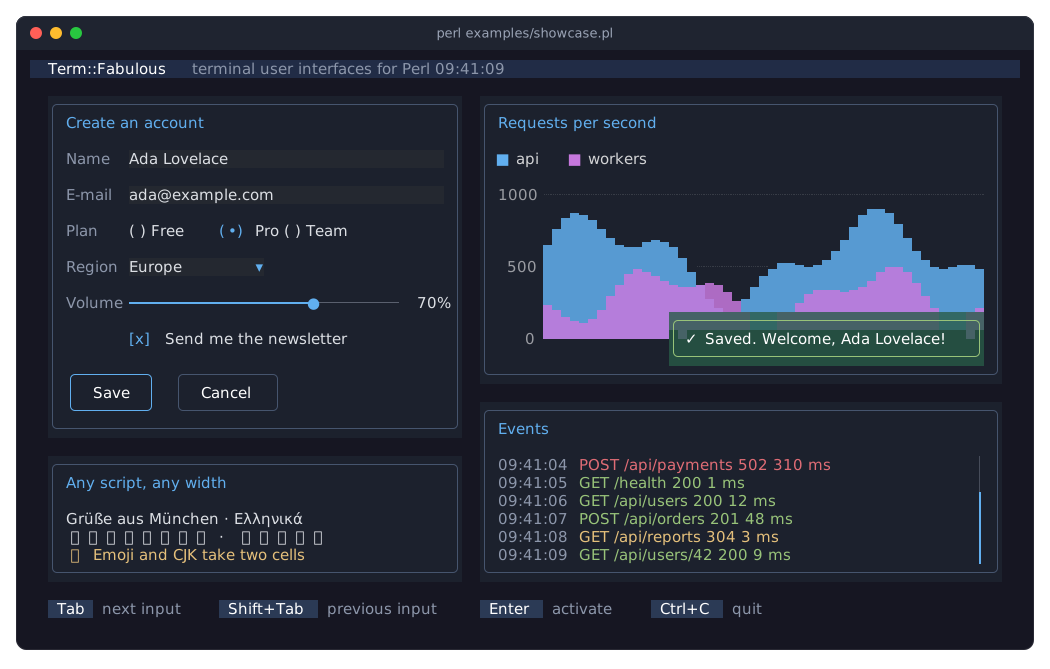
A tour on one screen: a form with every input widget and two buttons, a live chart on a pixel canvas, a log that grows from a timer in a scroll box, a translucent notification that Save shows for a few seconds, and text in several scripts. Tab and Shift+Tab move between the inputs, the mouse works too.
The picture shows it after typing a name and an e-mail address and pressing Save.
Layout
examples/layout-direction.pl
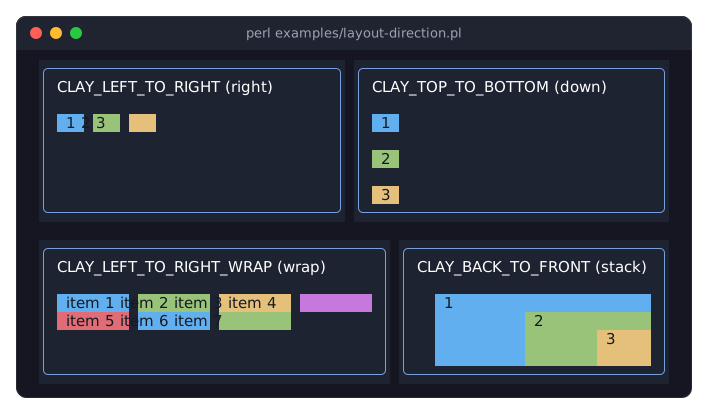
The four layout directions side by side, each in a bordered panel: numbered boxes placed left to right, top to bottom, left to right with wrapping onto a new line, and on top of each other. See "Direction" in Term::Fabulous::Manual::Layout.
examples/layout-sizing.pl
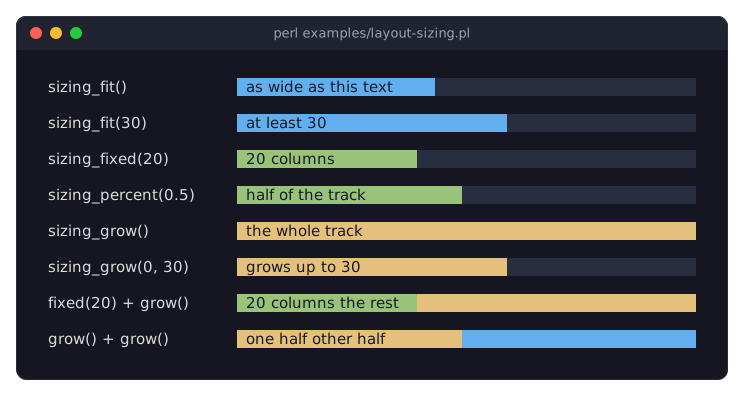
The sizing rules side by side: every row is a track as wide as the terminal, and the colored boxes in it are sized with the rule named on the left (sizing_fit, sizing_fixed, sizing_percent, sizing_grow, with minimums and maximums, and combinations). The labels share a width group, so the tracks line up. See "Sizing" in Term::Fabulous::Manual::Layout.
examples/layout-padding.pl
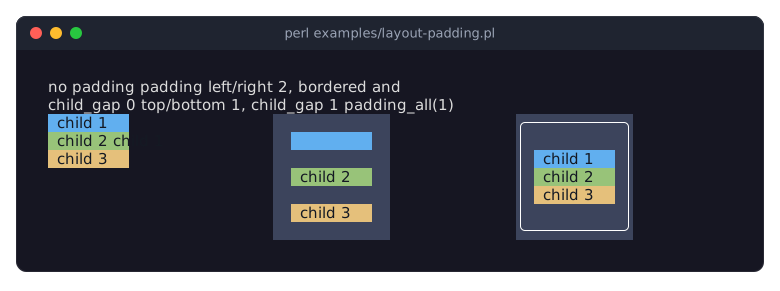
Padding, the gap between children and the space a border takes: the same three children in three boxes with different settings. The boxes have a background, so their padding and gaps are visible. See "Padding" in Term::Fabulous::Manual::Layout, "Gap between children" in Term::Fabulous::Manual::Layout and "Borders take space" in Term::Fabulous::Manual::Layout.
examples/layout-alignment.pl
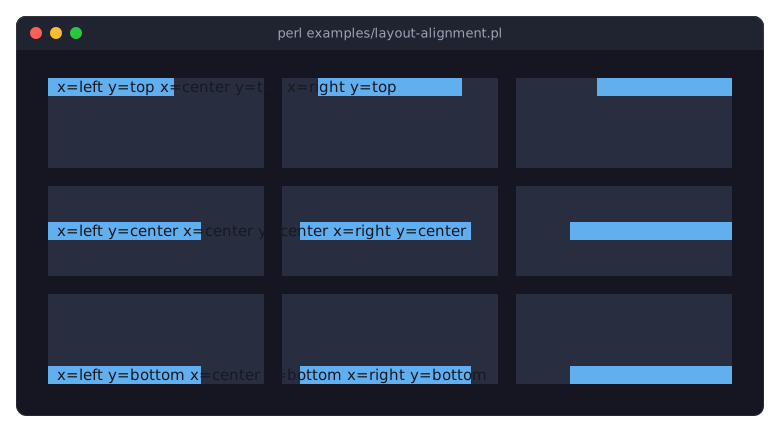
child_alignment: nine boxes of the same size, each with one child, aligned with every combination of x (left, center, right) and y (top, center, bottom). See "Aligning and centering children" in Term::Fabulous::Manual::Layout.
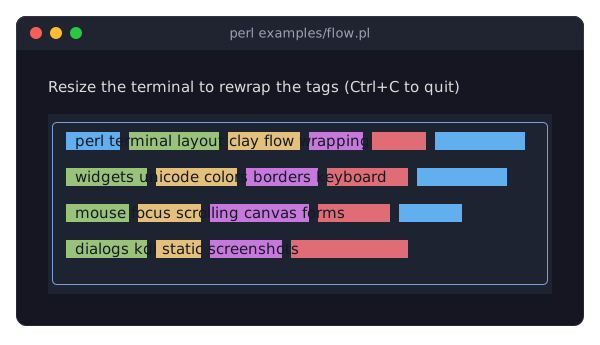
examples/flow.pl
Colored tags in a box with the flow layout: they are placed from left to right and wrap onto a new line when the row is full, so they rewrap whenever the terminal is resized. See "Flow layout" in Term::Fabulous::Manual::Layout.
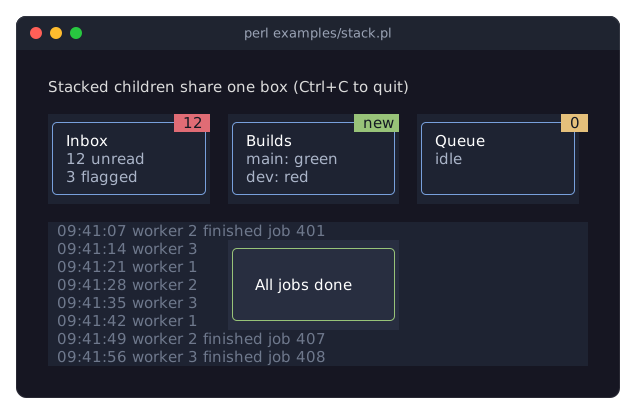
examples/stack.pl
Cards with a badge over their top right corner, and a message centered over a log, each built from a box with the stack layout: its children share one box and later ones are drawn on top. See "Stack layout" in Term::Fabulous::Manual::Layout.
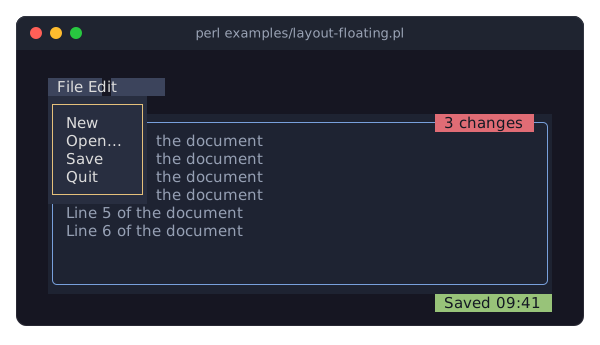
examples/layout-floating.pl
Floating widgets: a menu attached below a button, a badge on the corner of a panel and a message in the bottom row of the screen. They are drawn on top of the other widgets and take no space in the layout. The File button (a click, or Tab and Enter) opens and closes the menu, which is open when the program starts. See "Floating widgets" in Term::Fabulous::Manual::Layout.
examples/scroll-box.pl
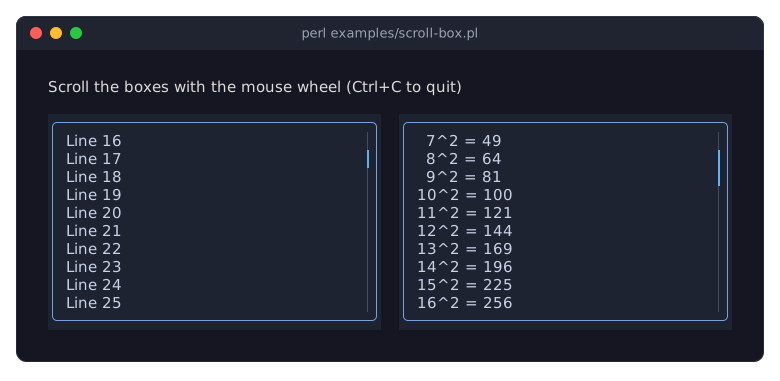
Two Term::Fabulous::Widget::ScrollBox widgets with more lines than fit, scrolled with the mouse wheel, each with a scrollbar. See "Scrolling content" in Term::Fabulous::Manual::Layout.
The picture shows the boxes after five notches of the wheel on the left box and two on the right one.
Text, colors and borders
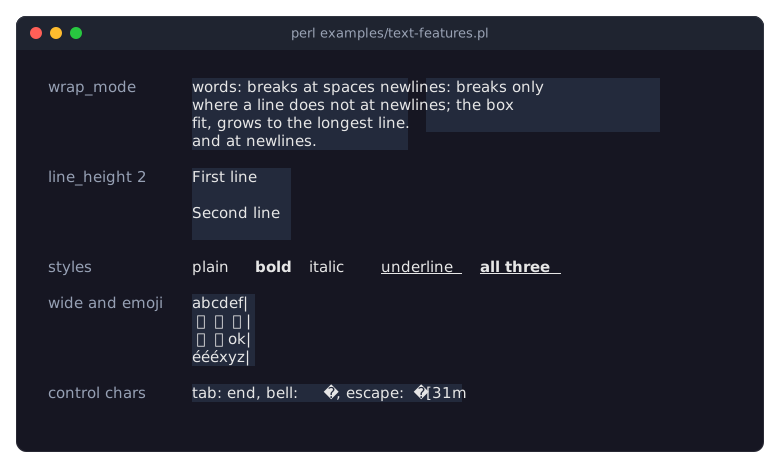
examples/text-features.pl
Term::Fabulous::Widget::Text in detail: the two wrap modes, line height, bold, italic and underlined text, wide characters, emoji and combining marks lined up in columns, and control characters made harmless. See the text chapter.
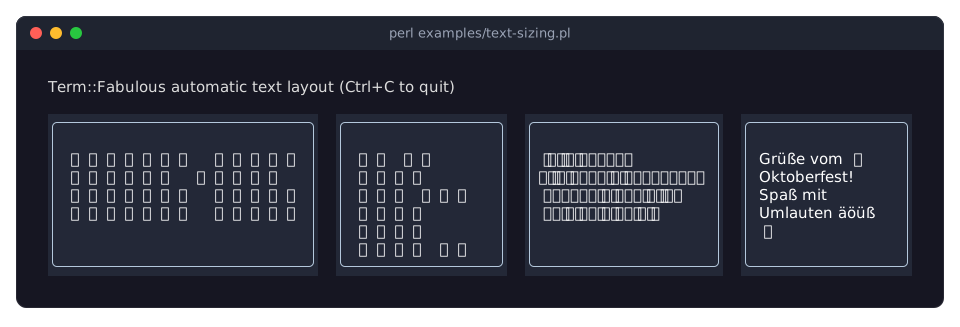
examples/text-sizing.pl
Text in Japanese, Korean, Thai and German with emoji, wrapped to the width of its box. Wide characters take two columns, and clusters with combining marks one. See "Wide characters and emoji" in Term::Fabulous::Manual::Looks.
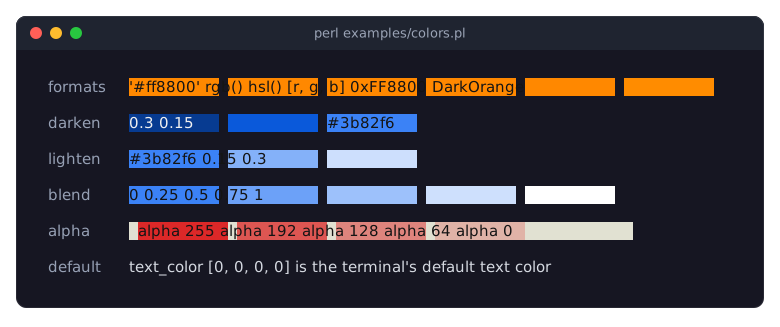
examples/colors.pl
Term::Fabulous::Color: one orange written in six formats, colors derived with darken, lighten and blend, translucent backgrounds over a light panel, and the terminal's default text color (alpha 0). See "Color formats" in Term::Fabulous::Manual::Looks and "Working with colors" in Term::Fabulous::Manual::Looks.
examples/themes.pl
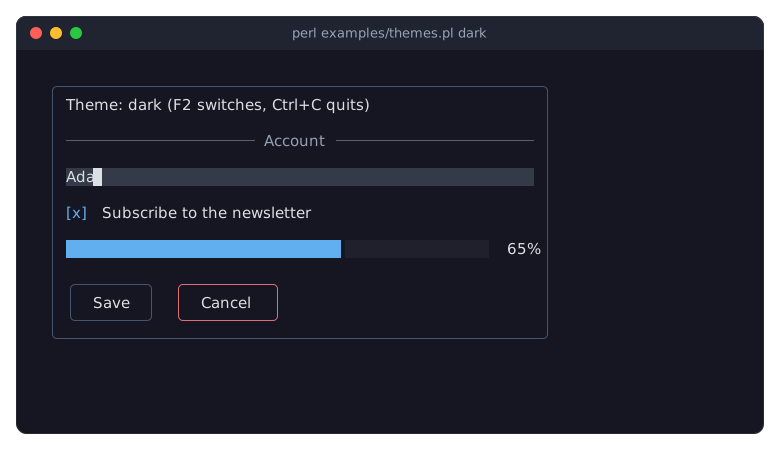
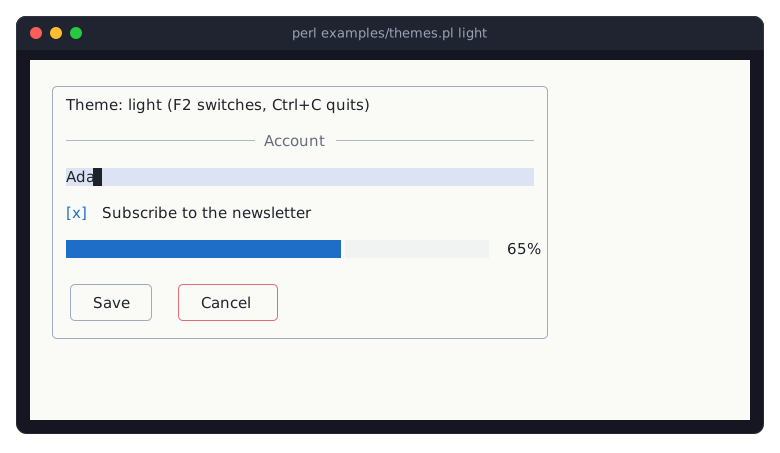
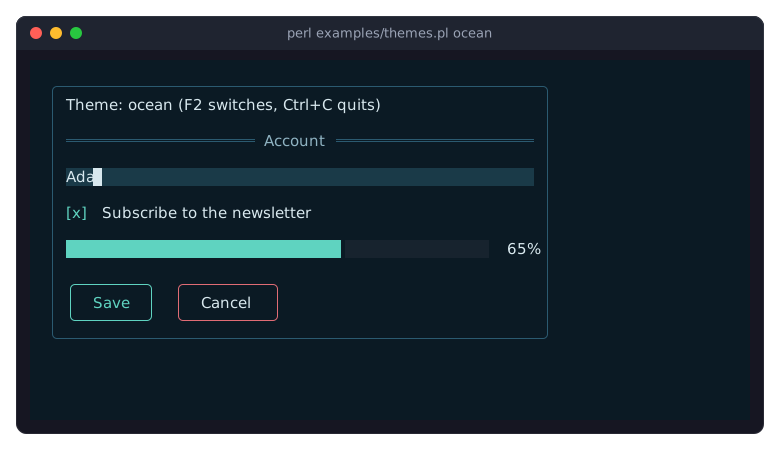
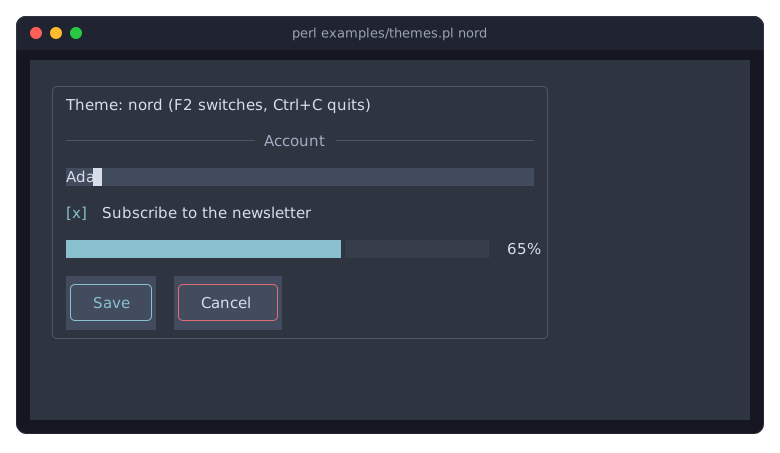
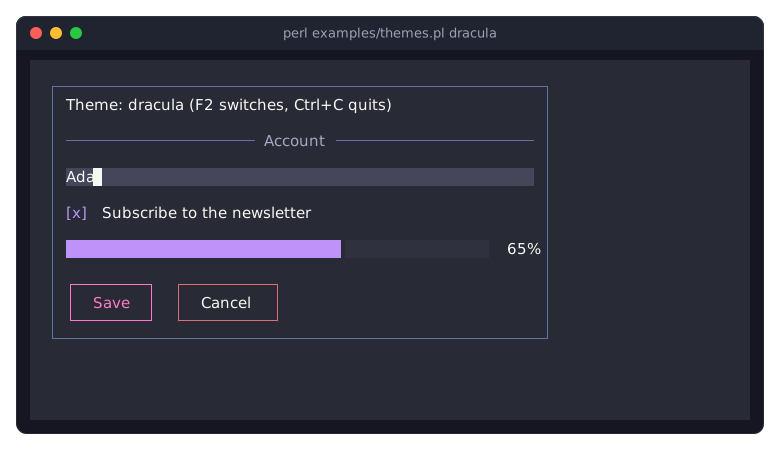
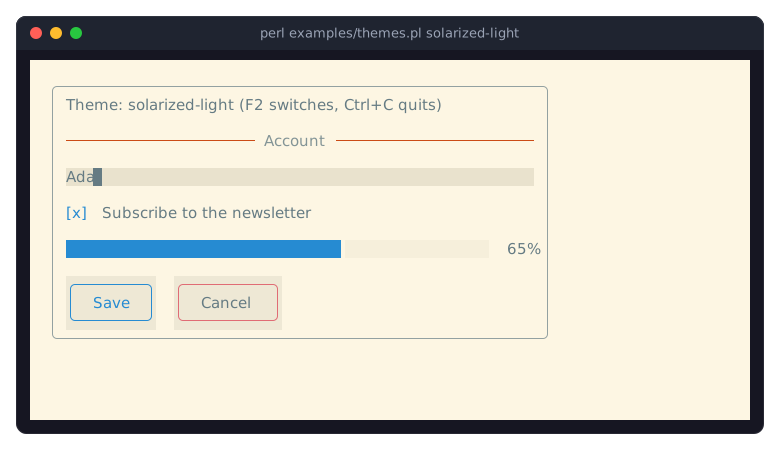
Term::Fabulous::Theme: a panel with a text field, a check box, a progress bar and two buttons under the built-in dark and light themes and under the theme files in examples/themes/: ocean, nord, dracula and solarized-light. F2 switches to the next theme, and a theme name on the command line (perl examples/themes.pl nord) picks the first one. Every theme paints the screen in its own background, so the light themes are readable on a dark terminal. The Save button has the class primary, which the theme files draw in their accent, and the Cancel button keeps its own border color under every theme. See "THEMES" in Term::Fabulous::Manual::Looks. The pictures show the six themes in that order:
examples/theme-editor.pl
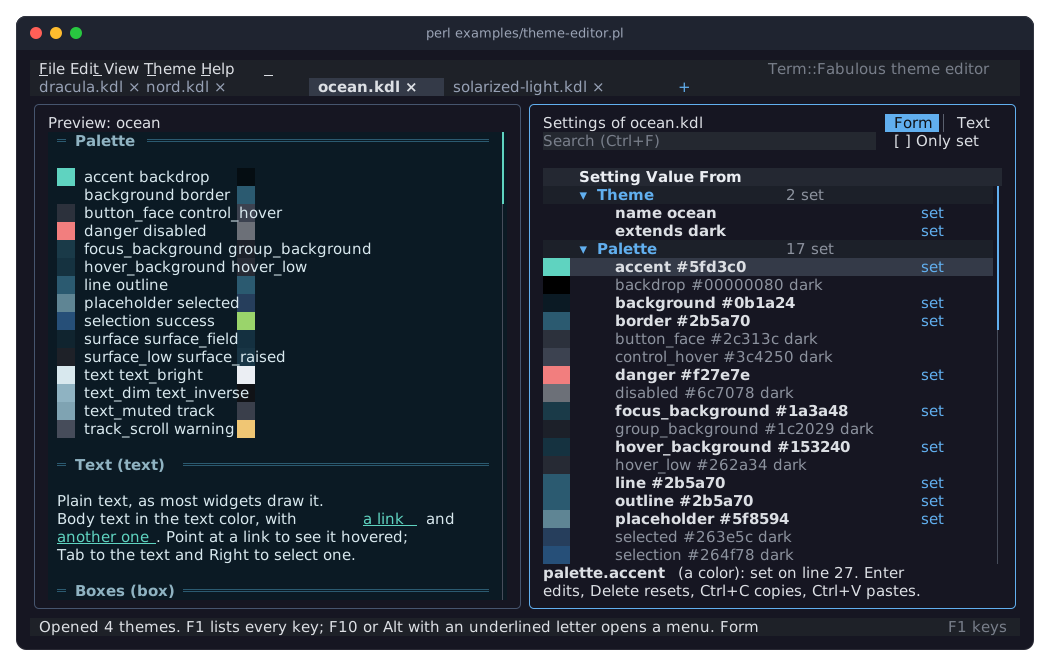
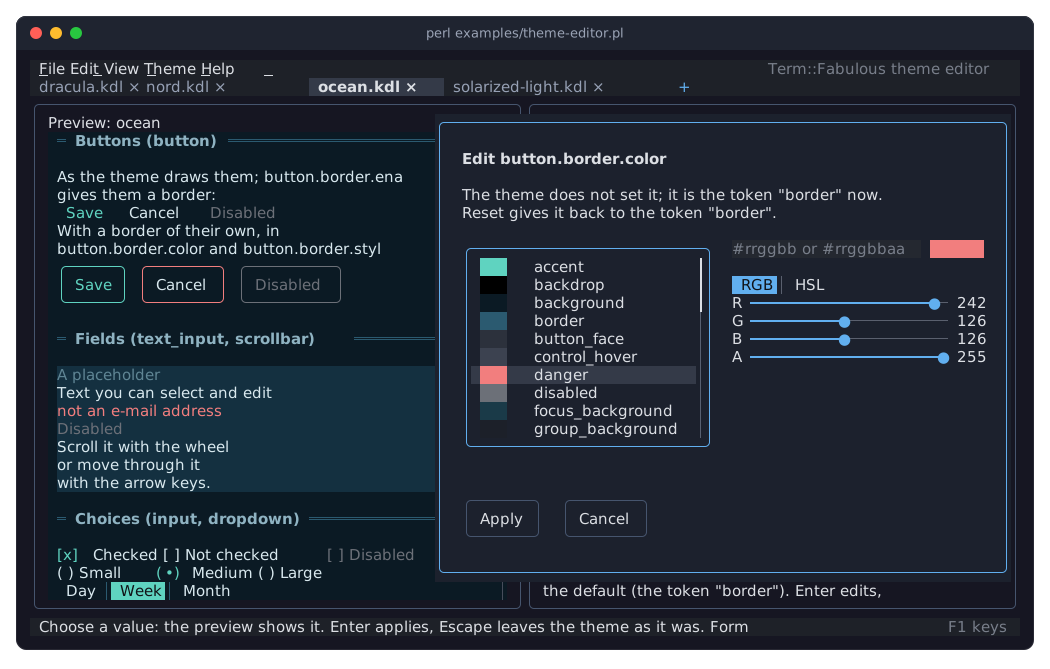
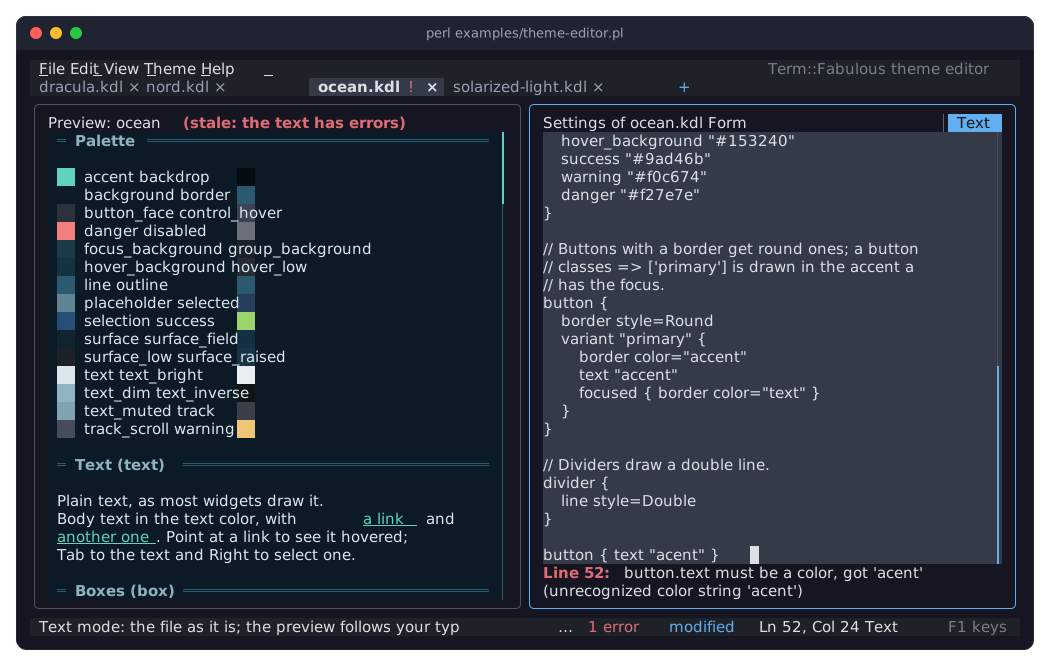
Term::Fabulous::ThemeEditor: the theme editor with the theme files of examples/themes/, one per tab, as the program fabulous-theme-editor starts it. The preview on the left shows a widget of every family in the theme of the tab you are on, the form on the right every setting of the theme; F2 shows the file as text, F1 lists every key. The pictures show the form with the cursor on the palette's accent, the dialog of a setting whose value the preview shows while it is chosen, and text mode with a mistake on its last line:
examples/web-colors.pl
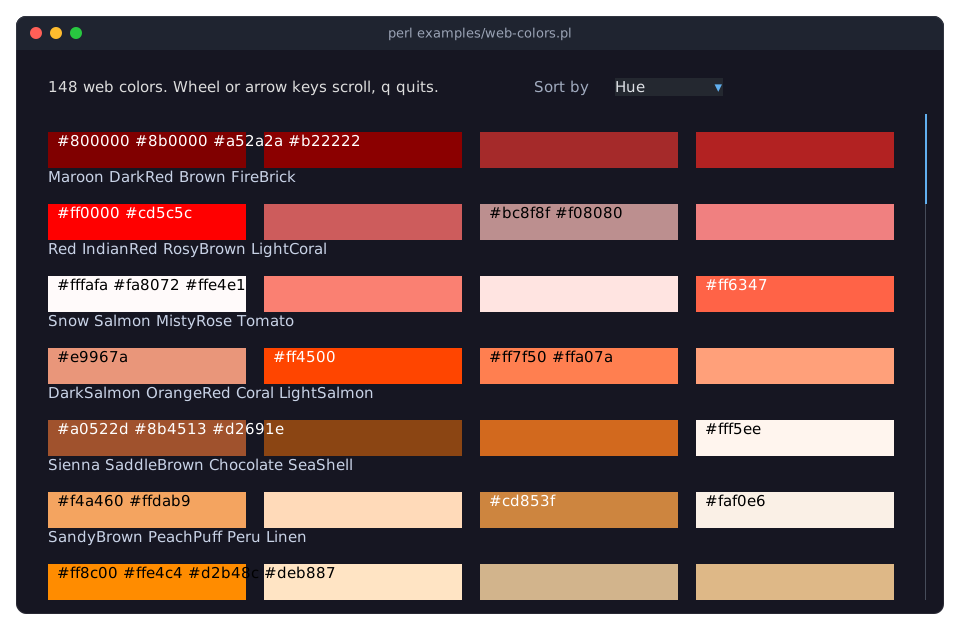
All colors of Term::Fabulous::Enum::WebColor in a grid that adapts its columns to the terminal width and scrolls. A dropdown sorts them by hue, brightness, saturation or name. The mouse wheel and the arrow keys scroll; Tab focuses the dropdown; q quits while the dropdown does not have the focus. See "Named colors" in Term::Fabulous::Manual::Looks.
examples/translucency.pl
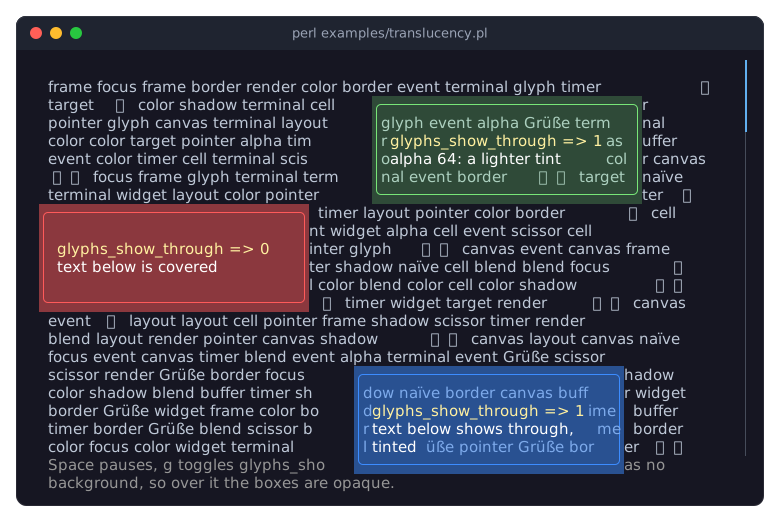
Three boxes with translucent backgrounds orbit over a screen of text. Their backgrounds are blended with the text below them, which shows through, tinted, or is covered, depending on glyphs_show_through. Space pauses the orbit and g switches glyphs_show_through on every box. See "Alpha and the terminal default color" in Term::Fabulous::Manual::Looks.
The picture shows the orbit after a few seconds.
examples/border-showcase.pl
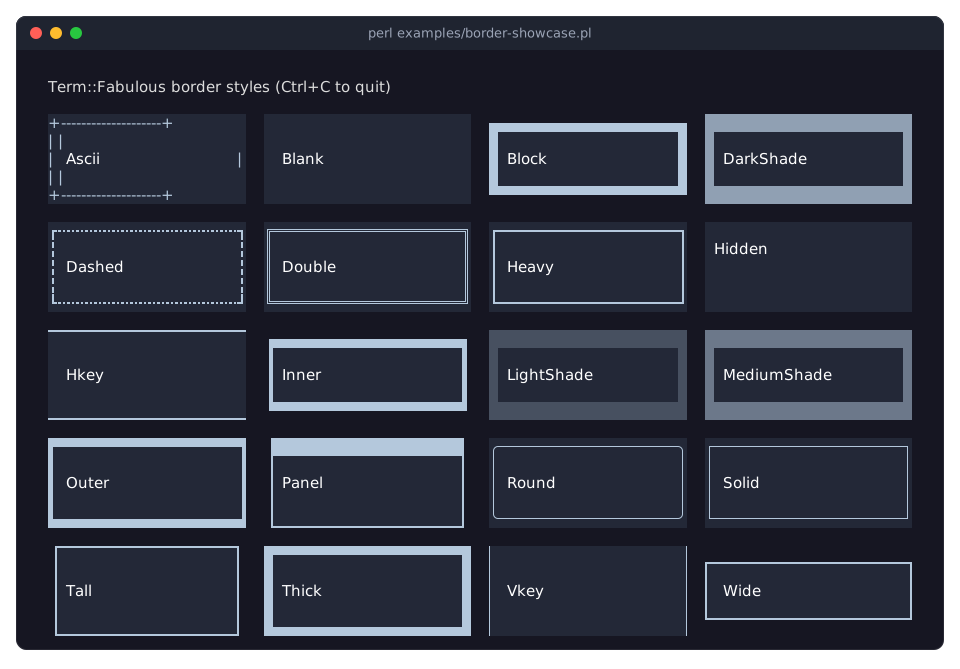
Every border style of Term::Fabulous::Enum::BorderStyle, one box each. See "Border styles" in Term::Fabulous::Manual::Looks.
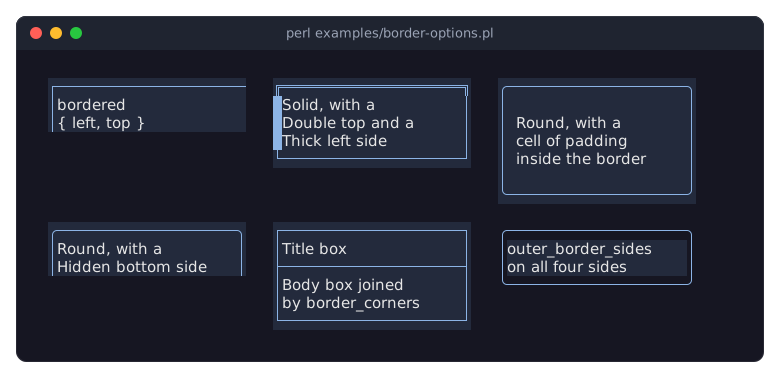
examples/border-options.pl
Borders beyond a single style: a border on some sides only, a style per side, padding inside a border, a hidden side, two boxes that share one line through border_corners, and a border drawn on the parent's background with outer_border_sides. See "Borders and space" in Term::Fabulous::Manual::Looks, "Joining borders" in Term::Fabulous::Manual::Looks and Term::Fabulous::Role::HasBorderStyle.
Events, keys and forms
examples/event-monitor.pl
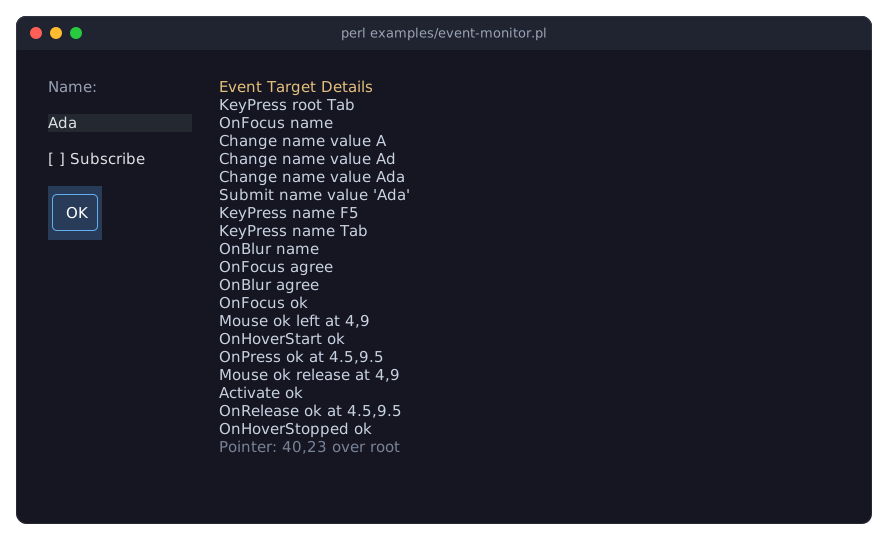
Shows the events Term::Fabulous fires: a listener on the root widget logs every event that bubbles up to it, with the widget it was fired on (the target). Type into the field, press Tab, Enter, Space, function keys or Ctrl combinations, and click the widgets: the log shows the key names, the clicks, the focus moving and the events of the widgets. The hover events do not bubble, so listeners on the widgets themselves log them. The line at the bottom follows the mouse pointer. Run it to find the name of a key on your terminal. See "Listening to events" in Term::Fabulous::Manual::Events and "Key names" in Term::Fabulous::Manual::Events.
The picture shows it after Tab, typing Ada, Enter, F5, Tab and a click on the OK button.
examples/buttons-and-keys.pl
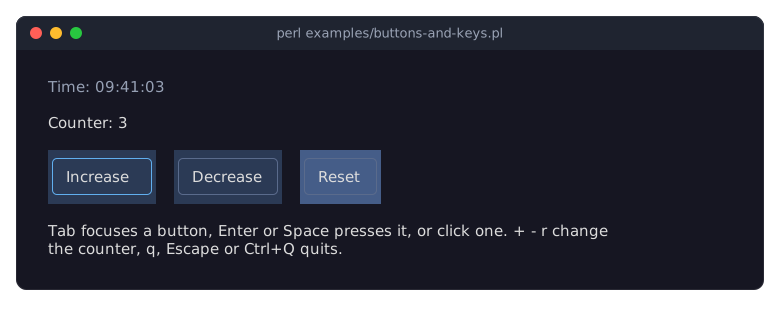
Buttons that react to the mouse and to the keyboard, with focus, hover and press styling, application key bindings and a clock updated by a timer. Tab focuses a button, Enter or Space presses it; +, - and r change the counter; q, Escape or Ctrl+Q quits. It is the program of "Add buttons for the mouse and the keyboard (Button)" in Term::Fabulous::Cookbook::KeyboardAndMouse.
The picture shows it after Tab and three presses of +, with the mouse pointer over the Reset button.
examples/form.pl
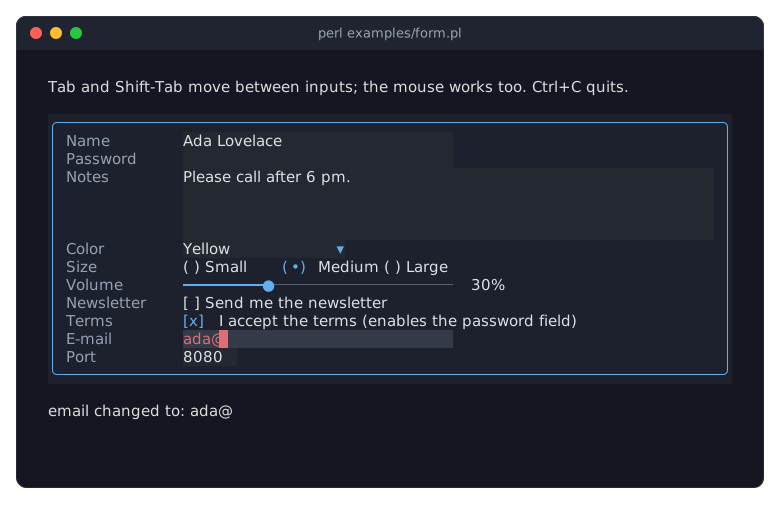
Every input widget in one form, built in Perl: text fields (one masked, two validated), a text area, a dropdown, radio buttons, a slider and check boxes, with labels of equal width. A status line shows every change and what is wrong with an invalid value; checking "I accept the terms" enables the password field. Tab and Shift+Tab move between the inputs. See "FORMS AND INPUT WIDGETS" in Term::Fabulous::Manual::Forms.
The picture shows it after typing a name and a note, choosing a color from the dropdown and starting an e-mail address.
examples/custom-widget.pl
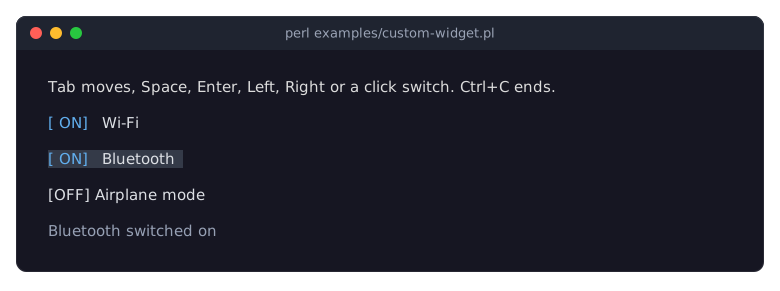
A widget of your own: an on/off switch built on Term::Fabulous::Widget::Input, used from a KDL layout. It takes the focus, reacts to keys and clicks and fires Change events. Tab moves the focus; Space, Enter, Left, Right or a click switches. It is the program of "Write a custom input widget (a toggle switch)" in Term::Fabulous::Cookbook::Extending.
The picture shows it after Tab and Space switched Bluetooth on.
KDL layout files
examples/kdl-layout.pl
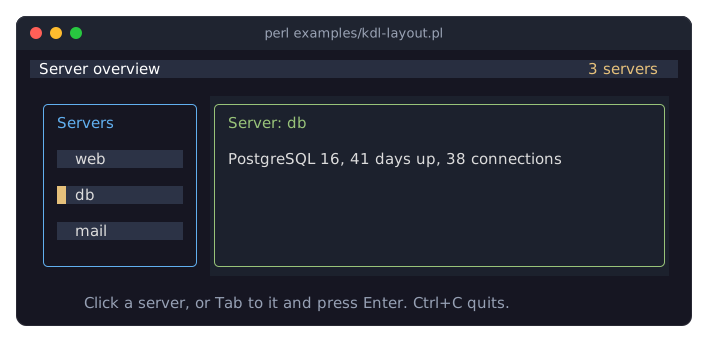
A screen described in a KDL layout file, examples/kdl-layout.kdl: a title bar, a sidebar of server buttons, a main panel and a status line. The program loads the file with Term::Fabulous::Layout, finds widgets by their ids and attaches the behavior: a click on a server button, or Enter on it, shows that server in the main panel. It is the complete program of "A complete program" in Term::Fabulous::Manual::KDL.
The picture shows it after Tab, Tab and Enter chose the db server.
examples/kdl-form.pl
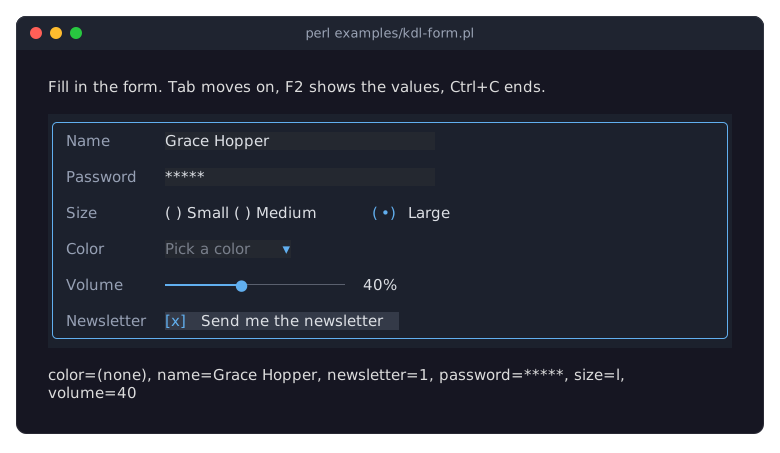
A form described in a KDL layout instead of Perl code. The program finds the inputs by their ids, shows every change, shows all values on F2 and prints them when it ends. It is the program of "Build a form from a KDL file (text fields, radio buttons, dropdown, slider, checkbox)" in Term::Fabulous::Cookbook::Forms.
The picture shows the form filled in, after F2.
Tables
examples/table-directory.pl
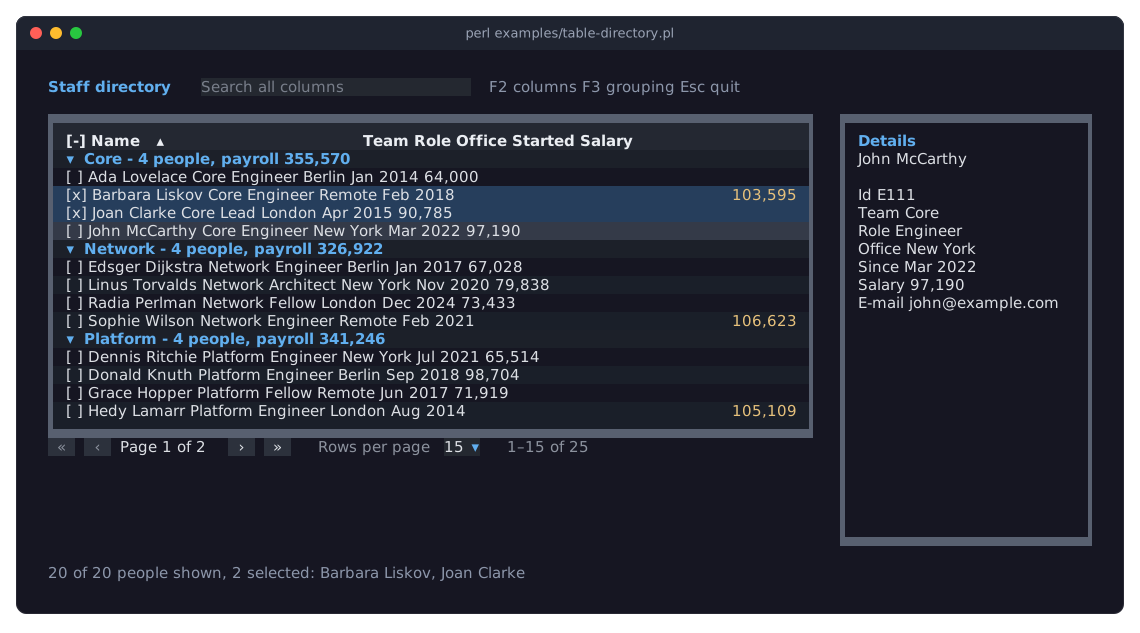
A staff directory in a Term::Fabulous::Widget::Table: a search box above the table, rows grouped by team under headers with a payroll sum, multiple selection, formatted dates and numbers, salaries over 100,000 in yellow, people on leave in gray italics, pages, a details panel that follows the cursor, and a column chooser on F2. F3 switches the grouping off and on. In the table, Space selects a row, Left and Right close and open a group, and Up on the first row reaches the column titles, where Enter sorts. See Term::Fabulous::Manual::Tables.
The picture shows it after two rows were selected with Space and the cursor moved on.
examples/table-files.pl
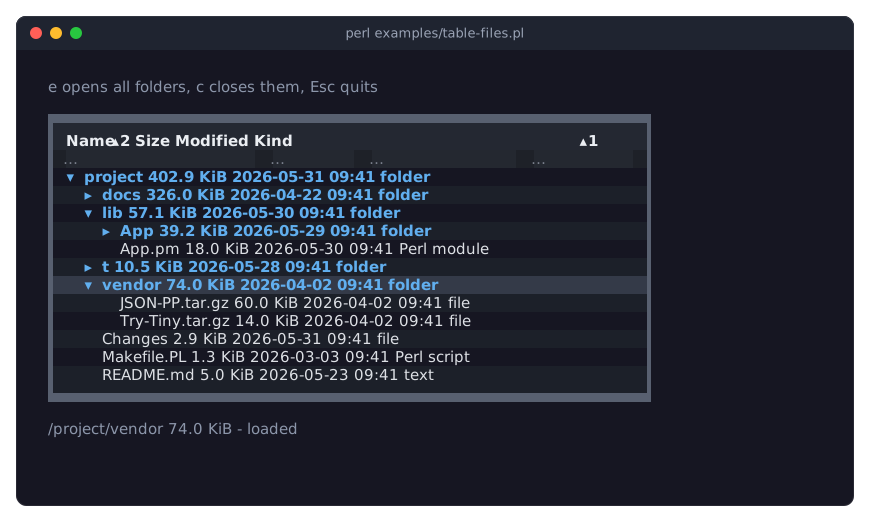
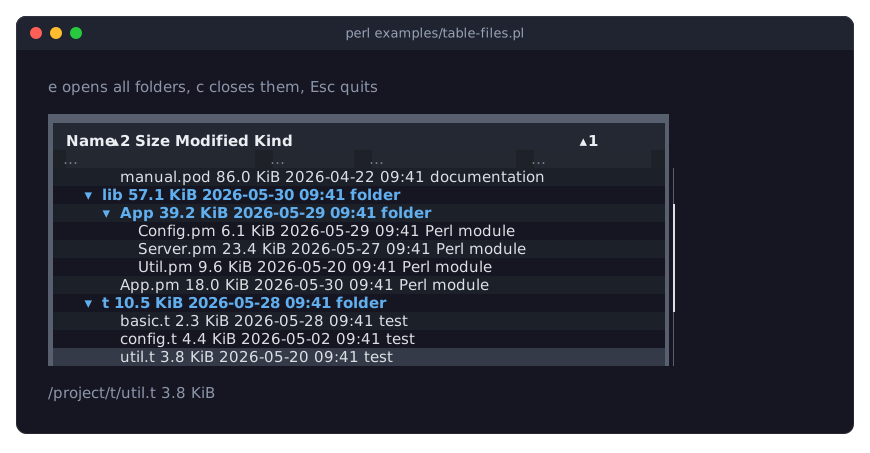
A file browser in a Term::Fabulous::Widget::Table with nested rows (a tree): folders with sizes summed from their contents, dates and kinds, sorted folders first, a filter row that keeps the folders of every match, single selection, and a folder whose contents are loaded only when it is opened for the first time. Right or + opens a folder, Left or - closes it, e opens every folder and c closes them all; Tab reaches the filter fields. See "TREES" in Term::Fabulous::Manual::TableRows.
The first picture shows it after the cursor moved to the vendor folder and Right opened it, which loaded its two files.
The second picture shows it in a shorter terminal, after e opened every folder and the cursor moved down past the last visible row: the rows scroll, while the column titles and the filter row stay in place. See "SIZE AND SCROLLING" in Term::Fabulous::Manual::TableStyles.
Charts and canvases
examples/chart-gallery.pl
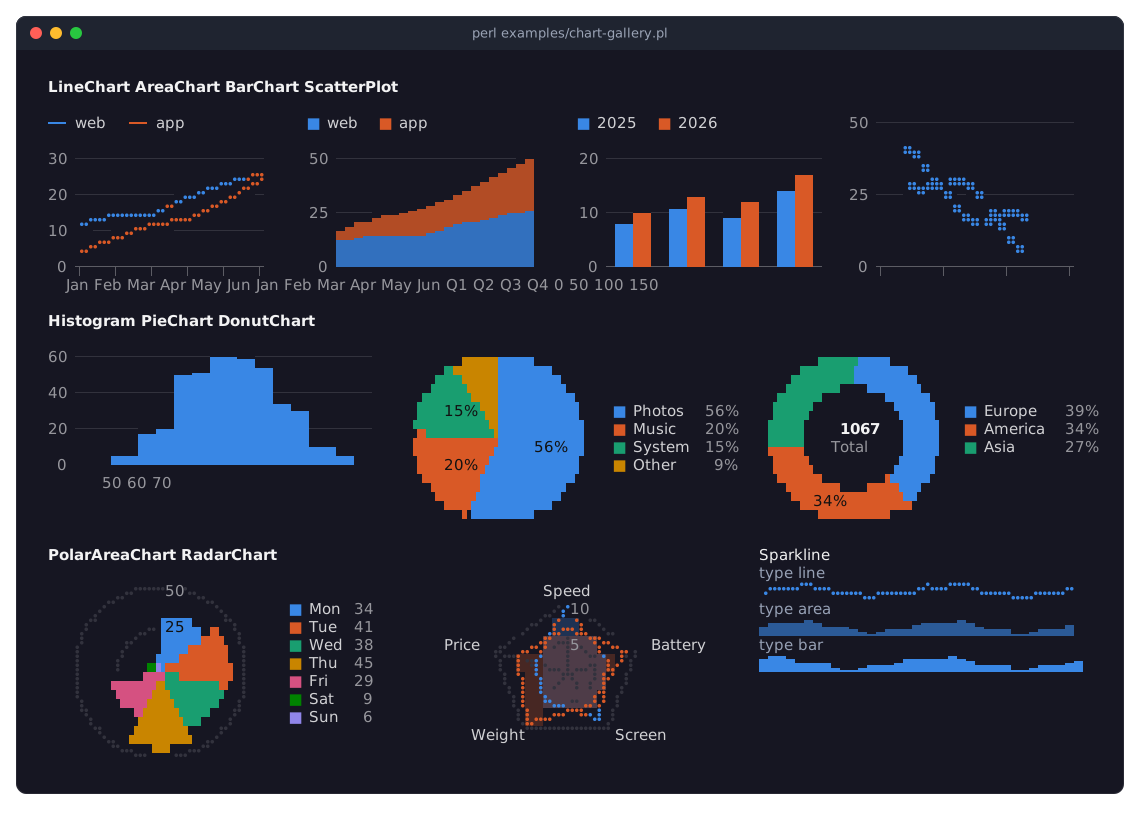
Every chart widget side by side, each with a little data of the kind it suits: values over time as lines, areas and bars, pairs of numbers as points, a distribution as a histogram, shares as a pie and a donut, counts around a circle as a polar area chart, profiles as a radar chart, and trends as sparklines. See "Which chart for which data" in Term::Fabulous::Manual::Charts.
examples/canvas.pl
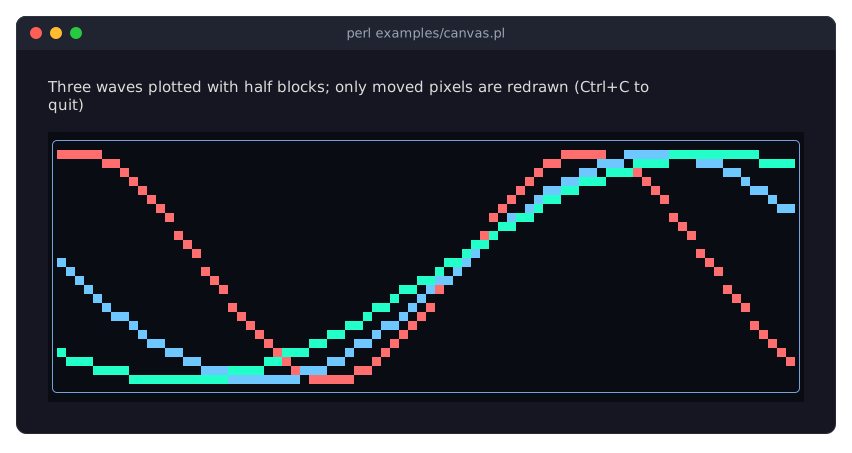
Waves plotted with half blocks on a Term::Fabulous::Widget::Canvas and animated by a timer. Only the cells whose pixels moved are redrawn in each frame. See "CANVASES" in Term::Fabulous::Manual::Charts.
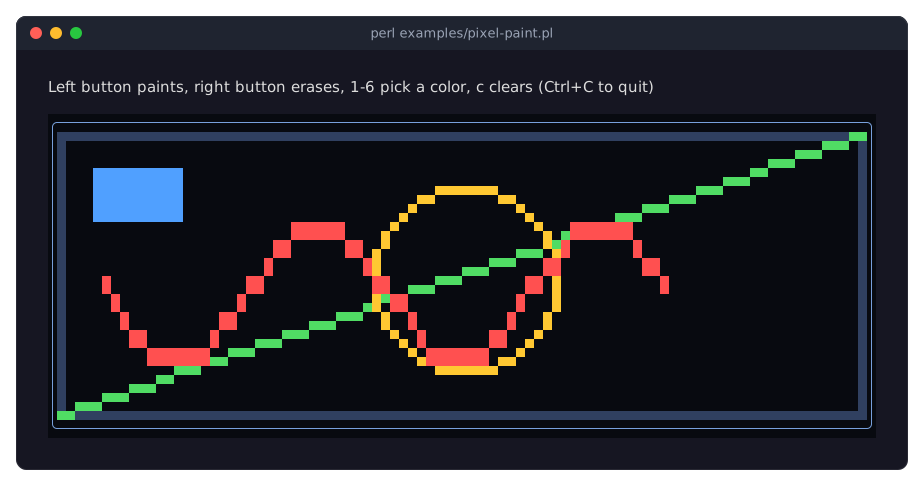
examples/pixel-paint.pl
A paint program on a Term::Fabulous::Widget::PixelCanvas: the left mouse button paints, the right one erases, keys 1 to 6 pick a color and c clears. It starts with a few shapes drawn by the program. See "Drawing pixels" in Term::Fabulous::Manual::Charts.
The picture shows a red wave painted with the mouse over the shapes.
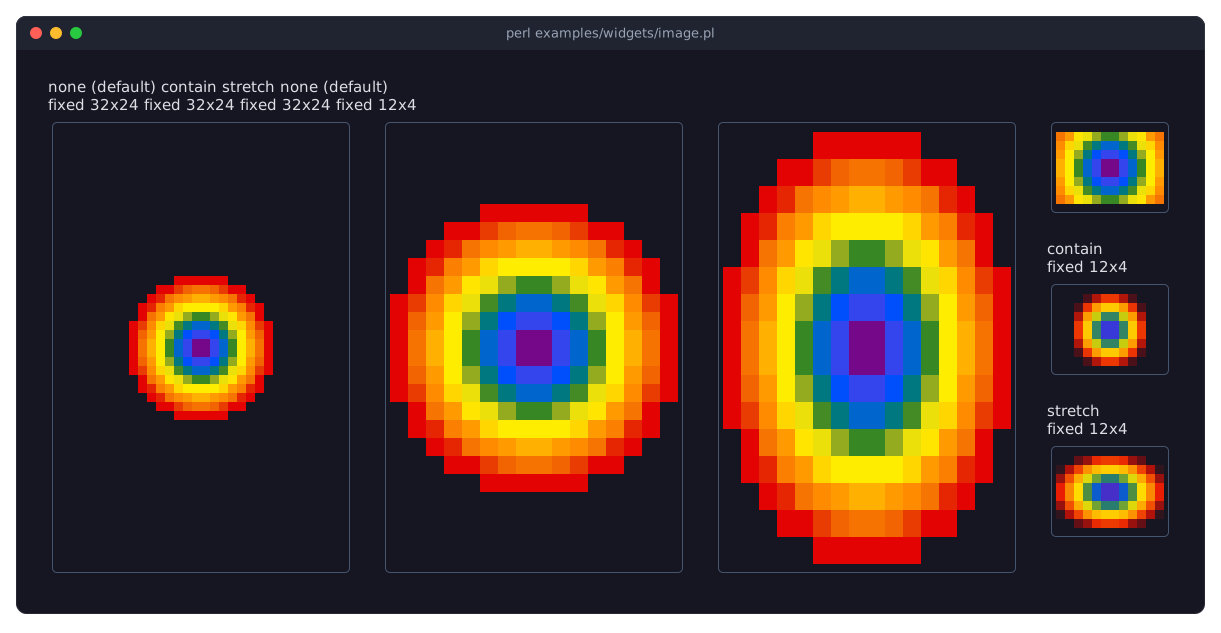
examples/widgets/image.pl
Term::Fabulous::Widget::Image: a 16x16 PNG in three frames of the same fixed size, one per fit: none (the default) keeps its natural size, contain scales it to fit and keeps its proportions, stretch fills the frame. Three smaller frames show the same fits when the picture does not fit: none cuts it, contain shrinks it and keeps its proportions, stretch shrinks it to fill the frame. Needs Imager; without it, each frame shows a notice instead.
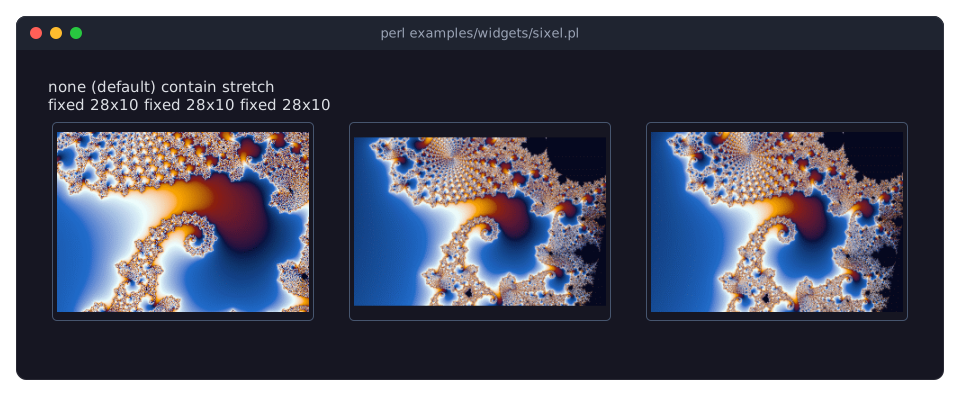
examples/widgets/sixel.pl
Term::Fabulous::Widget::Sixel: a 480x320 PNG of the Mandelbrot set in three frames of the same fixed size, one per fit, drawn by the terminal in its own pixels as sixel graphics: none (the default) keeps its natural size and cuts it to the frame, contain scales it to fit and keeps its proportions, stretch fills the frame. Needs Imager, Imager::File::SIXEL and a terminal that shows sixel graphics; otherwise, each frame shows a notice instead.
Output without a terminal
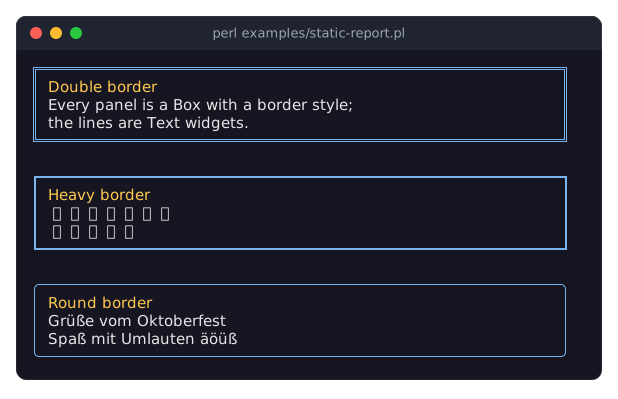
examples/static-report.pl
Renders bordered panels with non-ASCII text once, with Term::Fabulous::Static, and prints them: colored when the output is a terminal, plain text in a pipe. See "RENDERING WITHOUT A TERMINAL" in Term::Fabulous::Manual::Programs.
THE WIDGET GALLERY
The programs in examples/widgets show one widget each, in its typical states. Their pictures are also on the widget's class page, which the entry links. Tab moves the focus between the widgets, Ctrl+C quits. In the chart programs, moving the mouse over a series, a slice or a legend entry emphasizes it.
Containers and text
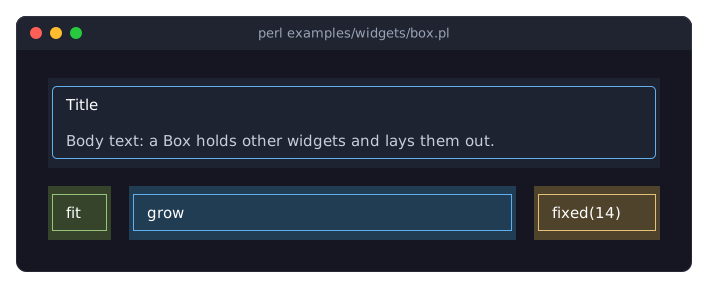
examples/widgets/box.pl
Term::Fabulous::Widget::Box: a card with a border, a background, padding and a gap between its children, and boxes sized to their content, to the room left over and to a fixed width.
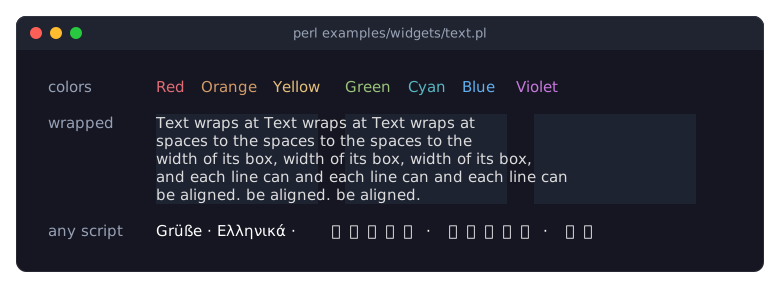
examples/widgets/text.pl
Term::Fabulous::Widget::Text: text in colors, wrapped and aligned in boxes, and in several scripts.
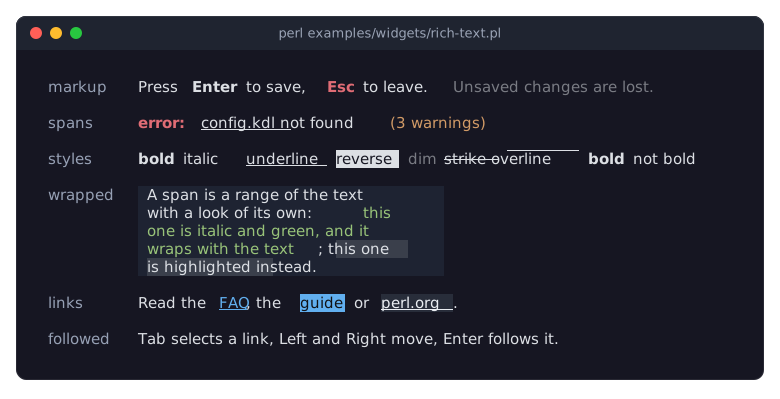
examples/widgets/rich-text.pl
Term::Fabulous::Widget::RichText: bold words, colored phrases and highlighted ranges inside one text, from markup and from spans, every text style the terminal has, spans that run across the line breaks of a wrapped text, and links in their three looks. The picture shows it after Tab and Right selected the second link, with the mouse pointer over the third: the first link looks as every link does, underlined in the accent color.
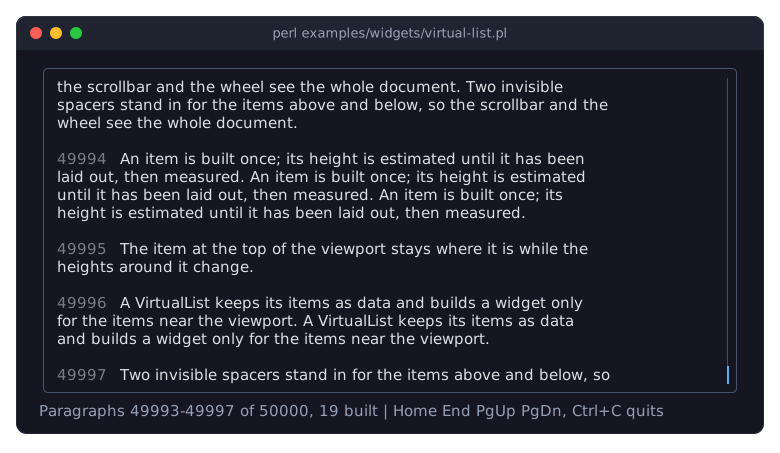
examples/widgets/virtual-list.pl
Term::Fabulous::Widget::VirtualList: a document of fifty thousand paragraphs with a heading every twenty-five, built paragraph by paragraph as the viewport reaches them, scrolled with the wheel, the scrollbar and the Home, End, PageUp and PageDown keys. The status line shows how many of the paragraphs have been built so far.
The picture shows the document after the End key and four notches of the wheel back up: of the fifty thousand paragraphs, nineteen have been built.
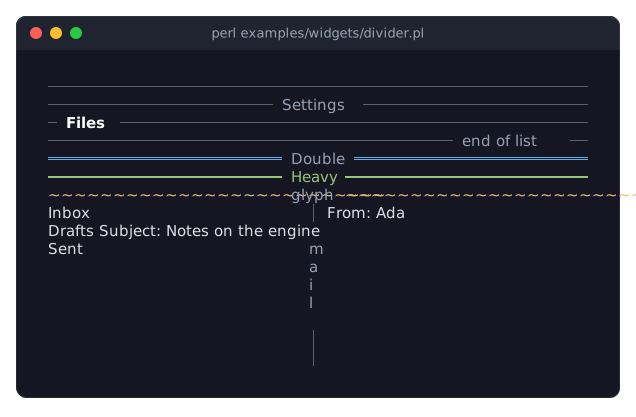
examples/widgets/divider.pl
Term::Fabulous::Widget::Divider: a plain line, lines with a text at the start, in the center and at the end, lines in other styles and colors, and a vertical divider with a text between two columns.
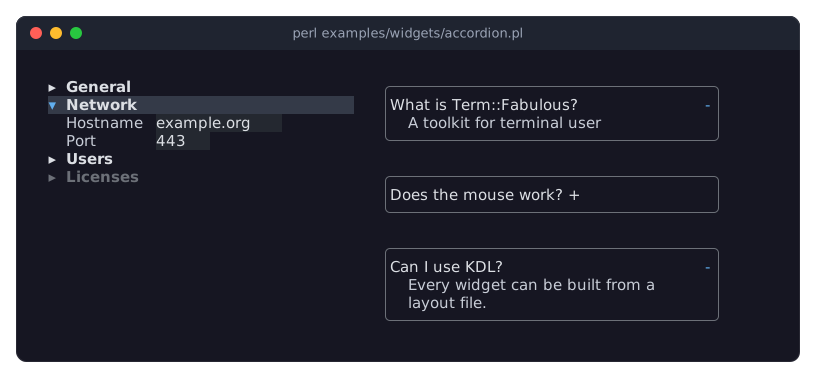
examples/widgets/accordion.pl
Term::Fabulous::Widget::Accordion: a settings accordion with one section open at a time and a disabled section, and one with a border around every item, the toggles at the end of the headers and several sections open at once. Up and Down move between the headers, Enter or Space opens and closes the focused section.
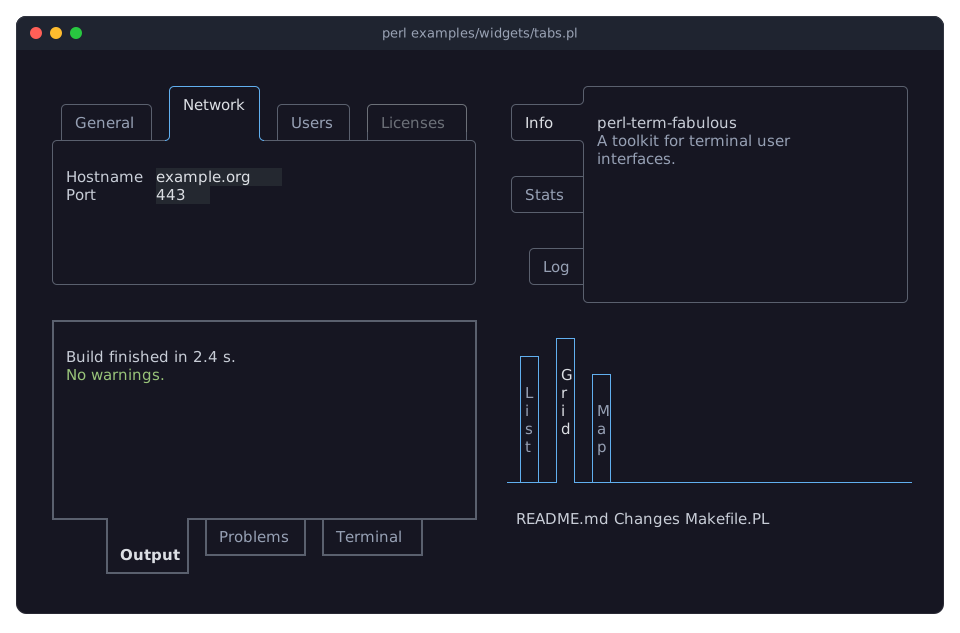
examples/widgets/tabs.pl
Term::Fabulous::Widget::Tabs: tabs along the top of a settings page with a disabled tab, a bar at the bottom in the Heavy style with the tabs in the center, tabs along the left side as a sidebar, and tabs with downward labels without a border around the page. Left and Right (or Up and Down, Home and End) choose a tab, so does a click, and Ctrl+PageUp and Ctrl+PageDown turn the pages from anywhere inside.
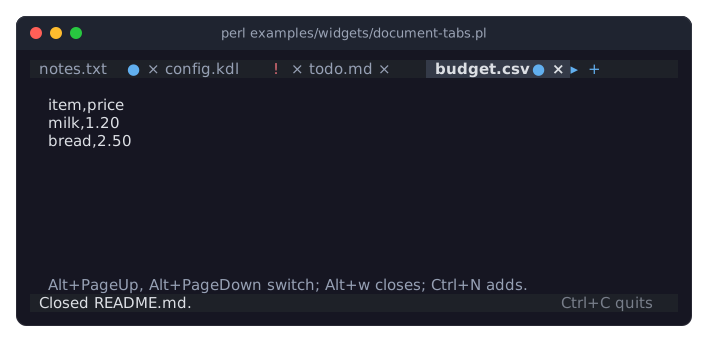
examples/widgets/document-tabs.pl
Term::Fabulous::Widget::DocumentTabs: a row of tabs for the open documents of an editor, some with unsaved changes (a dot), one with an error (an exclamation mark). A click on a tab shows its document, a click on its close mark or a middle click closes it, and + adds a new one; the arrows at the ends lead to the tabs that do not fit. The picture shows it after closing README.md and choosing budget.csv.
Buttons, inputs and dialogs
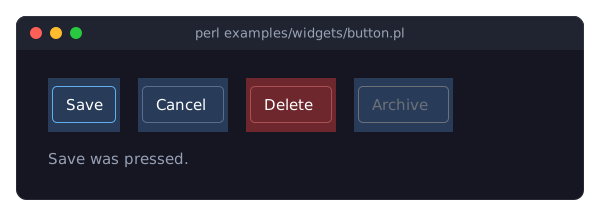
examples/widgets/button.pl
Term::Fabulous::Widget::Button: four buttons that take the focus (shown by the border color) and react to clicks and to Enter or Space. The Archive button is disabled: it is drawn gray, Tab skips it and clicks do nothing. The picture shows it after Enter pressed Save.
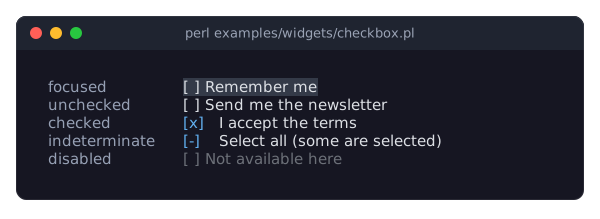
examples/widgets/checkbox.pl
Term::Fabulous::Widget::Checkbox: focused, unchecked, checked, indeterminate and disabled. Space or Enter toggles the focused box.
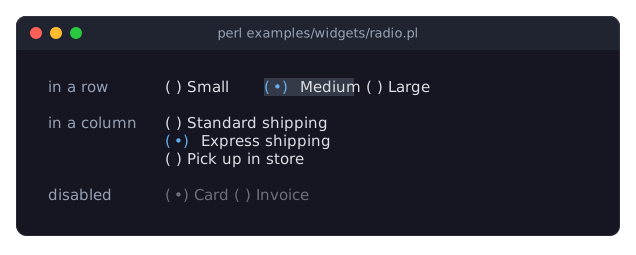
examples/widgets/radio.pl
Term::Fabulous::Widget::RadioGroup and Term::Fabulous::Widget::RadioButton: a group in a row (focused), a group in a column and a disabled group. The arrow keys choose a button in the focused group.
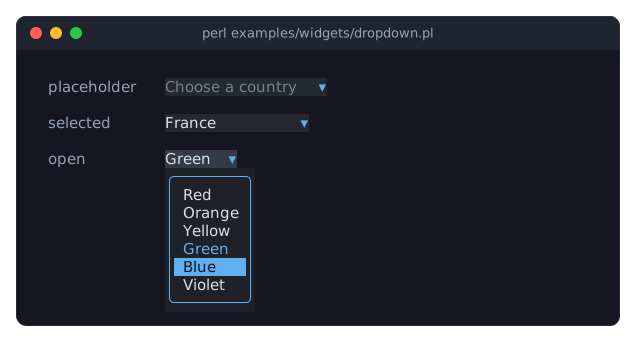
examples/widgets/dropdown.pl
Term::Fabulous::Widget::Dropdown: one showing its placeholder, one with a selected option, and one whose list is open. Enter, Space, Alt+Down or F4 open the list, Up and Down move in it, Enter chooses and Escape closes it. The picture shows it after Enter opened the list and Down moved the highlight.
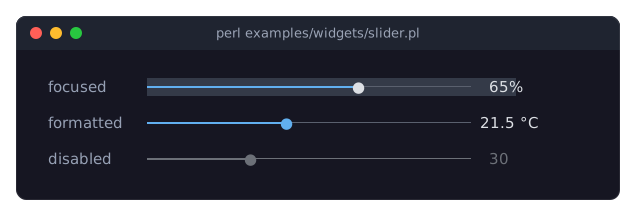
examples/widgets/slider.pl
Term::Fabulous::Widget::Slider: a focused slider with a percentage, one that formats its value with code, and a disabled one. Left and Right (or PageUp, PageDown, Home and End) change the value.
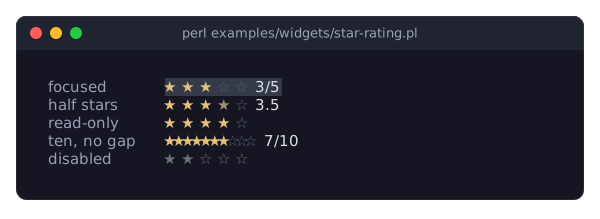
examples/widgets/star-rating.pl
Term::Fabulous::Widget::StarRating: a focused rating, one with half stars that shows its value, a read-only one, one out of ten without gaps, and a disabled one. Left and Right, the digits, Home and End change the value; so does a click on a star.
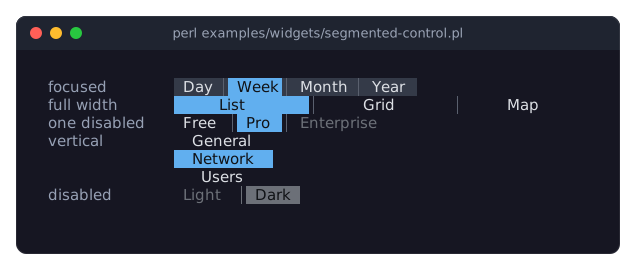
examples/widgets/segmented-control.pl
Term::Fabulous::Widget::SegmentedControl: a focused control, one stretched to the full width, one with a disabled segment, a vertical one and a disabled one. Left and Right, the digits, Home and End choose a segment; so does a click.
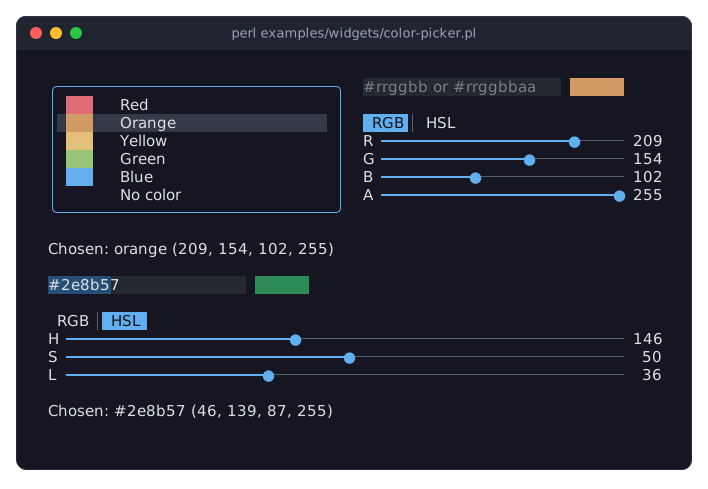
examples/widgets/color-picker.pl
Term::Fabulous::Widget::ColorPicker: a picker with named swatches, RGB sliders and an alpha slider, and one without swatches and alpha that shows its sliders in HSL, each with a line that shows the value it chose. Tab moves from part to part, Up and Down pick a swatch, Left and Right move a slider, and typing a color sets it.
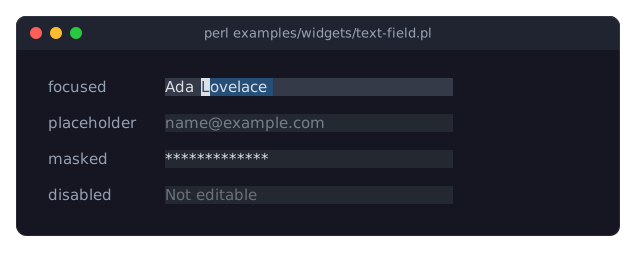
examples/widgets/text-field.pl
Term::Fabulous::Widget::TextField: a focused field to type in, an empty one showing its placeholder, a masked password and a disabled field. Shift with the arrow keys selects text. The picture shows it after typing and selecting a word.
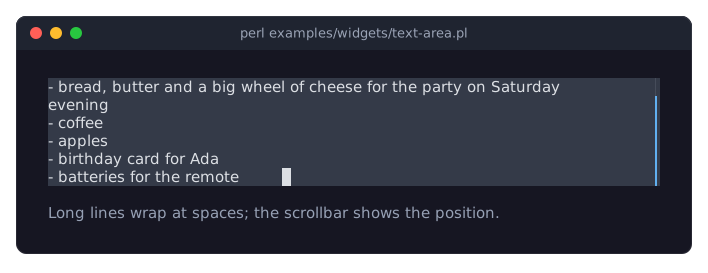
examples/widgets/text-area.pl
Term::Fabulous::Widget::TextArea: a shopping list whose long line wraps at a space; the text is taller than the area, so a scrollbar shows the position. Shift with the arrow keys selects text, Ctrl+Z undoes.
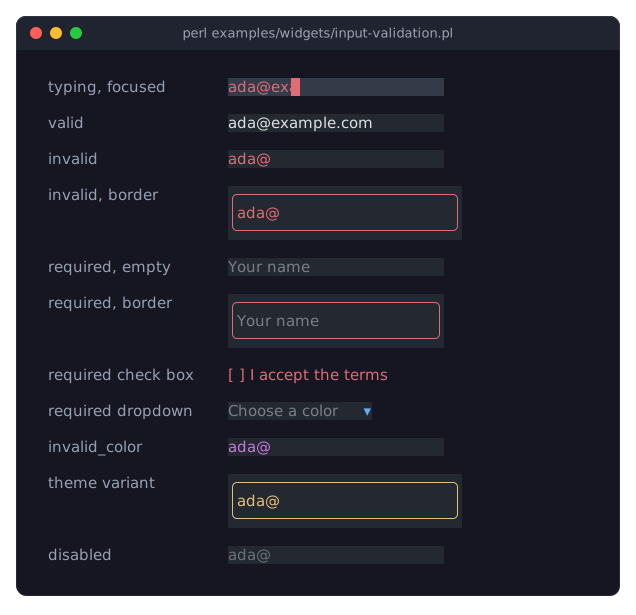
examples/widgets/input-validation.pl
The invalid look of the input widgets (see "Invalid values" in Term::Fabulous::Widget::Input): e-mail fields that are valid, invalid and invalid with a border, required inputs that are still empty (a field without and with a border, a check box and a dropdown), an invalid_color of its own, a theme variant that draws invalid values in the warning color, and a disabled field. Type into the first field to see the look follow the value. The picture shows it after typing ada@exa into the first field.
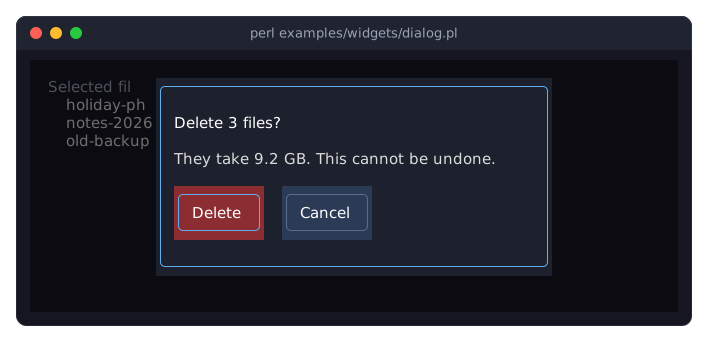
examples/widgets/dialog.pl
Term::Fabulous::Widget::Dialog: a dialog centered over a list of files, behind a translucent backdrop that dims them. The dialog keeps the focus inside itself: Tab moves between its two buttons, and the focused one has a blue border. Escape or a button closes it, d opens it again.
examples/widgets/prompt.pl
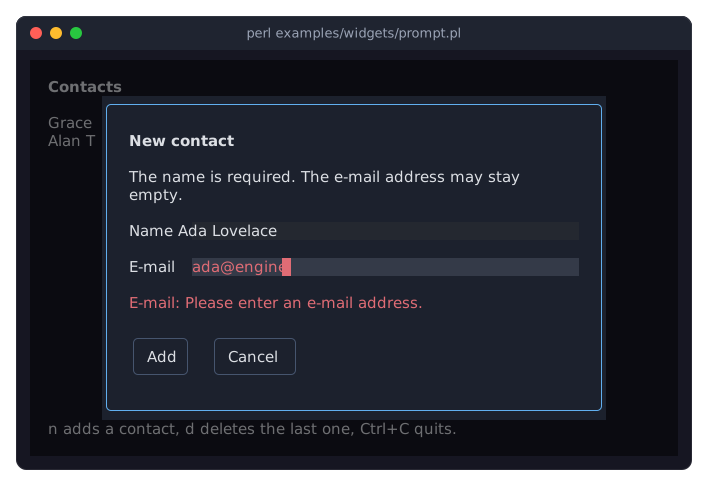
Term::Fabulous::Widget::Prompt: a list of contacts. n opens a prompt with a name that must be filled in and an e-mail address that must look like one, and Add keeps the prompt open while a value is wrong. d asks before it deletes the last contact, starting on Cancel. The picture shows the prompt after Add with an e-mail address that is not valid.
examples/widgets/file-dialog.pl
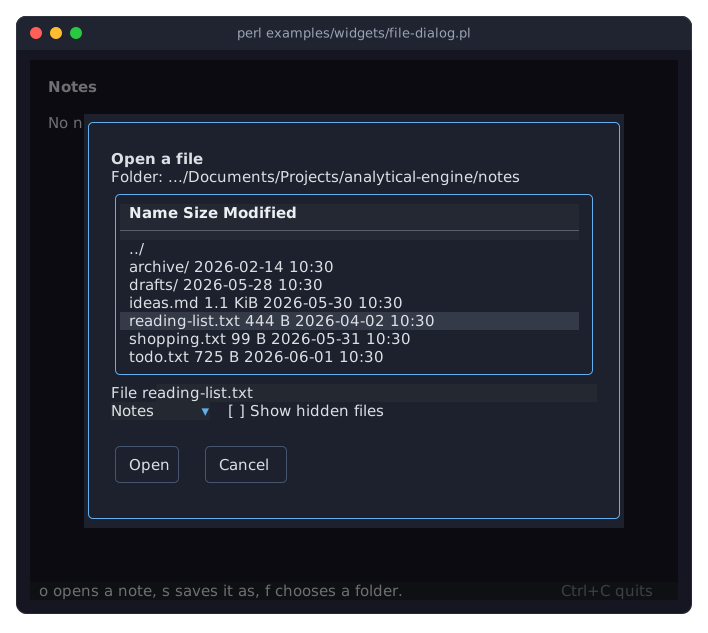
Term::Fabulous::Widget::FileDialog: a notes program that asks for files and folders, in a folder of sample notes it makes in a temporary directory. o opens a note (the dropdown switches between notes and all files), s saves it under a name (a name without a dot gets .txt, and an existing file is replaced only after a question), f chooses a folder; the status bar shows the answer. The picture shows the dialog to open a note after the cursor moved to reading-list.txt.
Progress and feedback
examples/widgets/progress-bar.pl
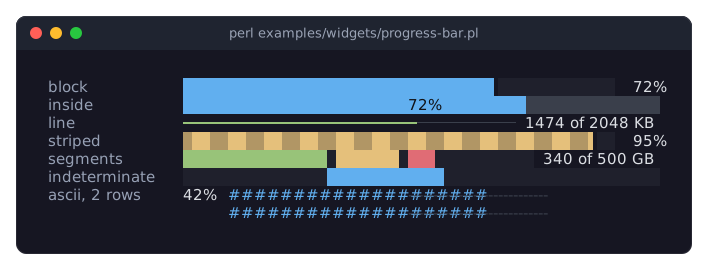
Term::Fabulous::Widget::ProgressBar: a block bar with its percentage, one with the percentage inside, a thin line bar with a label of its own, a striped bar whose stripes move, a bar of three colored segments, an indeterminate bar with its runner, and a two-row ASCII bar. The bars fill up from a timer.
examples/widgets/toast.pl
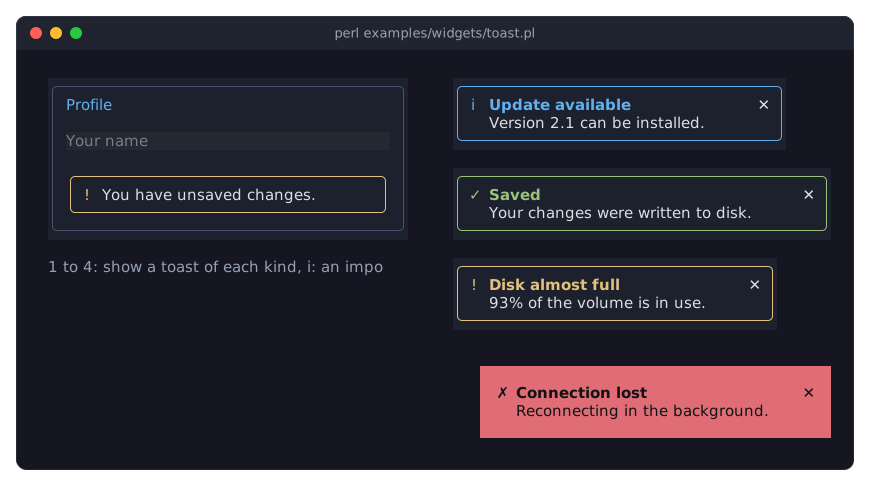
Term::Fabulous::Widget::Toast: toasts of every kind stacked in the top right corner, a filled (important) one that stays in the bottom right corner, and one used as an alert box inside a form. The keys 1 to 4 show a toast of each kind, i an important one; the picture shows it after 1, 2, 3 and i.
examples/widgets/spinner.pl
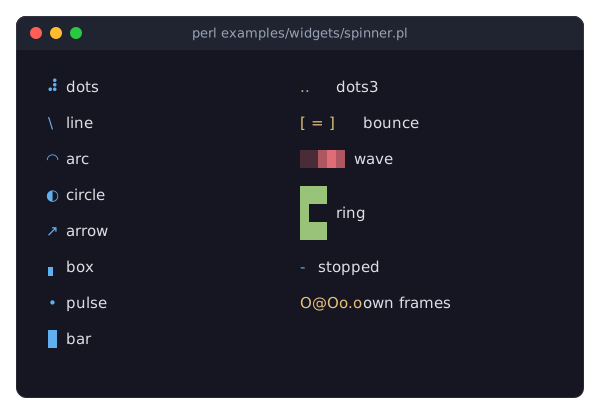
Term::Fabulous::Widget::Spinner: every ready-made style with its name as the label, one-cell styles in the first column and wider and taller ones in the second, then a stopped spinner and one with frames of its own. The picture shows the frames of one moment; the program animates them.
examples/widgets/status-bar.pl
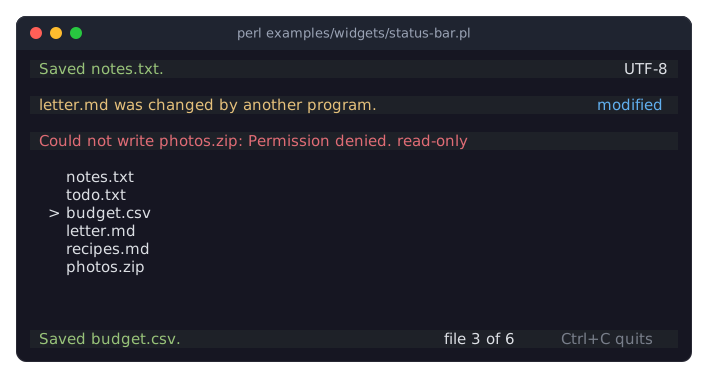
Term::Fabulous::Widget::StatusBar: a list of files with a status bar at the bottom, which shows the position of the cursor on the right and a message after s, w or e. Above the list, a status bar of each other kind. The picture shows it after Down, Down and s.
Menus
examples/widgets/menu.pl
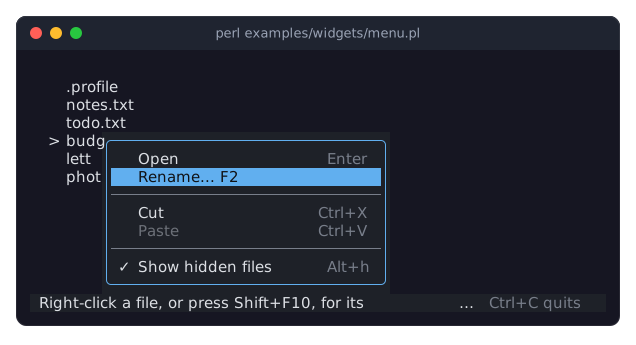
Term::Fabulous::Widget::Menu as a context menu: a list of files, whose menu opens with a right click, Shift+F10 or the Menu key. Its items run the same commands as their keys, Paste is dimmed until a file was cut, and Show hidden files has a check mark. The picture shows the menu after a right click on budget.csv.
examples/widgets/menu-bar.pl
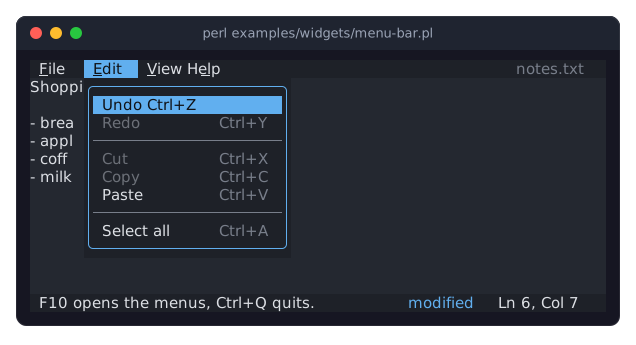
Term::Fabulous::Widget::MenuBar: a small notes editor with a menu bar, a text area and a status bar. The items of the menus are commands of one table, so their keys work without the menus, and the items that cannot run now are dimmed. The picture shows the Edit menu after typing a line.
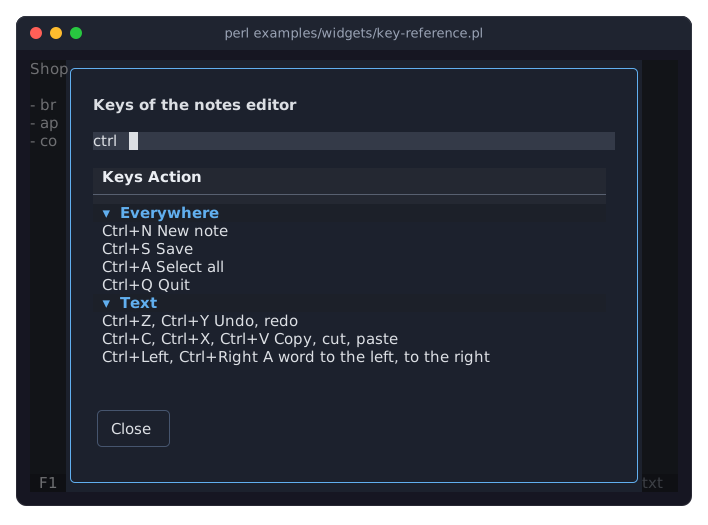
examples/widgets/key-reference.pl
Term::Fabulous::Widget::KeyReference: a small notes editor whose keys are commands of one table. F1 opens the key reference with the keys of the commands, and the keys of the text area and of the key reference itself, in groups. Typing filters it; Escape or Close closes it. The picture shows it after F1 and typing ctrl.
Tables
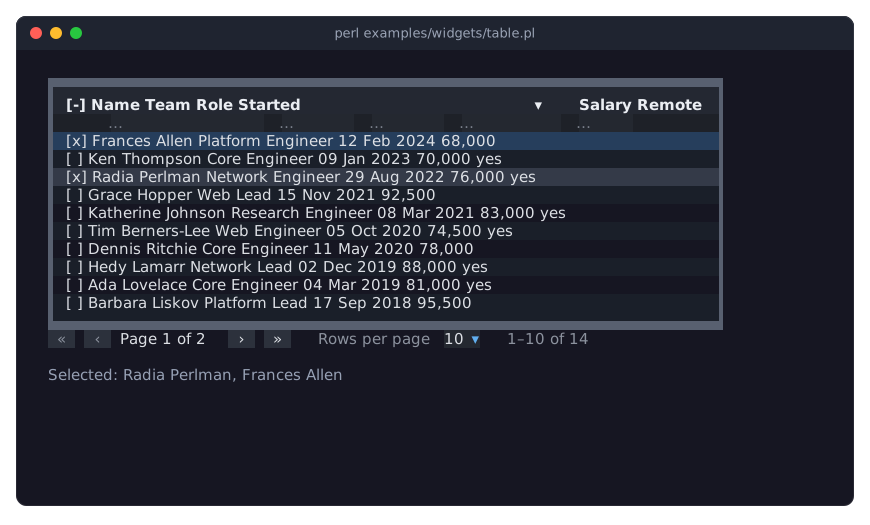
examples/widgets/table.pl
Term::Fabulous::Widget::Table: a list of staff with a filter row, multiple selection with check boxes, rows sorted by the start date, formatted dates and numbers, striped rows and a pager. Space selects a row, Shift with an arrow key selects a range, Ctrl+A selects all, a click on a column title sorts, and Ctrl+PageDown and Ctrl+PageUp turn the pages. The picture shows it after Space, Down, Down and Space selected two rows.
Charts
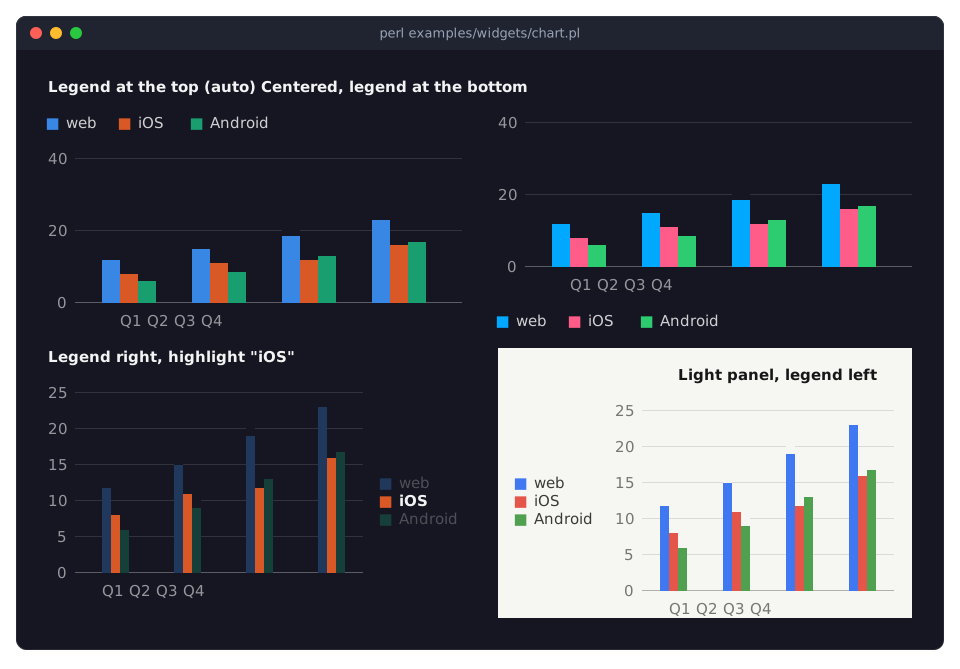
examples/widgets/chart.pl
Term::Fabulous::Widget::Chart, what every chart has, shown on four bar charts of the same data: titles aligned left, center and right, the legend at the top, the bottom, the right and the left, two palettes, a series emphasized with highlight, and a chart on a light panel that picks light-theme colors by itself. See "Titles and legends" in Term::Fabulous::Manual::Charts.
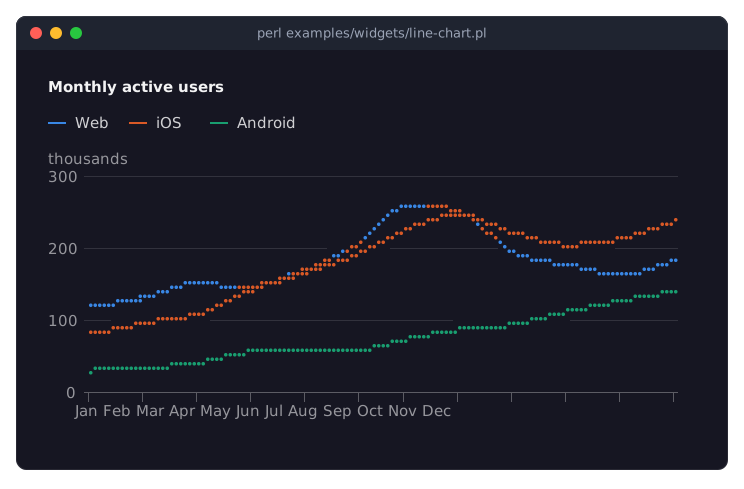
examples/widgets/line-chart.pl
Term::Fabulous::Widget::LineChart: three series of monthly figures with smooth monotone curves and a title on the y axis.
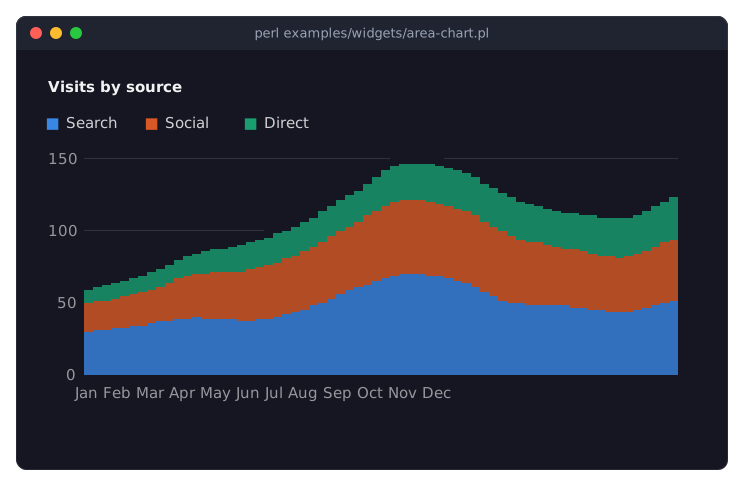
examples/widgets/area-chart.pl
Term::Fabulous::Widget::AreaChart: the visits of a website by source, stacked, with monotone curves.
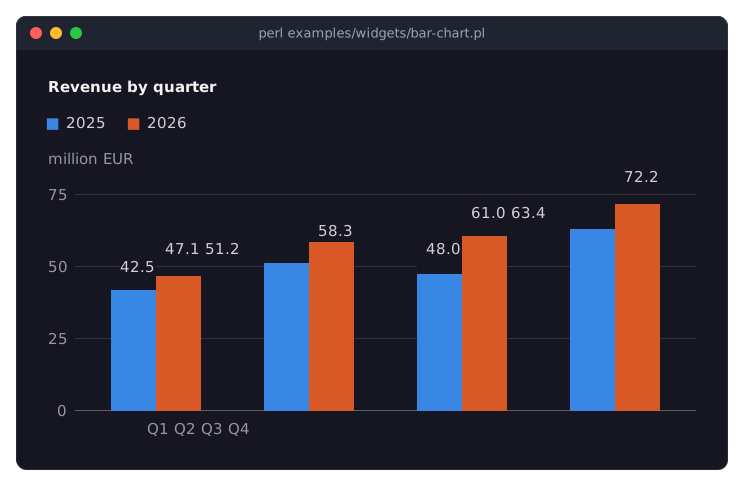
examples/widgets/bar-chart.pl
Term::Fabulous::Widget::BarChart: the revenue per quarter of two years as grouped bars, each with its value above it.
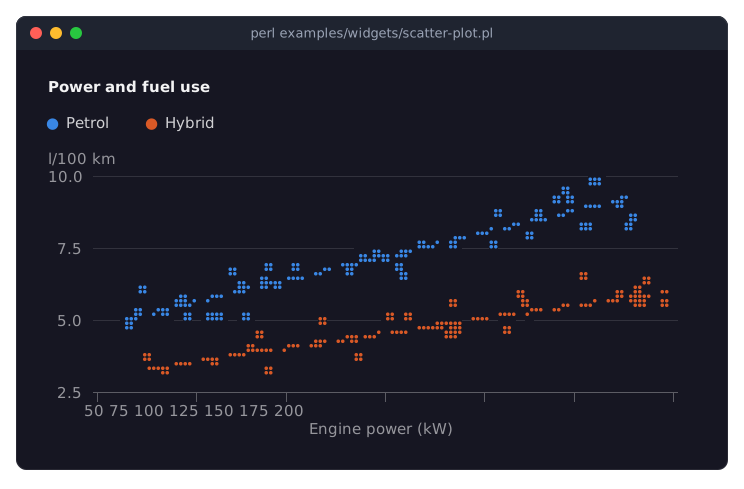
examples/widgets/scatter-plot.pl
Term::Fabulous::Widget::ScatterPlot: the engine power and fuel use of two kinds of cars, each kind with its trend line.
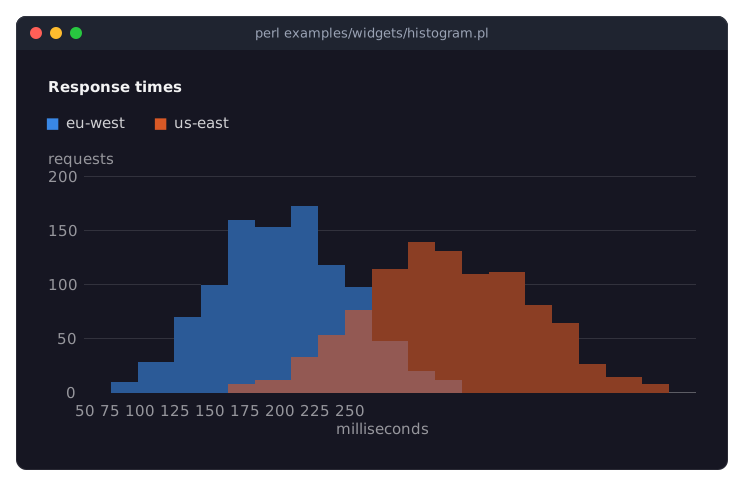
examples/widgets/histogram.pl
Term::Fabulous::Widget::Histogram: how long 2000 requests to two servers took, binned automatically. The two histograms are drawn over each other, translucent.
examples/widgets/histogram-measures.pl
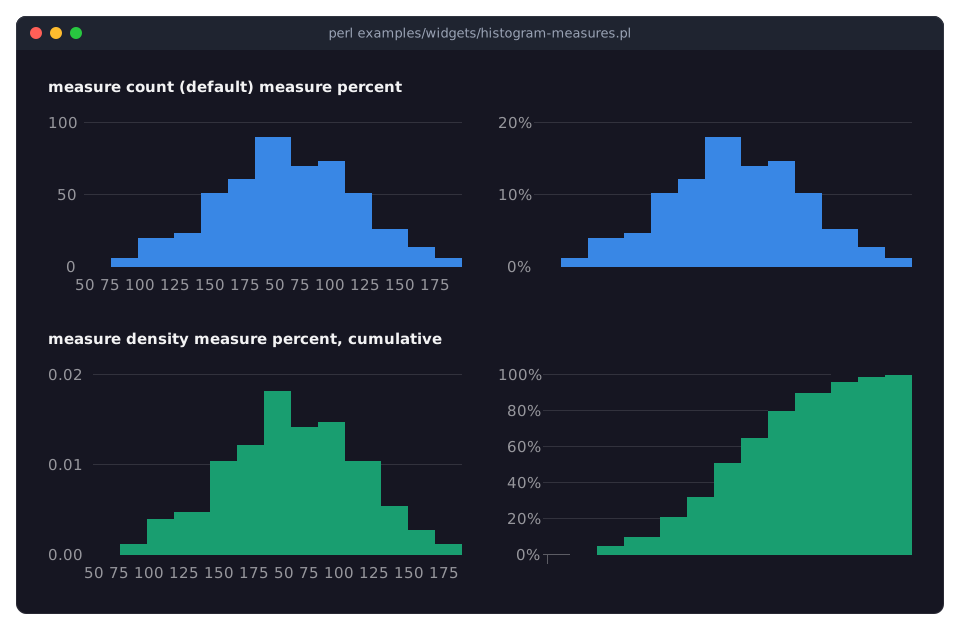
Term::Fabulous::Widget::Histogram: the same observations measured four ways: the count per bin, the percent of all observations, the density (the area under the bars is 1), and cumulative percentages, which rise to 100% at the last bin. See "Measures" in Term::Fabulous::Widget::Histogram.
examples/widgets/sparkline.pl
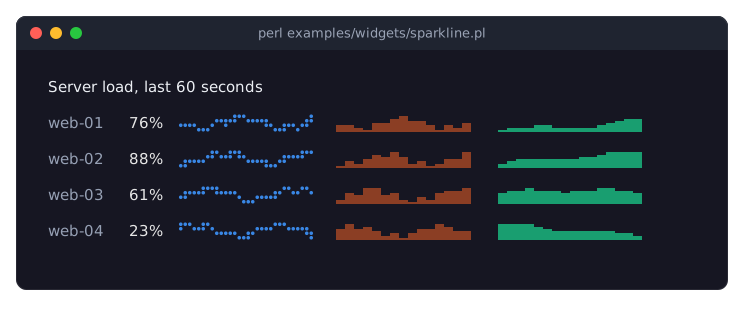
Term::Fabulous::Widget::Sparkline: a list of servers, each with its load of the last minute as a line, an area and bars, which move on every second. The picture shows it after three seconds.
examples/widgets/pie-chart.pl
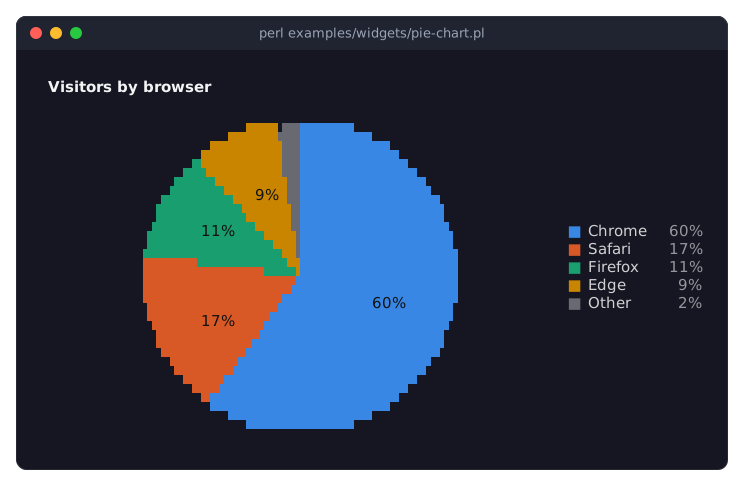
Term::Fabulous::Widget::PieChart: the browsers of a website's visitors, largest first, with the small ones folded into Other.
examples/widgets/pie-chart-styles.pl
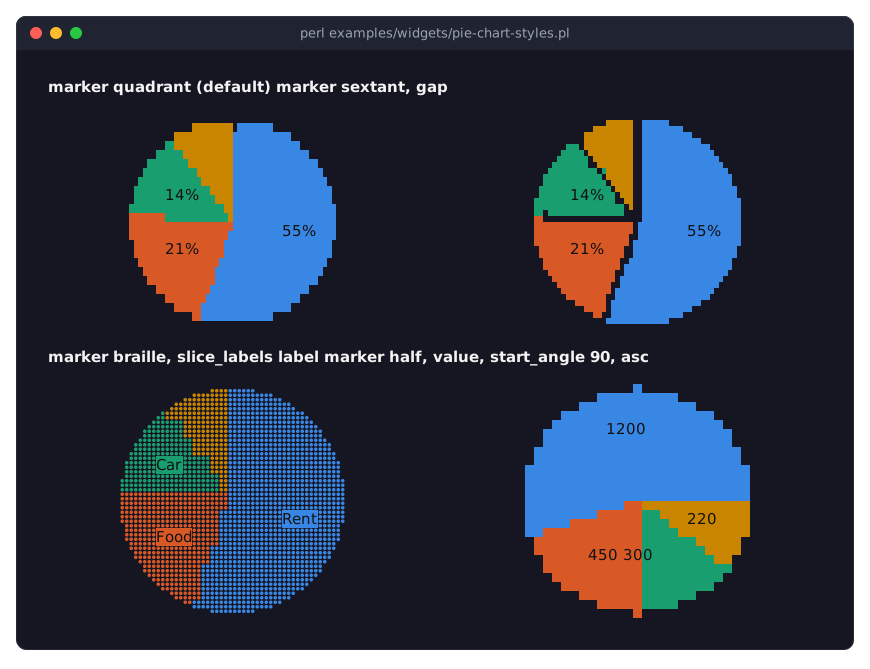
Term::Fabulous::Widget::PieChart: one set of slices drawn four ways: with the characters of four markers, with gaps between the slices, with the labels or the values on the slices, sorted and with a start angle. See "Styles" in Term::Fabulous::Widget::PieChart.
examples/widgets/donut-chart.pl
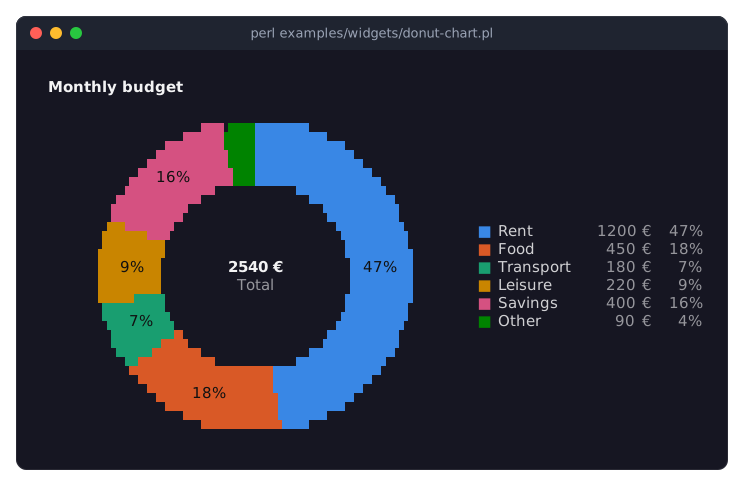
Term::Fabulous::Widget::DonutChart: a monthly budget with the total in the middle and the amounts and shares in the legend. While the mouse pointer is on a slice, the middle shows its share.
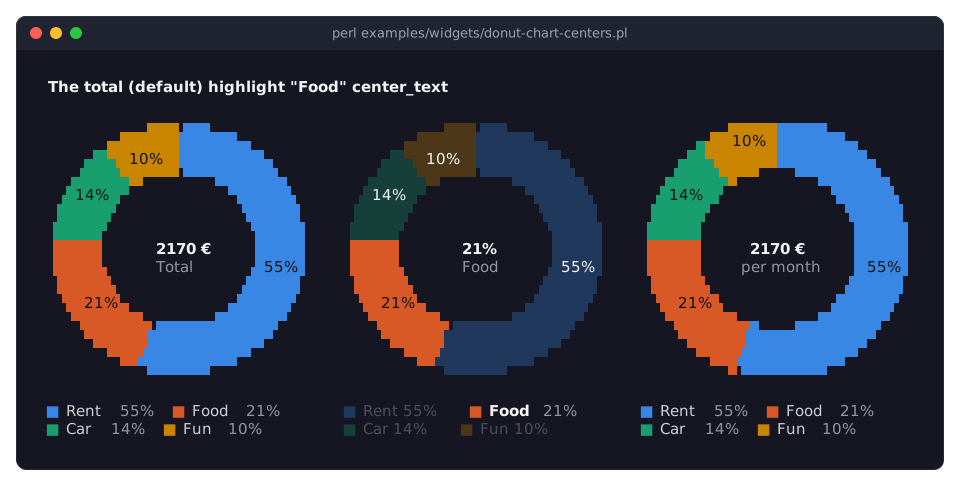
examples/widgets/donut-chart-centers.pl
Term::Fabulous::Widget::DonutChart: what the hole of a donut shows: by default the total; the share and label of the emphasized slice (under the mouse pointer, or chosen with highlight); or a center_text of your own. See "The text in the hole" in Term::Fabulous::Widget::DonutChart.
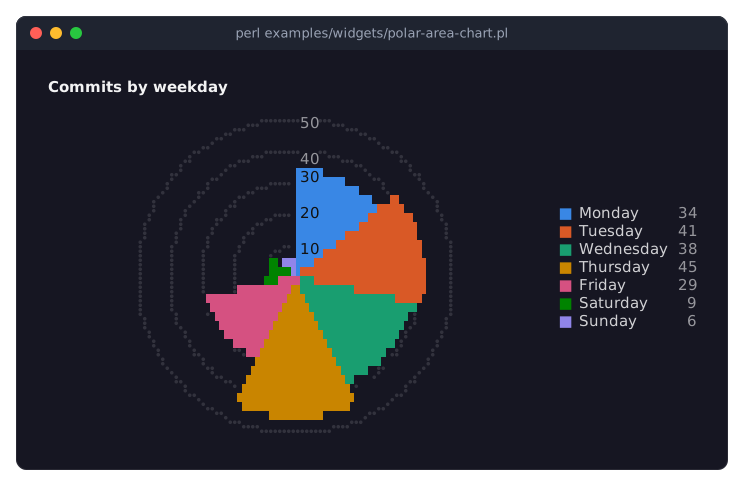
examples/widgets/polar-area-chart.pl
Term::Fabulous::Widget::PolarAreaChart: commits per weekday as slices of equal angle that reach as far out as their value, with rings for the scale.
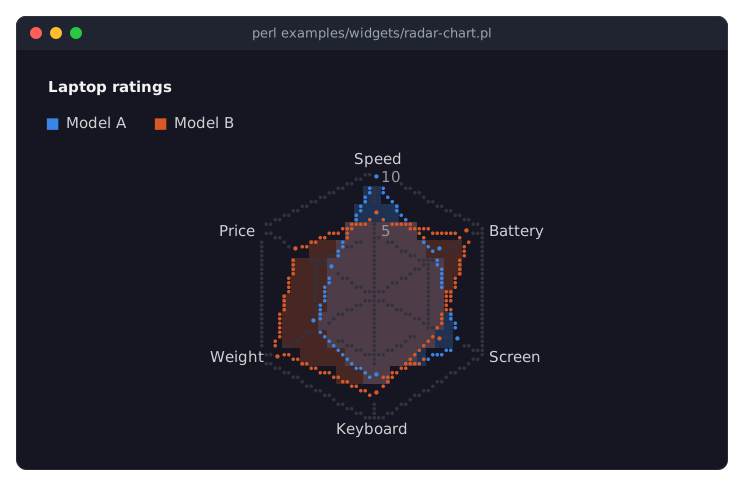
examples/widgets/radar-chart.pl
Term::Fabulous::Widget::RadarChart: the ratings of two laptops in six categories, as filled shapes on a web of axes.
THE COOKBOOK PROGRAMS
The programs in examples/cookbook are the complete programs of the recipes in Term::Fabulous::Cookbook, where each is explained line by line. They are grouped below like the cookbook pages, in the order of the recipes on each page. Three recipes use a program of examples; their entries point to it. A program that prints its result and ends is shown with its output; custom-events.pl and test-a-widget.pl have no picture.
The first program of the manual
- first-program.pl
-
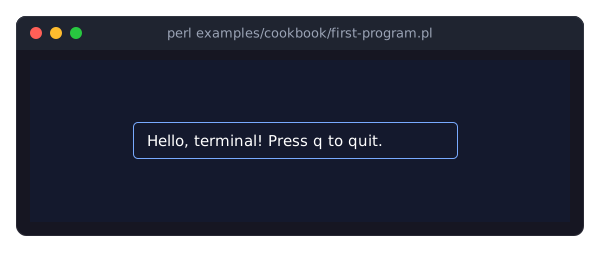
The program of "YOUR FIRST PROGRAM" in Term::Fabulous::Manual: a greeting in a bordered box, centered on the screen, and a key listener that quits on q or Escape.
Getting started
The programs of Term::Fabulous::Cookbook::GettingStarted.
- minimal-program.pl
-
"A minimal program to start from" in Term::Fabulous::Cookbook::GettingStarted: a line of text, and q, Escape or Ctrl+C to quit.
- non-ascii-text.pl
-
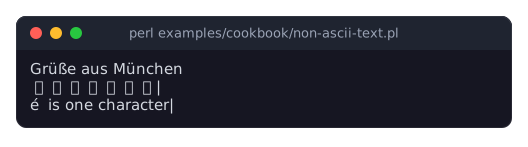
"Show non-ASCII text (umlauts, CJK, combining accents)" in Term::Fabulous::Cookbook::GettingStarted: German, Japanese and a combining accent lined up in columns; prints the result and ends.
- wrap-and-align-text.pl
-
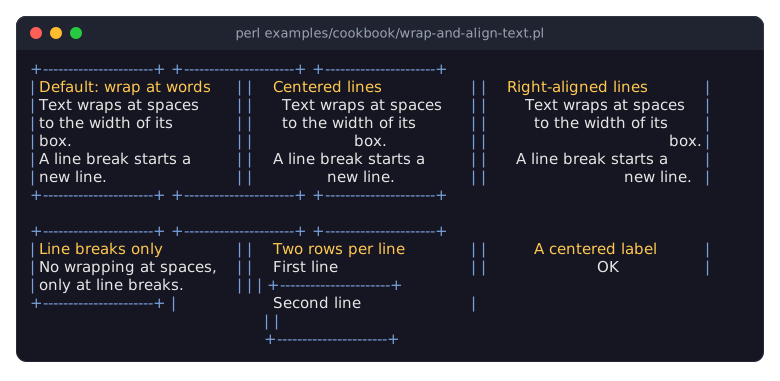
"Wrap, align and space text" in Term::Fabulous::Cookbook::GettingStarted: the wrap modes, alignment and line height of text in framed boxes; prints the boxes and ends.
Keyboard and mouse
The programs of Term::Fabulous::Cookbook::KeyboardAndMouse.
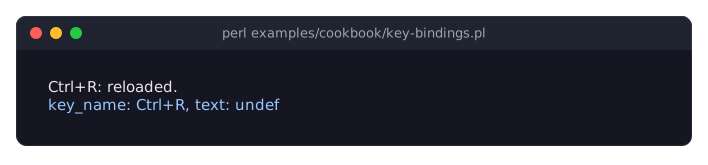
- key-bindings.pl
-
"Bind a key to an action" in Term::Fabulous::Cookbook::KeyboardAndMouse: application key bindings that show the name of every key pressed. The picture shows it after Ctrl+R.
-
The program of "Add buttons for the mouse and the keyboard (Button)" in Term::Fabulous::Cookbook::KeyboardAndMouse; see its entry among the demo programs.
- follow-links.pl
-
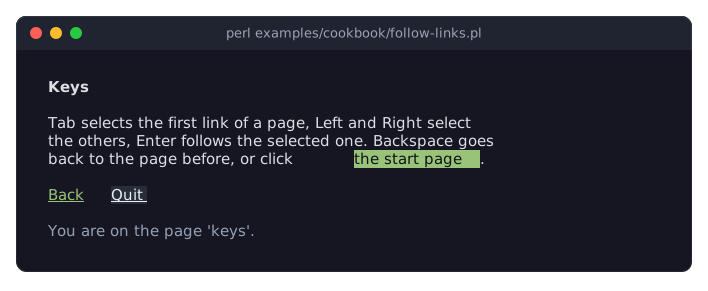
"Follow links in a text (RichText links)" in Term::Fabulous::Cookbook::KeyboardAndMouse: a help text of three pages whose links lead to each other, a footer whose links go back and quit, and a theme that draws links in green. The picture shows the second page, after Tab and Enter followed the first link and Right selected the link on the new page, with the mouse pointer over Quit.
- click-a-word.pl
-
"React to a click on a word (TextClick)" in Term::Fabulous::Cookbook::KeyboardAndMouse: a left click on a word looks it up in a glossary, a right click shows everything the click reports. The picture shows it after a left click on terminal and a right click on the bold word span.
![Two paragraphs, the second with the word span in bold yellow; below them the line terminal: the program that shows this one, and the line right button at column 5, row 4: offset 3, word span (2 to 6), spans [2-6]](https://raw.githubusercontent.com/davenonymous/perl-term-fabulous/v0.01/screenshots/cookbook-click-a-word.svg)
Timers and live data
The programs of Term::Fabulous::Cookbook::LiveData.
- clock.pl
-
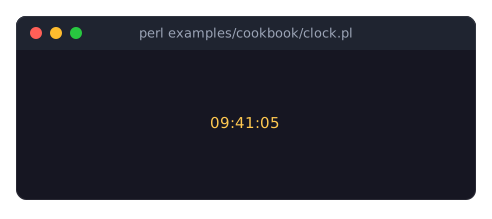
"Update the screen from a timer (a clock)" in Term::Fabulous::Cookbook::LiveData: a clock that a timer updates once per second.
- scrolling-log.pl
-
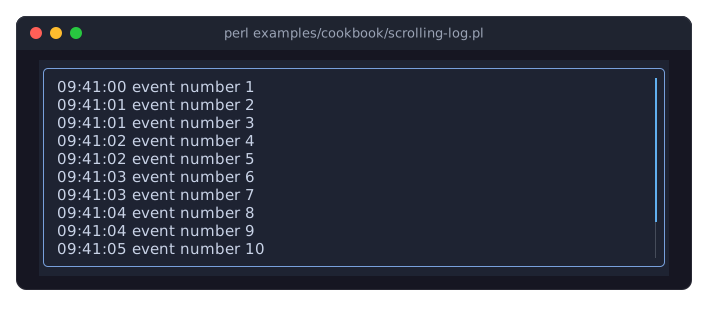
"Add lines to a scrolling log (ScrollBox)" in Term::Fabulous::Cookbook::LiveData: a timer adds a line to a log in a scroll box. The picture shows it after a few seconds.
- follow-log.pl
-
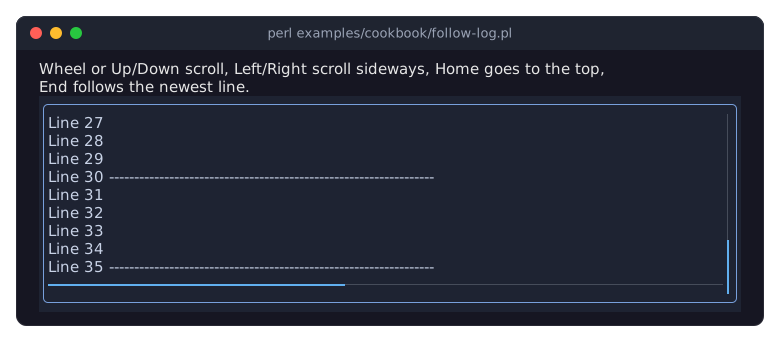
"Scroll a ScrollBox from code (keep a log at the newest line)" in Term::Fabulous::Cookbook::LiveData: a log that keeps its newest line in view. The mouse wheel or Up and Down scroll, Left and Right scroll sideways, Home goes to the top and End follows the newest line again. The picture shows it after a few seconds.
- show-output.pl
-
"Show the output of a running command" in Term::Fabulous::Cookbook::LiveData: runs the command given on the command line and shows its newest lines of output and its exit status. The picture shows it running
seq -f 'Line %g' 1 40.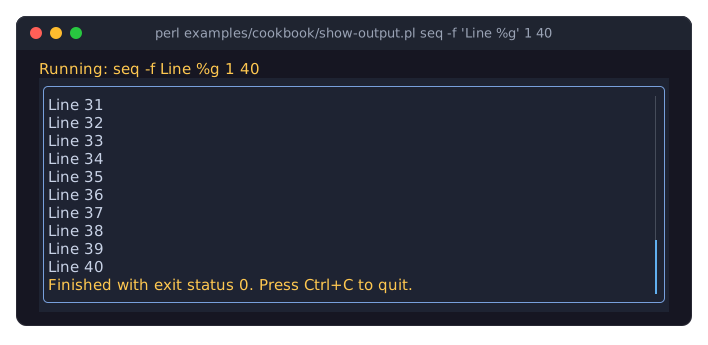
Forms
The programs of Term::Fabulous::Cookbook::Forms.
- login-form.pl
-
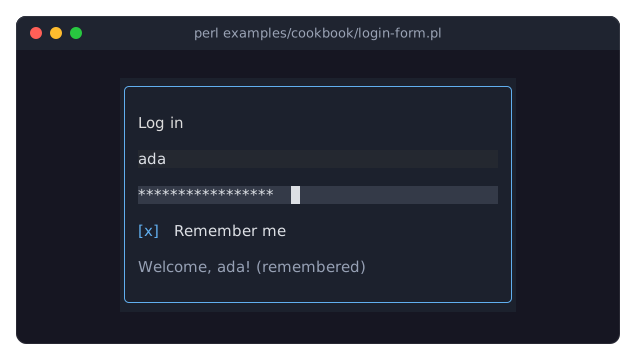
"A login form (centered dialog, masked password)" in Term::Fabulous::Cookbook::Forms: a user name, a masked password and a check box in a centered box; Enter in a field logs in. The picture shows it after logging in.
- check-form.pl
-
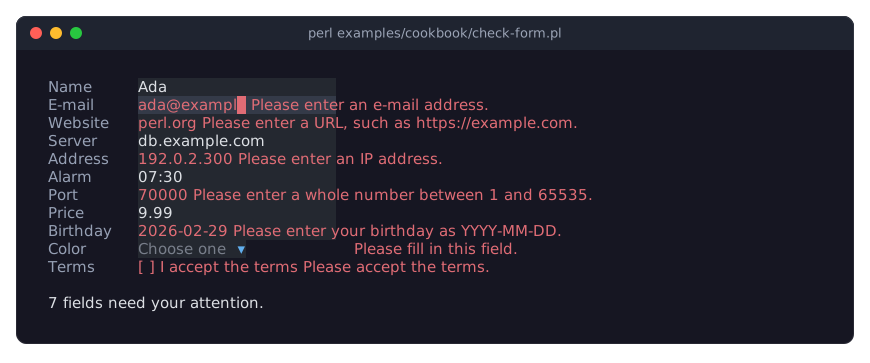
"Check the values of a form (required, validator)" in Term::Fabulous::Cookbook::Forms: a sign-up form with required fields, a field for every built-in validator, a required dropdown and a required check box, with each field's message beside it; Enter in a text field sends the form. The picture shows it after filling in some fields wrongly and pressing Enter.
- own-checks.pl
-
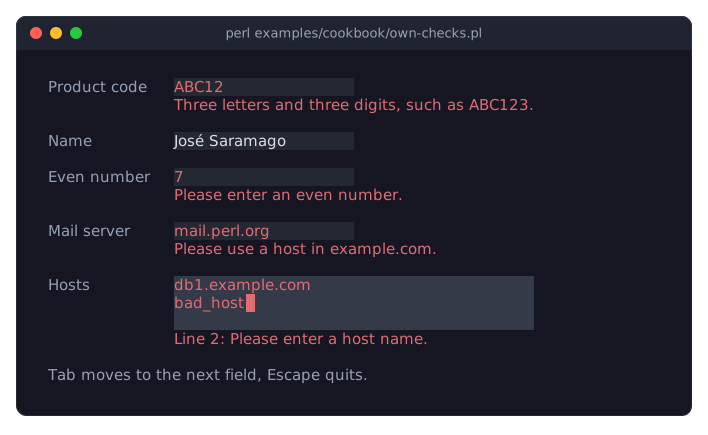
"Write your own checks and restrict typing (accept, pattern, code)" in Term::Fabulous::Cookbook::Forms: fields that accept only some characters, a pattern with a message of its own, a check in Perl code, two validators at once and a text area whose lines are checked one by one. The picture shows it after typing into every field.
- confirm-dialog.pl
-
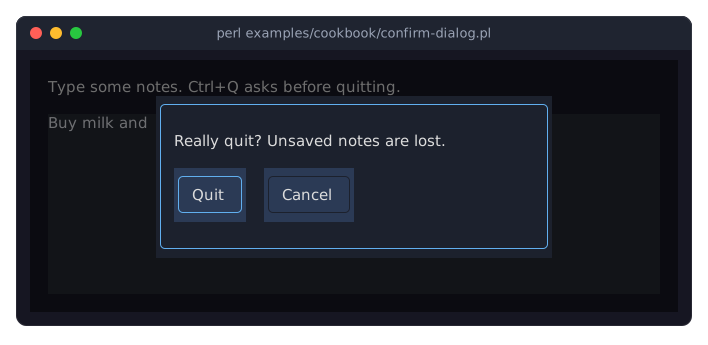
"Ask a question in a dialog (Dialog widget)" in Term::Fabulous::Cookbook::Forms: a notes area; Ctrl+Q asks in a dialog before quitting. The picture shows the open dialog, after typing a note and Ctrl+Q.
- confirm-prompt.pl
-
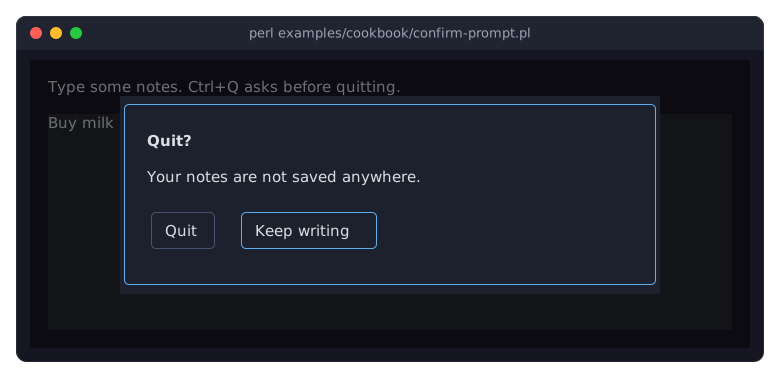
"Confirm before quitting (Prompt)" in Term::Fabulous::Cookbook::Forms: the notes area of the previous program, with the question asked by a prompt in one call, which starts on Keep writing. The picture shows the prompt after typing a note and Ctrl+Q.
- ask-prompt.pl
-
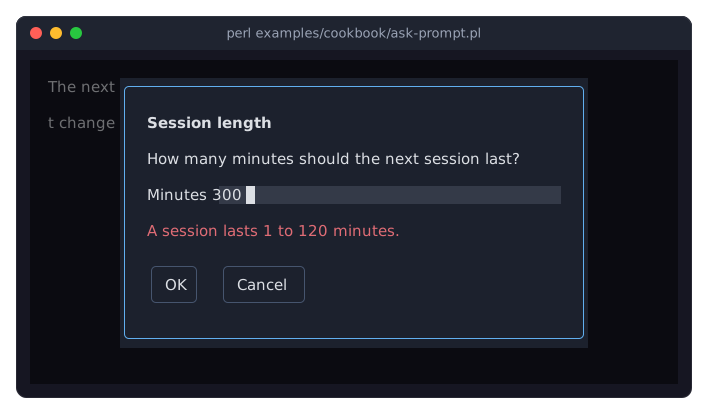
"Ask for a number and check it (Prompt, validator)" in Term::Fabulous::Cookbook::Forms: t asks for the length of a session in minutes, a whole number from 1 to 120. The picture shows the prompt after typing 300 and Enter.
- open-and-save.pl
-
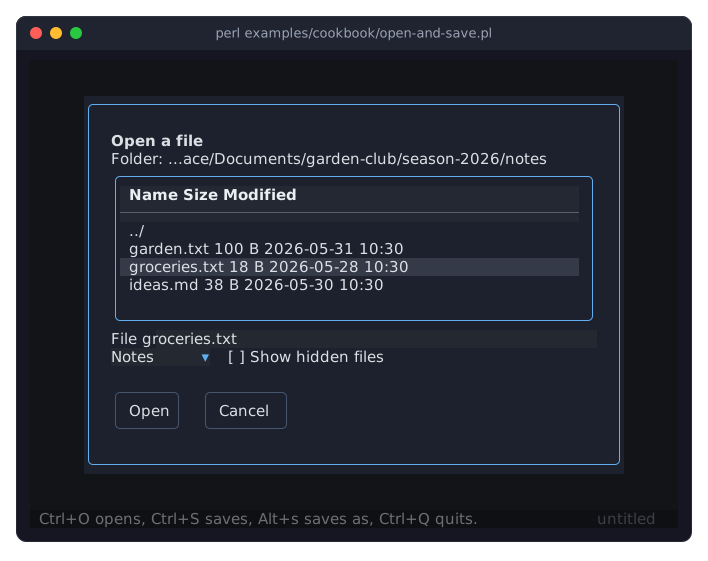
"Open and save a file (FileDialog)" in Term::Fabulous::Cookbook::Forms: a notes editor that opens and saves its note with file dialogs, in a folder of sample notes it makes in a temporary directory. The picture shows the open dialog after Ctrl+O and two steps down the list.
- color-prompt.pl
-
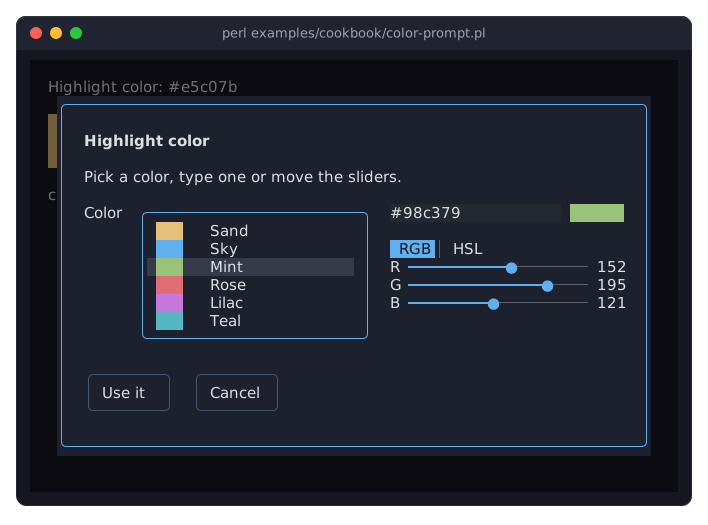
"Ask for a color (ColorPicker in a Prompt)" in Term::Fabulous::Cookbook::Forms: c asks for the color of a highlight in a prompt with a color picker. The picture shows the prompt after two steps down the list of named colors.
- inline-prompt.pl
-
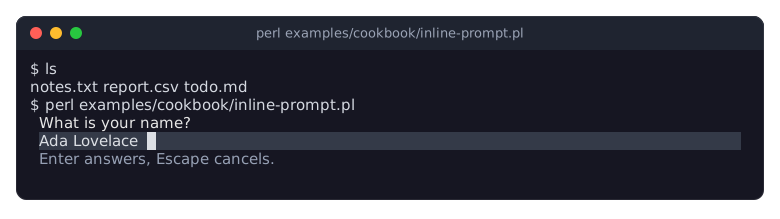
"Ask for input below the shell's output (inline mode)" in Term::Fabulous::Cookbook::Forms: a question that draws into three rows below the shell's output instead of the whole screen. Enter answers, Escape cancels. The picture shows it after typing a name.
- choose-options.pl
-
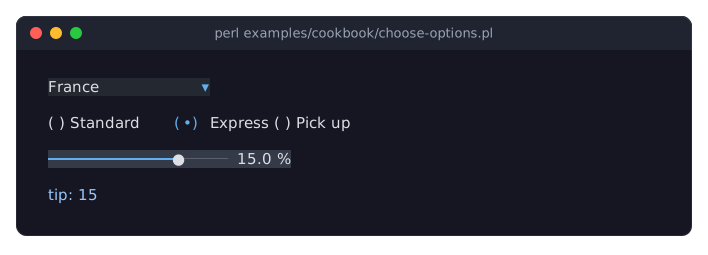
"Choose from options in Perl (Dropdown, RadioGroup, Slider)" in Term::Fabulous::Cookbook::Forms: a dropdown, a radio group and a slider built in Perl, with a status line. The picture shows it after choosing Express shipping and raising the tip.
- examples/kdl-form.pl
-
The program of "Build a form from a KDL file (text fields, radio buttons, dropdown, slider, checkbox)" in Term::Fabulous::Cookbook::Forms; see its entry among the demo programs.
- disable-inputs.pl
-
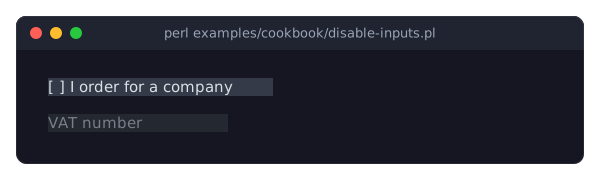
"Disable inputs until a checkbox is checked" in Term::Fabulous::Cookbook::Forms: a field that is disabled until a check box is checked.
- focus-help-line.pl
-
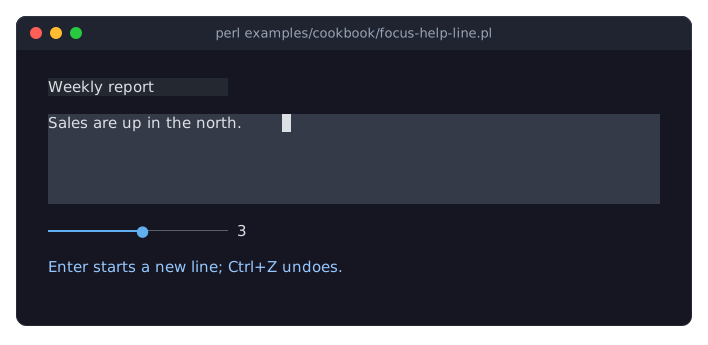
"Show a status line that follows the focus (OnFocus)" in Term::Fabulous::Cookbook::Forms: a help line that describes the focused input. The picture shows it while the notes have the focus.
- tab-order.pl
-
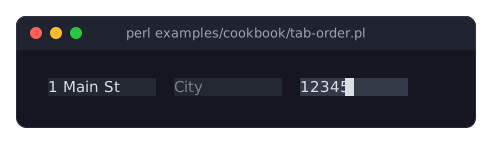
"Change the Tab order (HasFocusOrder)" in Term::Fabulous::Cookbook::Forms: three fields whose Tab order differs from their order on the screen. The picture shows it after typing a street, Tab and a zip code: Tab went from Street straight to Zip.
Menus, status bars, help screens and document tabs
The programs of Term::Fabulous::Cookbook::Menus.
-
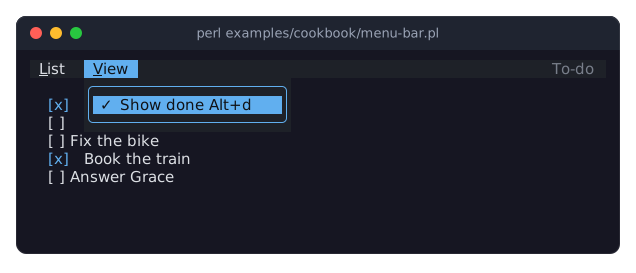
"Give a program a menu bar (MenuBar, Commands)" in Term::Fabulous::Cookbook::Menus: a to-do list with a menu bar whose commands add to-dos, remove the finished ones, show or hide them, and quit. The picture shows the View menu.
-
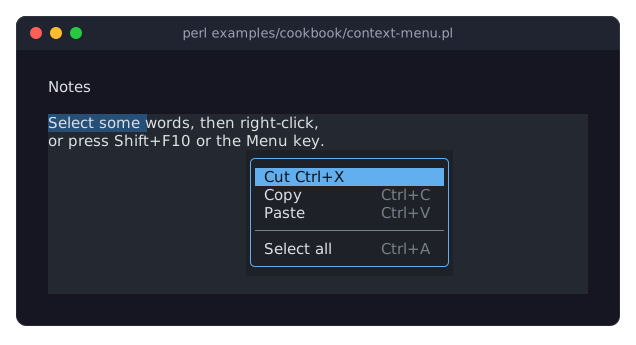
"Open a menu with a right click or the Menu key (Menu)" in Term::Fabulous::Cookbook::Menus: a text area with a context menu of Cut, Copy, Paste and Select all. The picture shows the menu after selecting two words and a right click.
- status-bar.pl
-
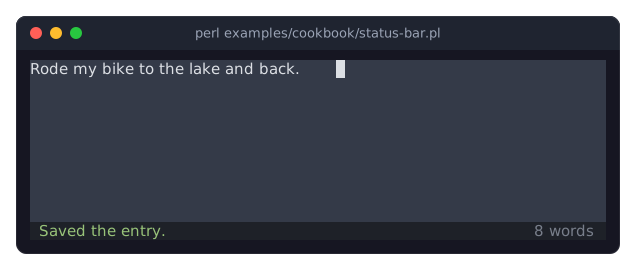
"Show messages and state in a status bar (StatusBar)" in Term::Fabulous::Cookbook::Menus: a journal with a status bar that counts the words and says when the entry was saved. The picture shows it after typing a sentence and Ctrl+S.
- help-screen.pl
-
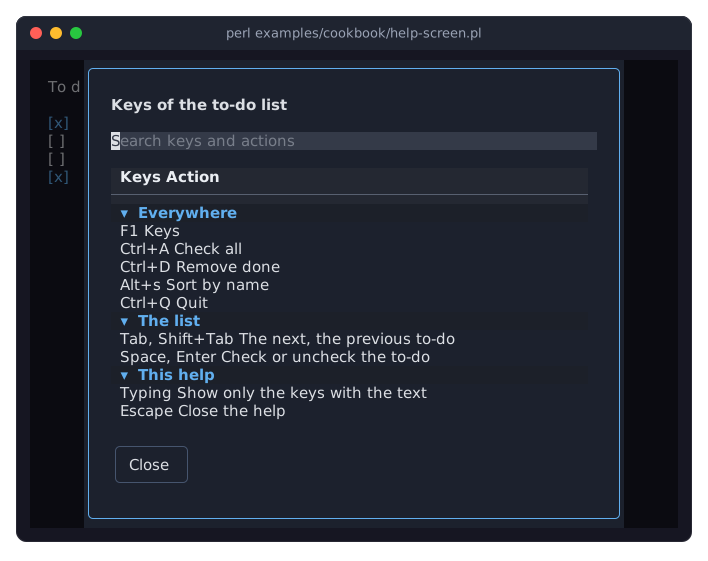
"Show the keys in a help screen (KeyReference)" in Term::Fabulous::Cookbook::Menus: a to-do list whose F1 opens a help screen with the keys of its commands and of the list. The picture shows it after F1.
- document-tabs.pl
-
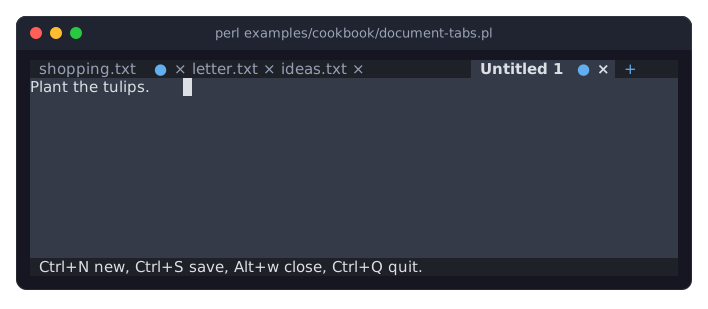
"Keep several documents open in tabs (DocumentTabs)" in Term::Fabulous::Cookbook::Menus: an editor with a tab for each open document, which asks before it closes one with unsaved changes. The picture shows it after a change to shopping.txt, Ctrl+N and a line in the new document.
Layout and looks
The programs of Term::Fabulous::Cookbook::Layout.
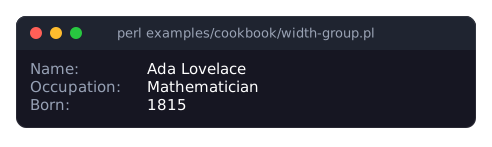
- width-group.pl
-
"Line up labels with equal widths (width_group)" in Term::Fabulous::Cookbook::Layout: labels in a width group, so their values line up; prints the result and ends.
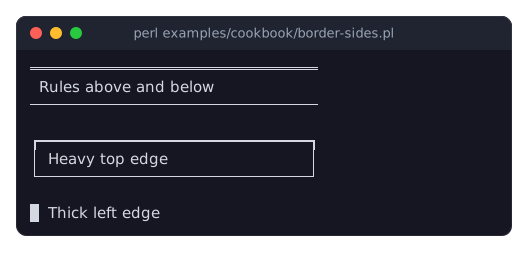
- border-sides.pl
-
"Use a different border style on each side" in Term::Fabulous::Cookbook::Layout: rules above and below, a heavy top edge and a thick left edge; prints the result and ends.
- theme-switch.pl
-
"Switch themes at run time (built-in themes and a theme file)" in Term::Fabulous::Cookbook::Layout: the built-in
darkandlightthemes and the theme file examples/themes/ocean.kdl; F2 switches to the next one. The picture shows the ocean theme, after typing a line and two presses of F2.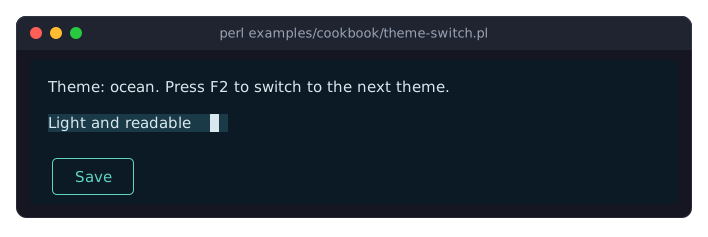
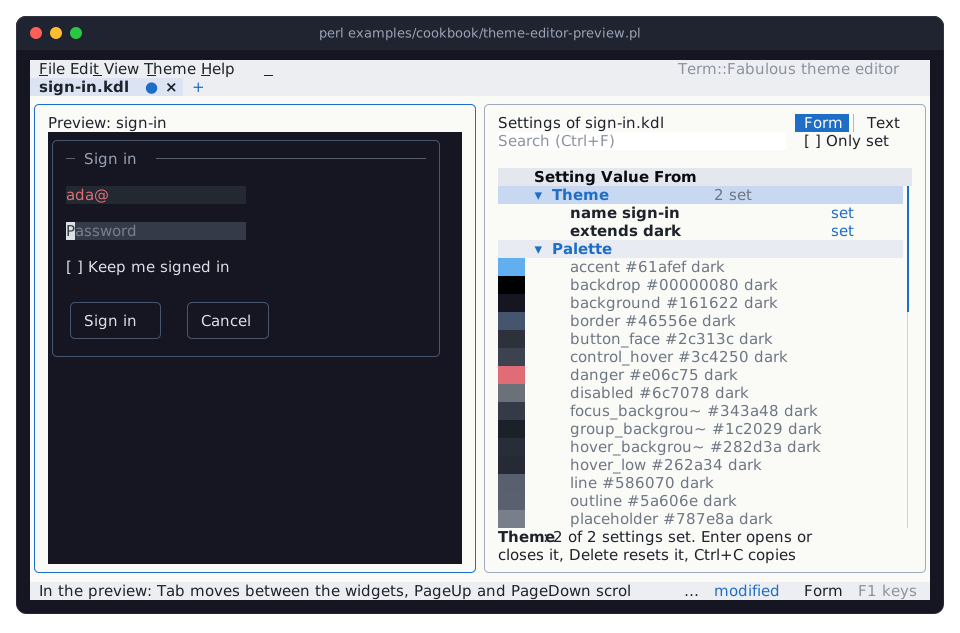
- theme-editor-preview.pl
-
"Design a theme against your own screen (the theme editor)" in Term::Fabulous::Cookbook::Layout: the theme editor, drawn in the light theme, with a sign-in form of your own as its preview; the theme file is sign-in.kdl in the current directory or the first argument.
- states-and-classes.pl
-
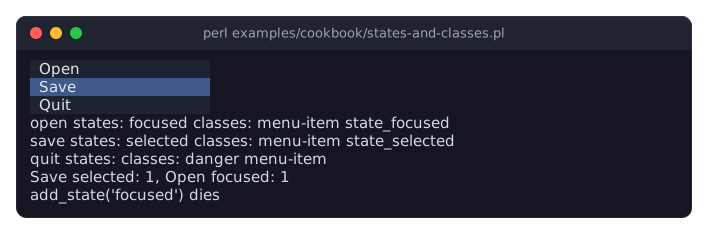
"Mark widgets with states and classes" in Term::Fabulous::Cookbook::Layout: a menu whose items take their colors from their states, followed by the states and classes of each item; prints the result and ends.
- resize-aware-layout.pl
-
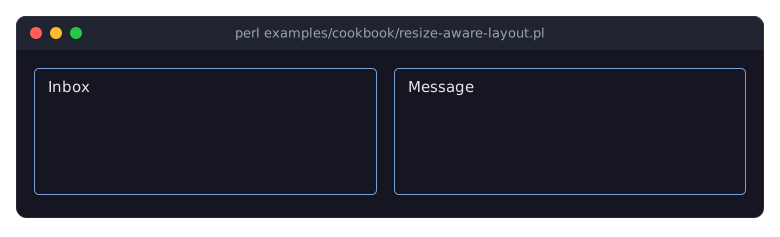
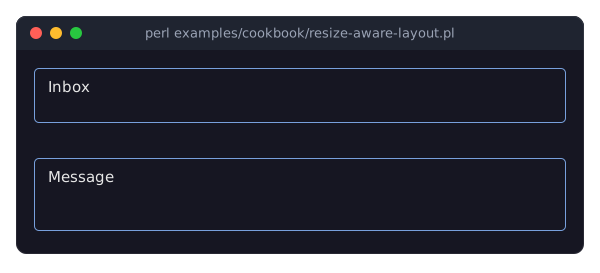
"Change the layout with the terminal size (Start and Resize events)" in Term::Fabulous::Cookbook::Layout: two panes side by side on a wide terminal and above each other on a narrow one. The pictures show it 80 and 60 columns wide.
Tables
The programs of Term::Fabulous::Cookbook::Tables.
- table-basics.pl
-
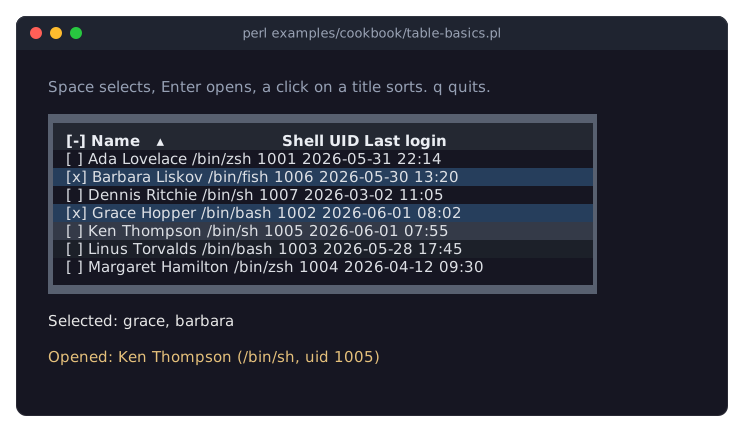
"Show a list of hashes in a table (sort, select, open a row)" in Term::Fabulous::Cookbook::Tables.
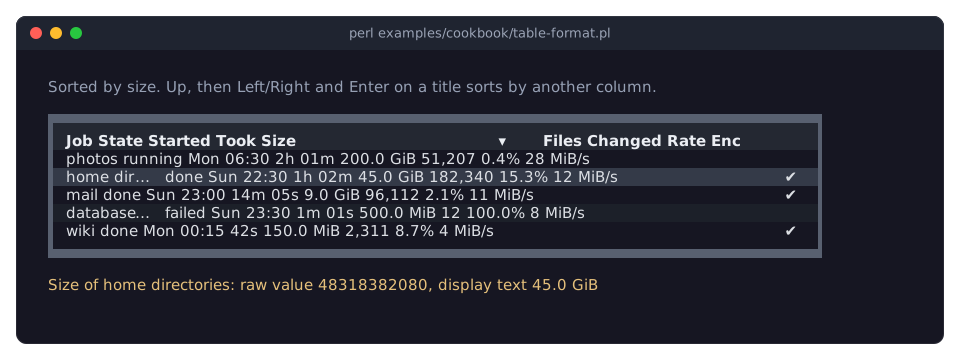
- table-format.pl
-
"Format cells: dates, numbers, sizes and flags (mutators)" in Term::Fabulous::Cookbook::Tables.
- table-edit.pl
-
"Edit the data of a table (widget cells, add and remove rows and columns)" in Term::Fabulous::Cookbook::Tables: a to-do list with check boxes and buttons in its cells.
aadds a task, Delete removes the selected tasks,hgives the task under the cursor one more hour, andnshows or hides the notes column. The picture shows it aftern, two selections with Space,a, a click on the check box of the third task andh.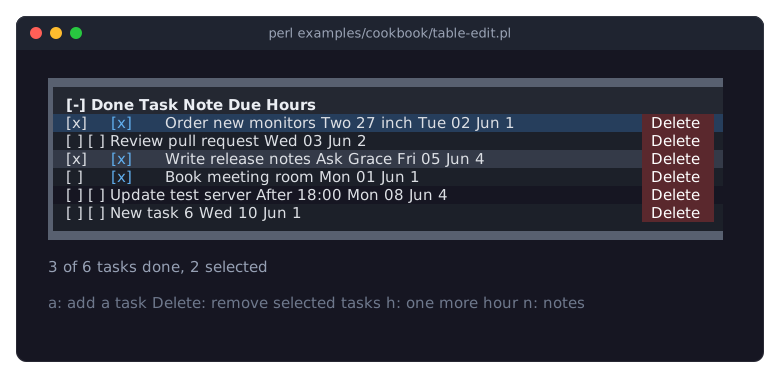
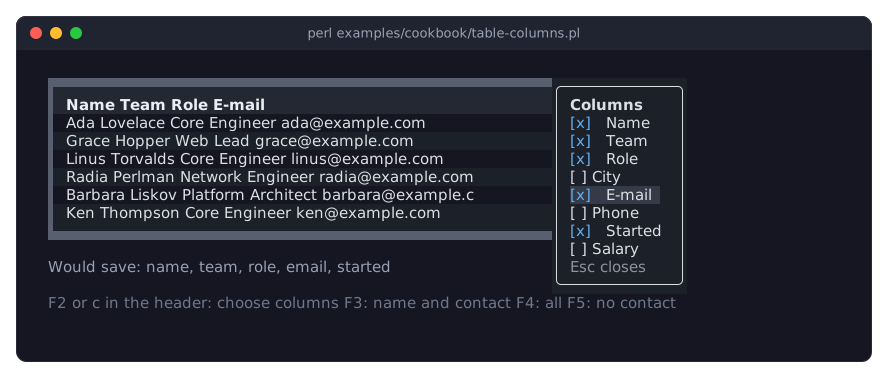
- table-columns.pl
-
"Let the user choose the visible columns (column chooser)" in Term::Fabulous::Cookbook::Tables.
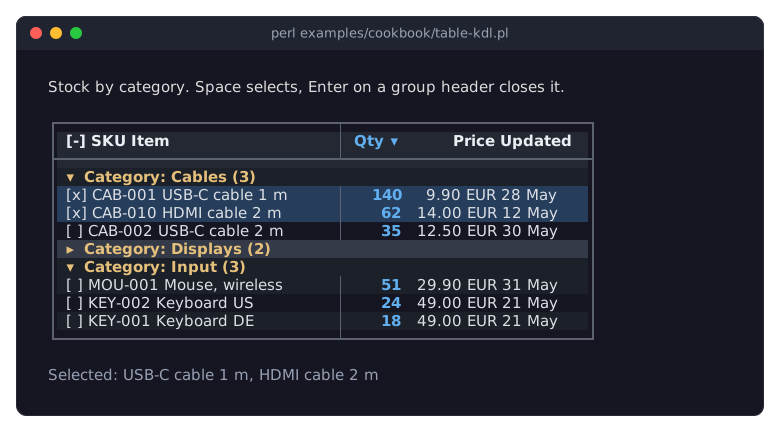
- table-kdl.pl
-
- table-report.pl
-
"Print a table as a report (Static)" in Term::Fabulous::Cookbook::Tables; prints the report and ends.
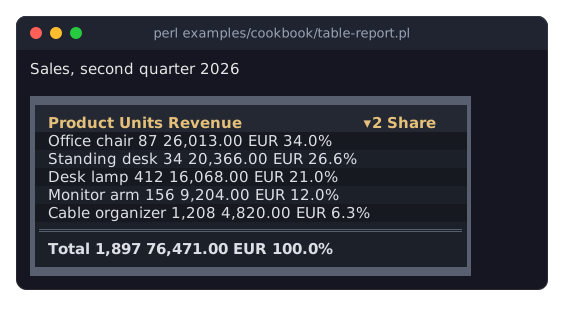
Table rows
The programs of Term::Fabulous::Cookbook::TableRows.
- table-sort.pl
-
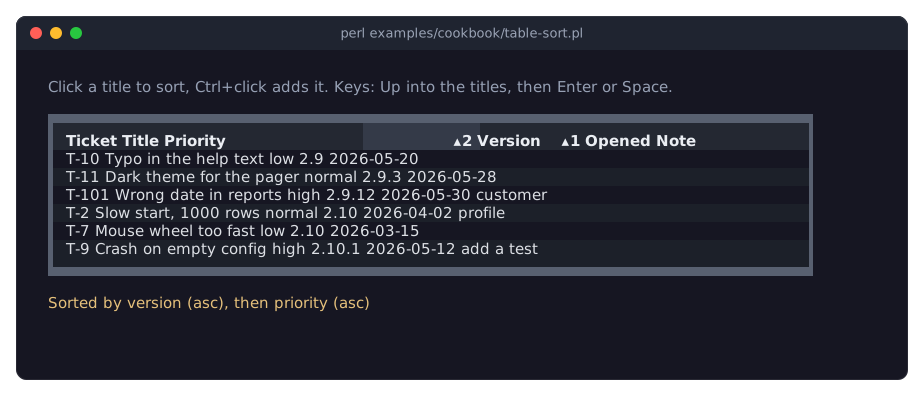
"Sort rows, also with your own comparison" in Term::Fabulous::Cookbook::TableRows.
- table-filter.pl
-
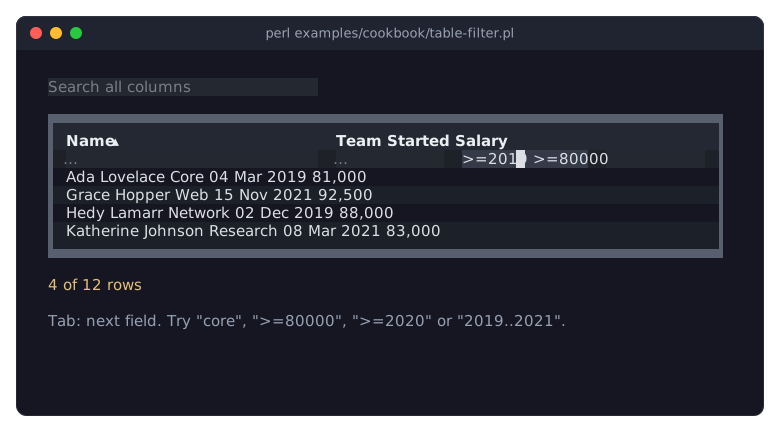
"Let the user filter rows (filter row and search box)" in Term::Fabulous::Cookbook::TableRows.
- table-filter-perl.pl
-
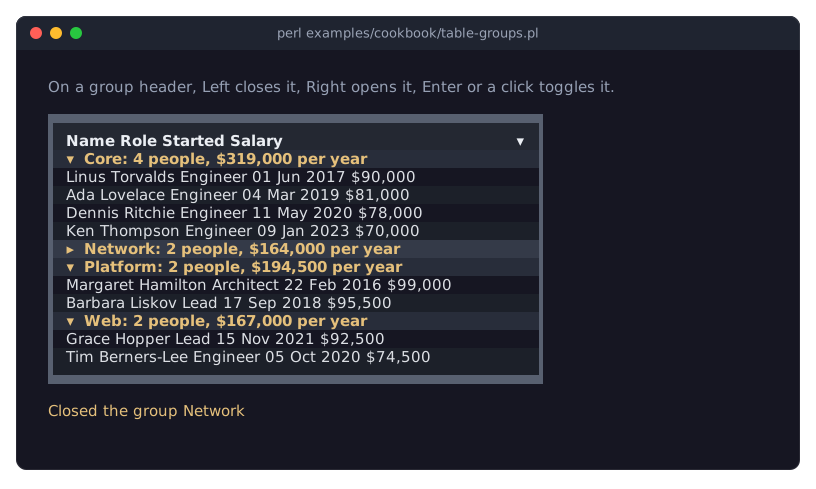
- table-groups.pl
-
"Group rows by a column (collapsible group headers)" in Term::Fabulous::Cookbook::TableRows.
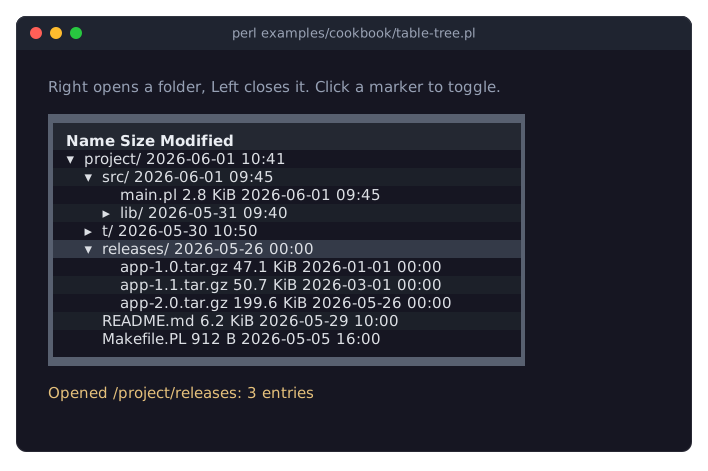
- table-tree.pl
-
"Show nested data as a tree (expand and collapse rows)" in Term::Fabulous::Cookbook::TableRows.
- table-pages.pl
-
"Split many rows into pages (pager and page sizes)" in Term::Fabulous::Cookbook::TableRows.
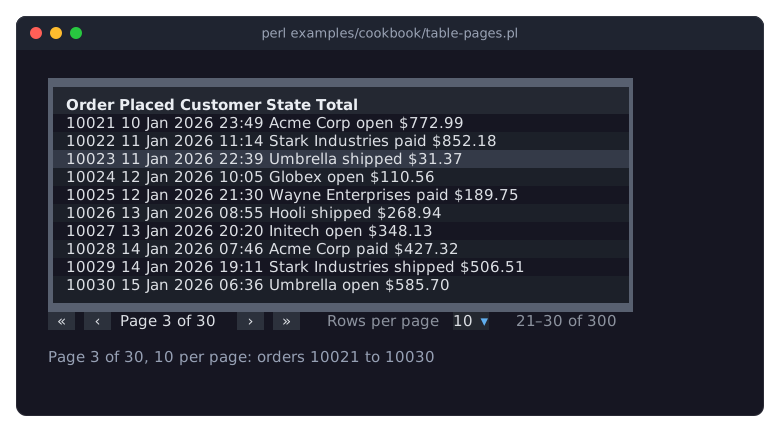
Table styles
The programs of Term::Fabulous::Cookbook::TableStyles.
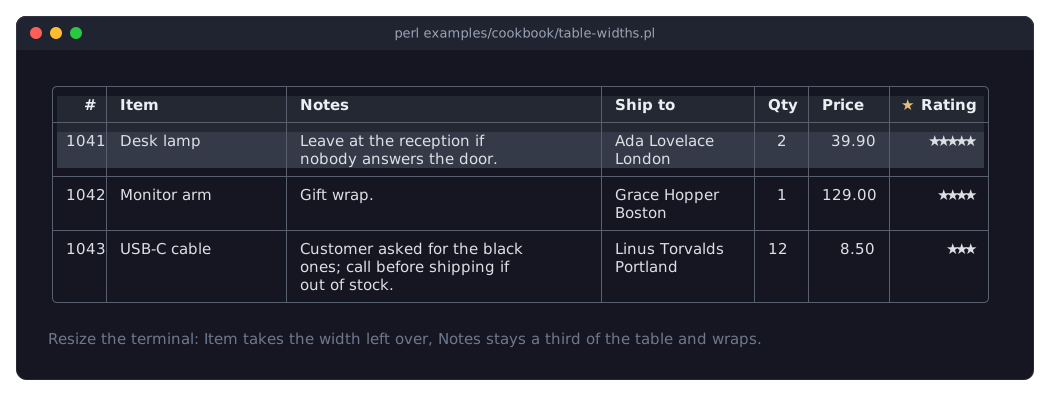
- table-widths.pl
-
"Size, align and wrap columns (widths, wrapping, widget titles)" in Term::Fabulous::Cookbook::TableStyles: fixed, growing and percentage column widths, wrapped cells, rows of two lines, alignment and a widget as a column title. Resize the terminal to see the widths change.
- table-lines.pl
-
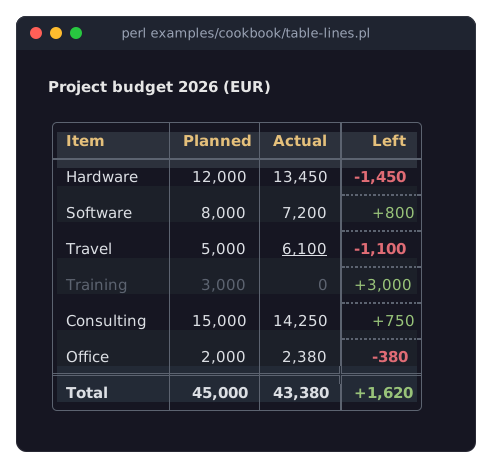
- table-colors.pl
-
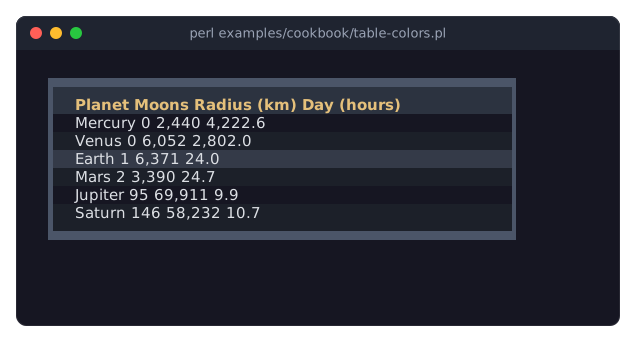
- table-line-styles.pl
-
"Compare the line options of a table (frames, grid lines, block frames)" in Term::Fabulous::Cookbook::TableStyles: the same small table with nine different settings of its lines.
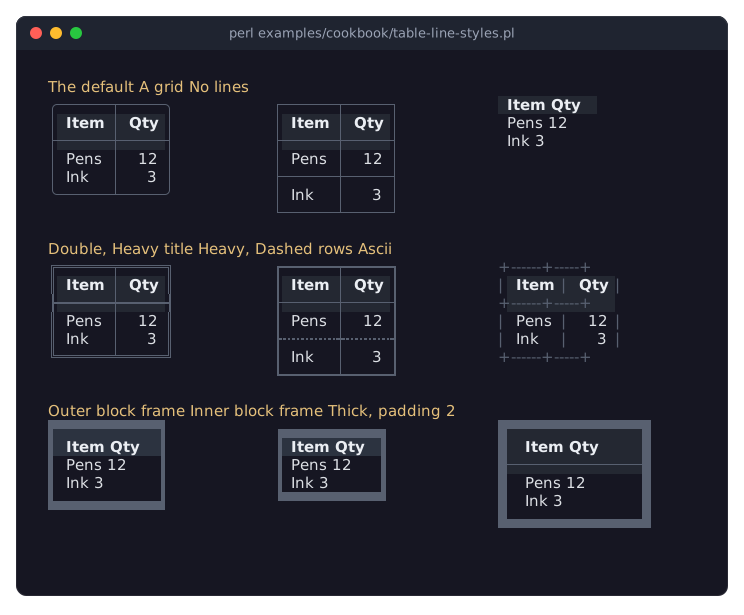
Charts
The programs of Term::Fabulous::Cookbook::Charts, one for each kind of chart.
- chart-line.pl
-
"Draw a line chart with labels and points (LineChart)" in Term::Fabulous::Cookbook::Charts.
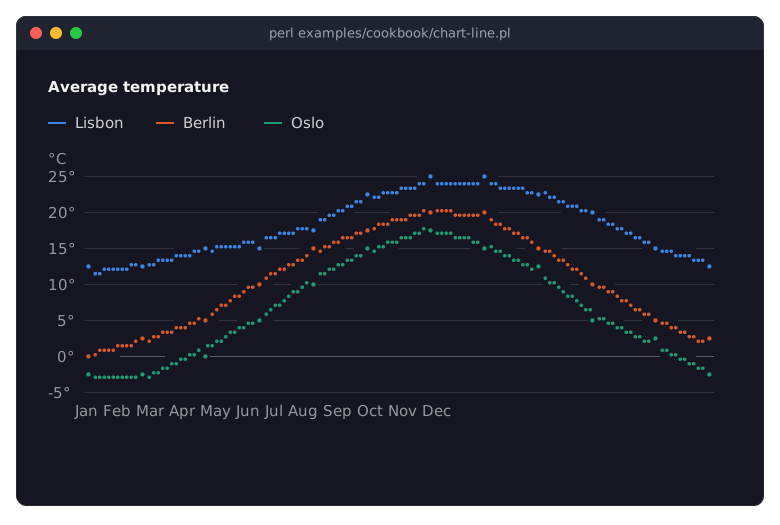
- chart-bars.pl
-
"Grouped, stacked and horizontal bars (BarChart)" in Term::Fabulous::Cookbook::Charts.
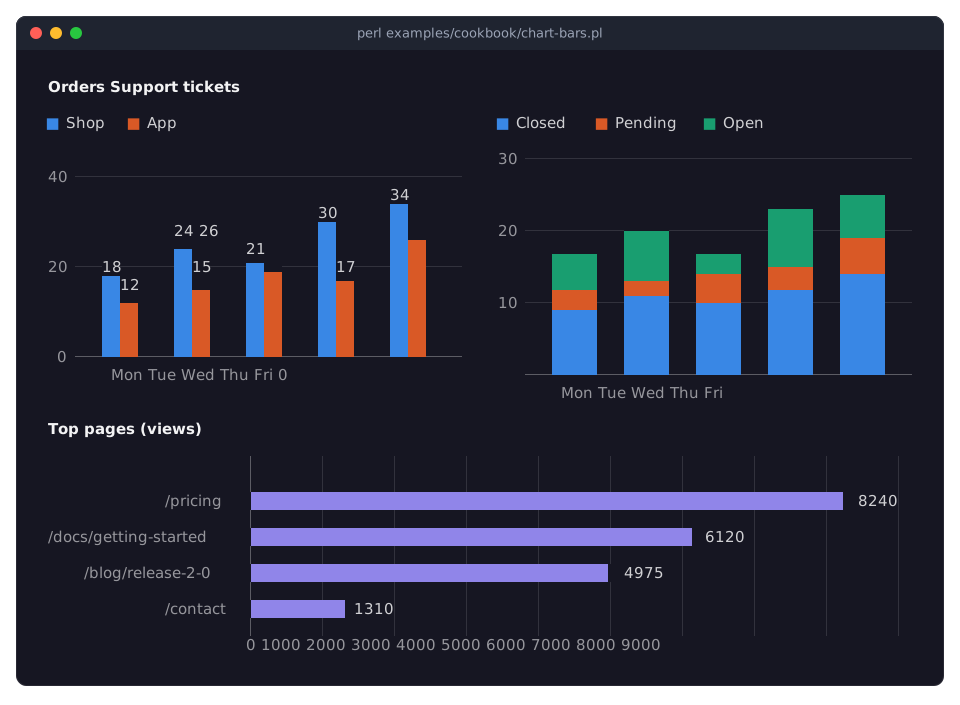
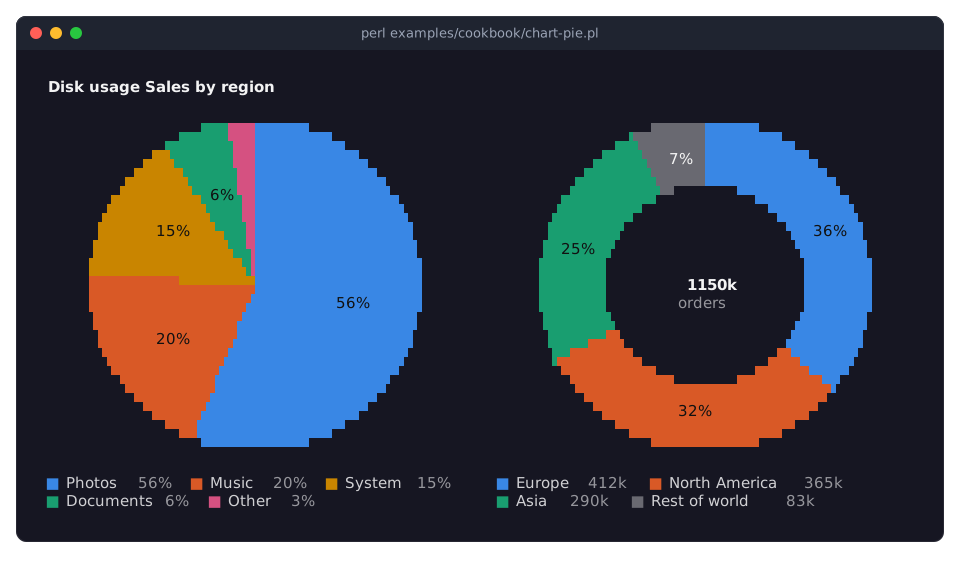
- chart-pie.pl
-
"Show shares as a pie or donut (PieChart, DonutChart)" in Term::Fabulous::Cookbook::Charts.
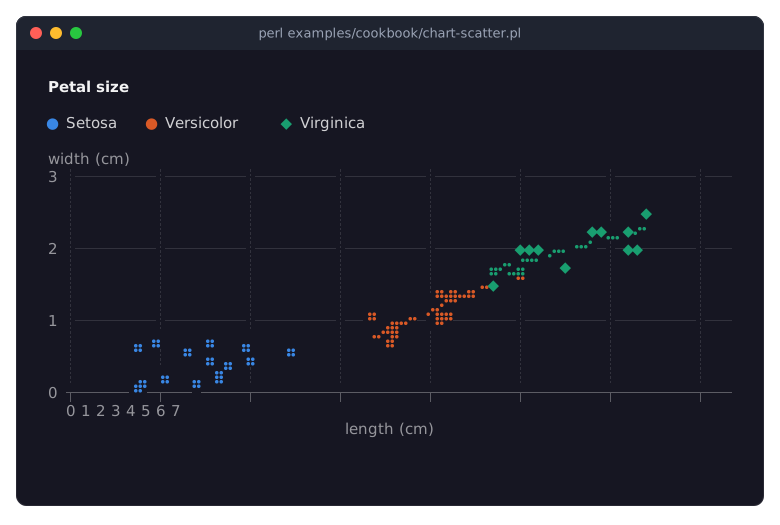
- chart-scatter.pl
-
"A scatter plot with trend lines (ScatterPlot)" in Term::Fabulous::Cookbook::Charts.
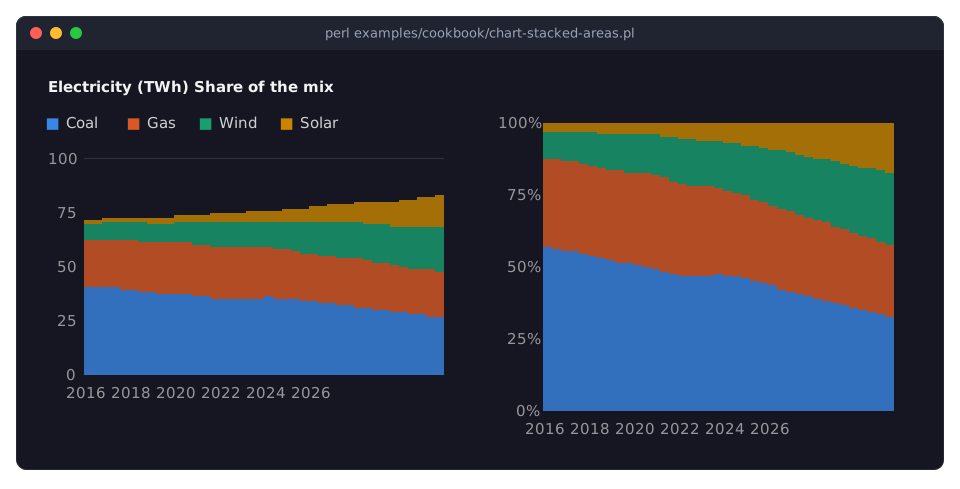
- chart-stacked-areas.pl
-
"Stacked areas and shares of 100% (AreaChart)" in Term::Fabulous::Cookbook::Charts.
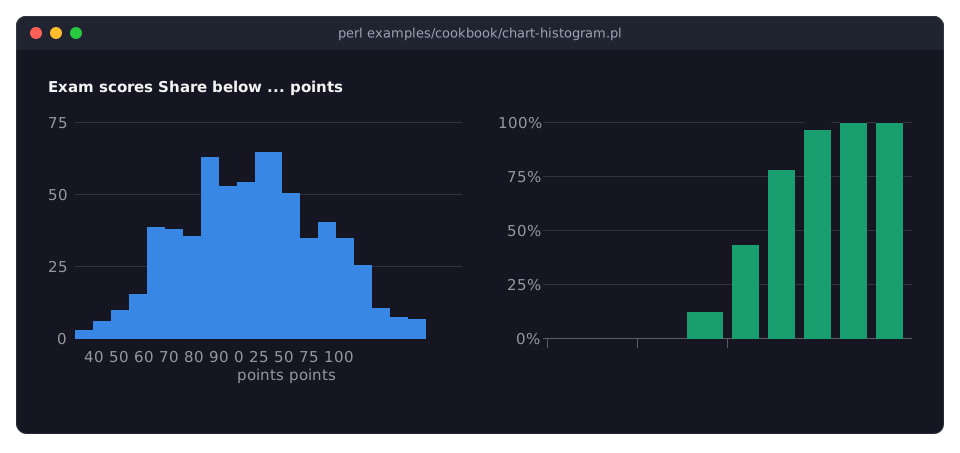
- chart-histogram.pl
-
"How values are distributed (Histogram)" in Term::Fabulous::Cookbook::Charts.
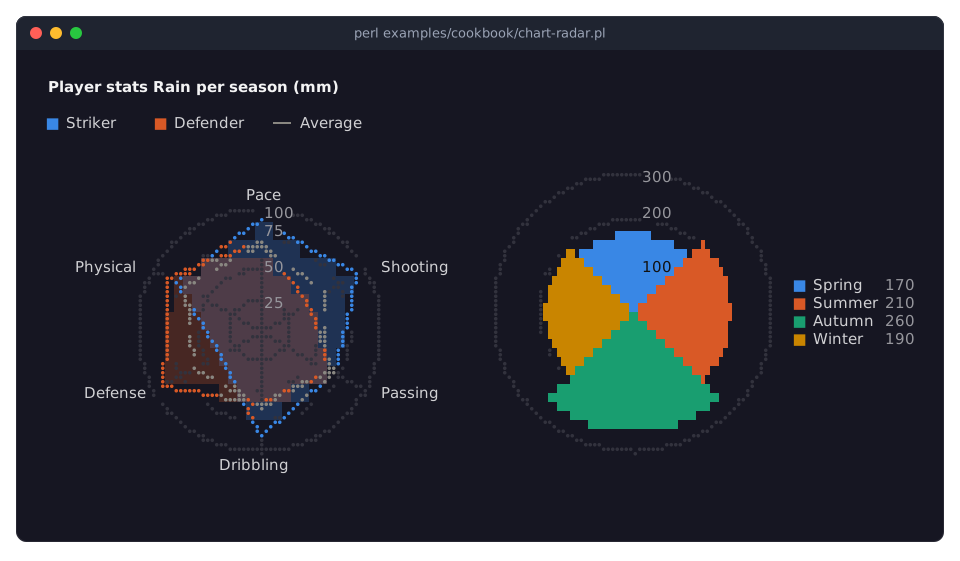
- chart-radar.pl
-
- chart-sparklines.pl
-
"Show sparklines in table cells (Sparkline)" in Term::Fabulous::Cookbook::Charts.
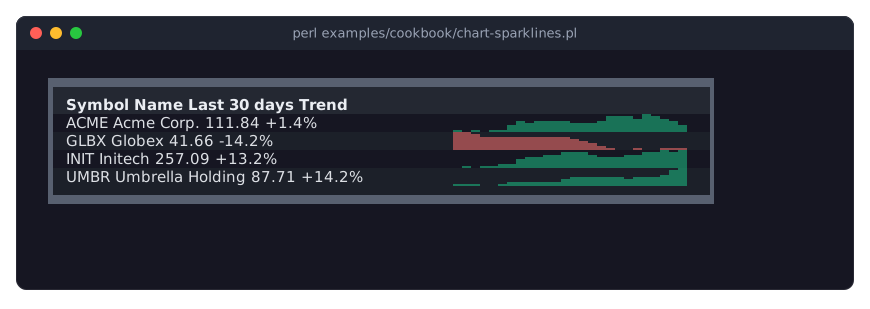
Chart techniques
The programs of Term::Fabulous::Cookbook::ChartTechniques: time axes, live data, transforms, KDL layouts and printed reports.
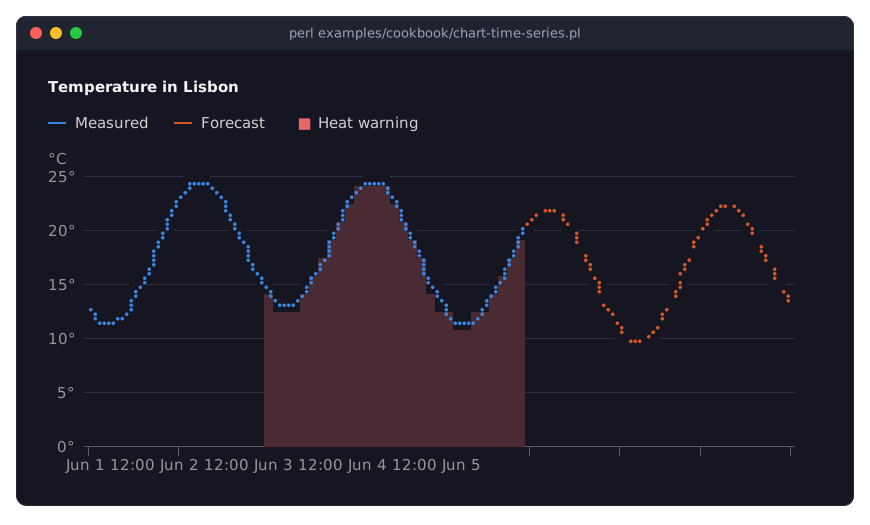
- chart-time-series.pl
-
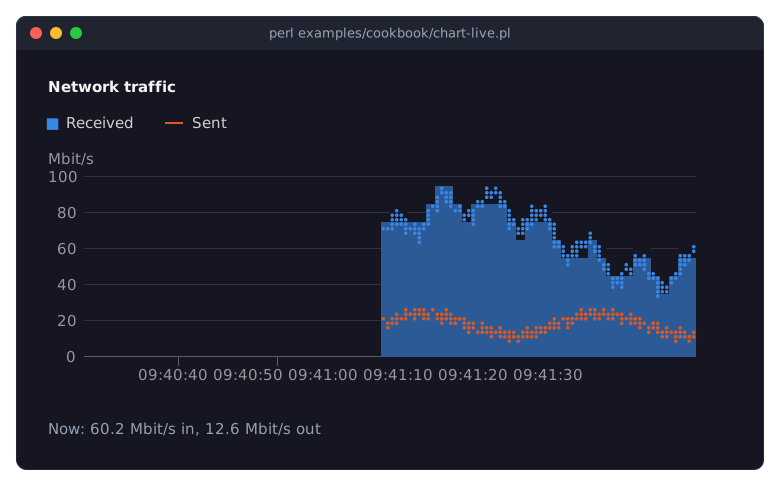
- chart-live.pl
-
"A live chart that follows new data (append, max_points, span)" in Term::Fabulous::Cookbook::ChartTechniques; the picture shows it after 30 seconds.
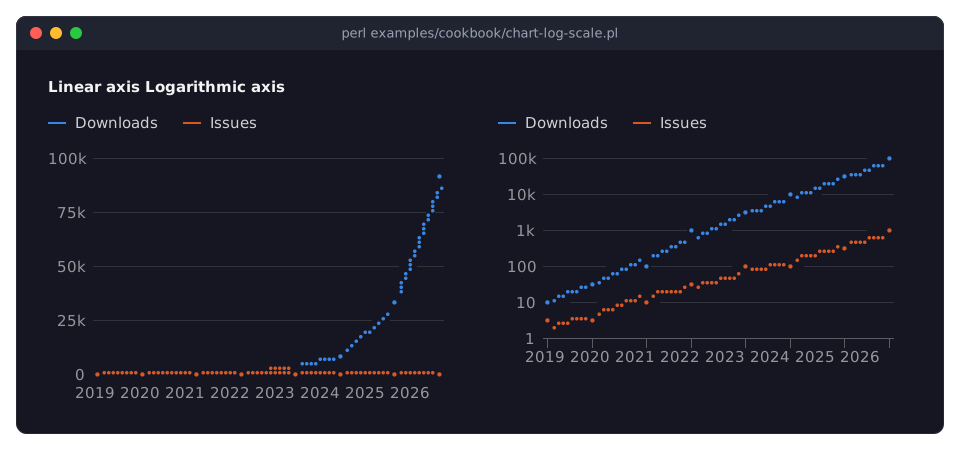
- chart-log-scale.pl
-
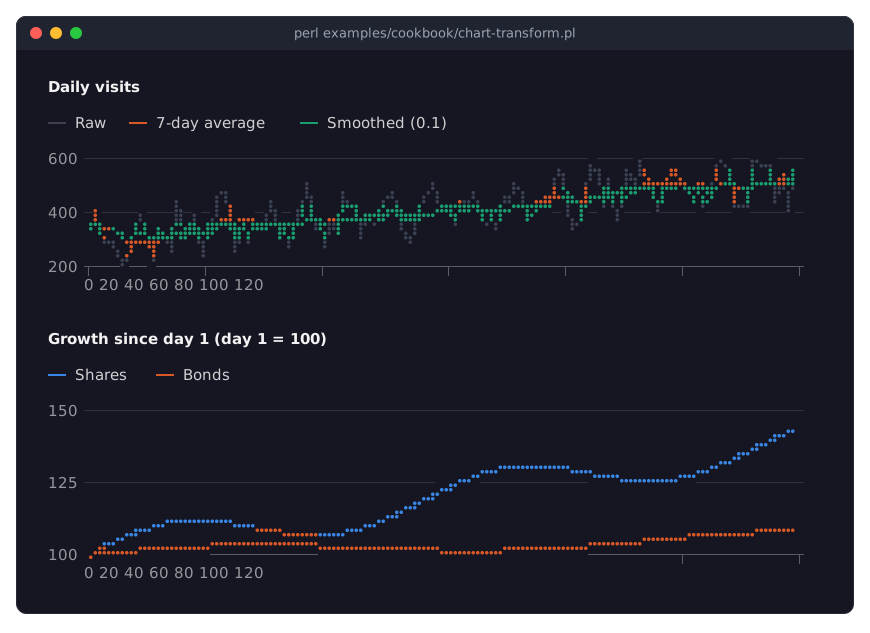
- chart-transform.pl
-
"Smooth noisy data and index it to 100 (transforms)" in Term::Fabulous::Cookbook::ChartTechniques.
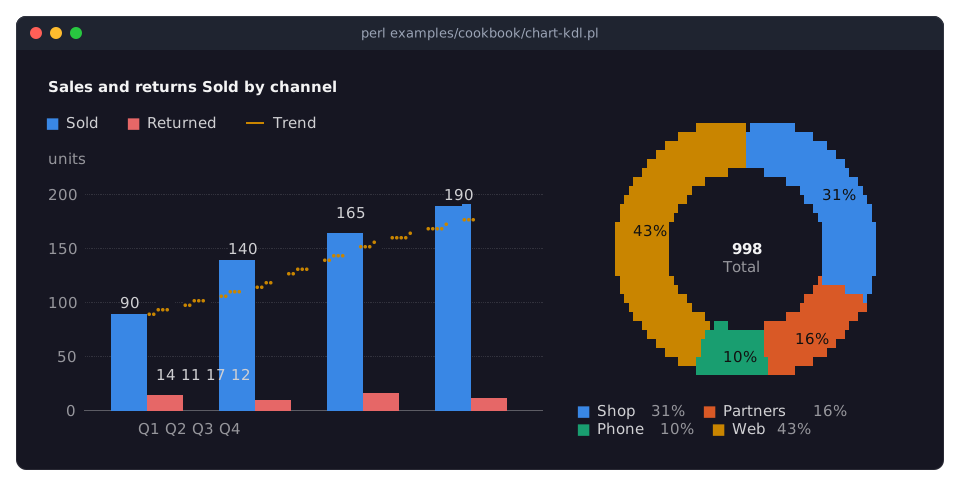
- chart-kdl.pl
-
- chart-report.pl
-
"Print charts in a report (Static)" in Term::Fabulous::Cookbook::ChartTechniques; prints the report and ends.
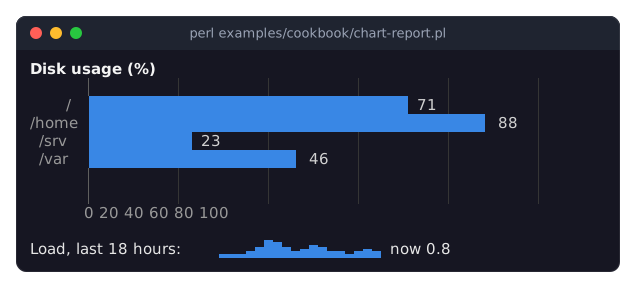
Chart styles
The programs of Term::Fabulous::Cookbook::ChartStyles: curves, markers, colors, line styles and hover.
- chart-curves.pl
-
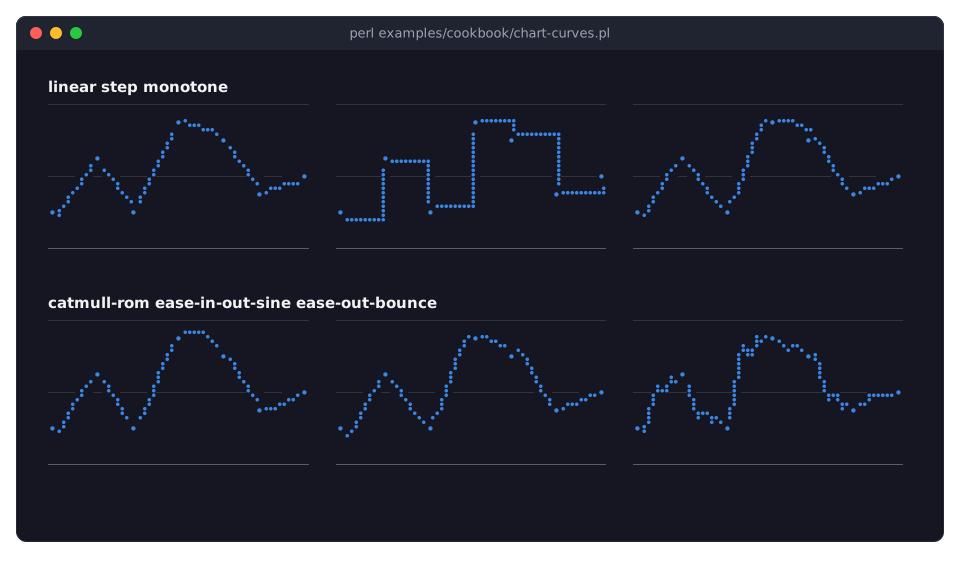
"Connect points with curves and easings (curve)" in Term::Fabulous::Cookbook::ChartStyles.
- chart-styles.pl
-
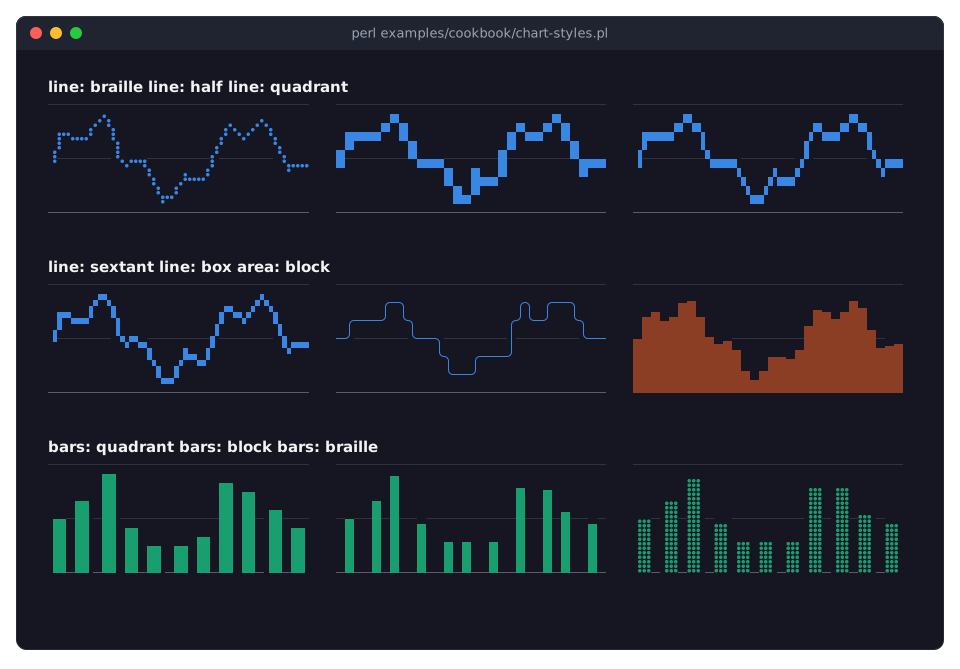
"Draw with Braille, blocks or box lines (marker)" in Term::Fabulous::Cookbook::ChartStyles.
- chart-colors.pl
-
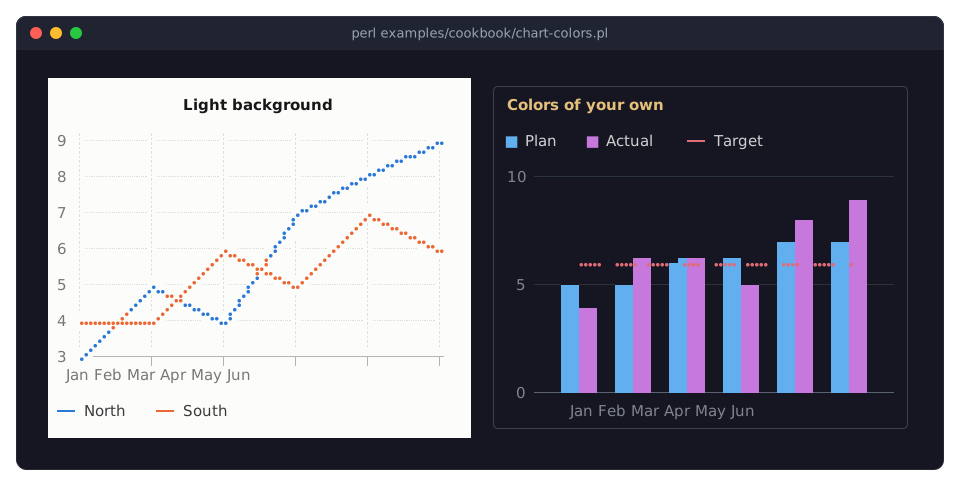
"Light backgrounds, palettes and colors of your own" in Term::Fabulous::Cookbook::ChartStyles.
- chart-options.pl
-
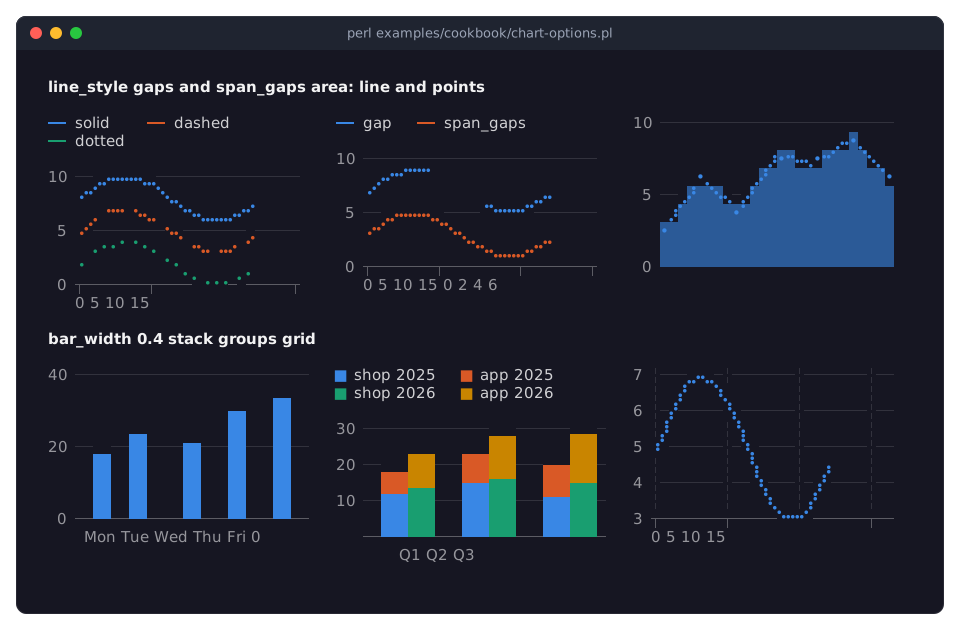
"Line styles, gaps, bar widths, stack groups and grid lines" in Term::Fabulous::Cookbook::ChartStyles: six small charts, one for each group of options.
- chart-hover.pl
-
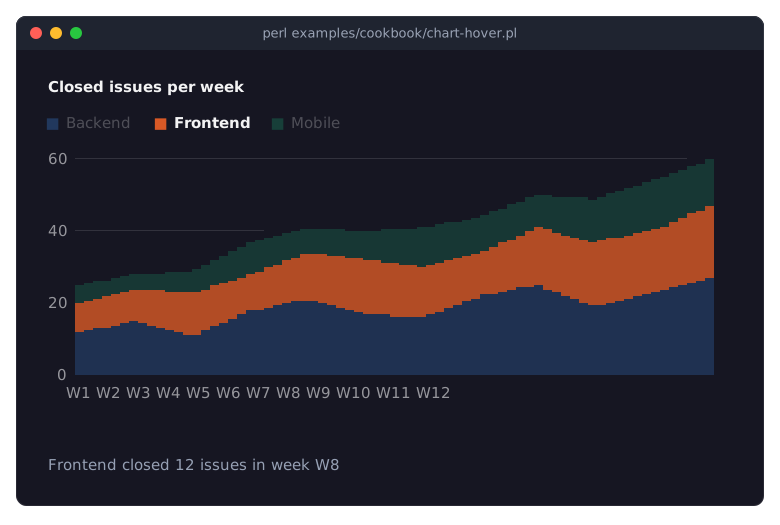
"Show details of the point under the pointer (SeriesHover, highlight)" in Term::Fabulous::Cookbook::ChartStyles; the picture shows it with the mouse pointer over the chart.
Canvases
The programs of Term::Fabulous::Cookbook::Canvases.
- paint-with-the-mouse.pl
-
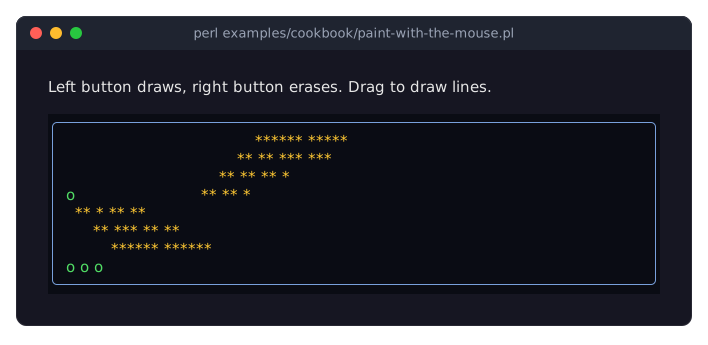
"Paint with the mouse (Canvas, clicks and drags)" in Term::Fabulous::Cookbook::Canvases: the left button draws, the right one erases, and a drag draws a line. The picture shows a drag and three clicks.
- pixel-canvas-plot.pl
-
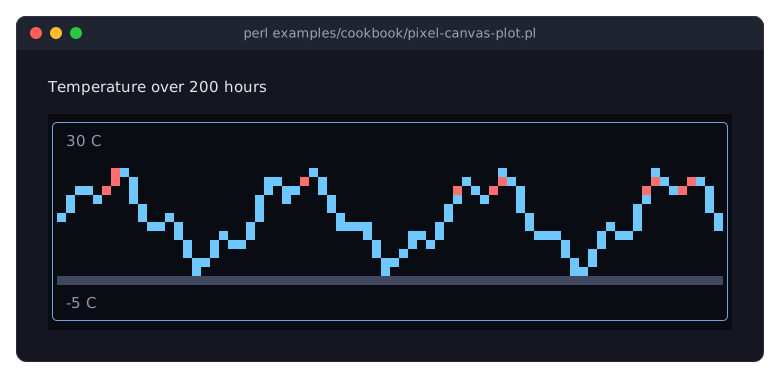
"Plot data on a pixel canvas (PixelCanvas)" in Term::Fabulous::Cookbook::Canvases.
- picture-viewer.pl
-
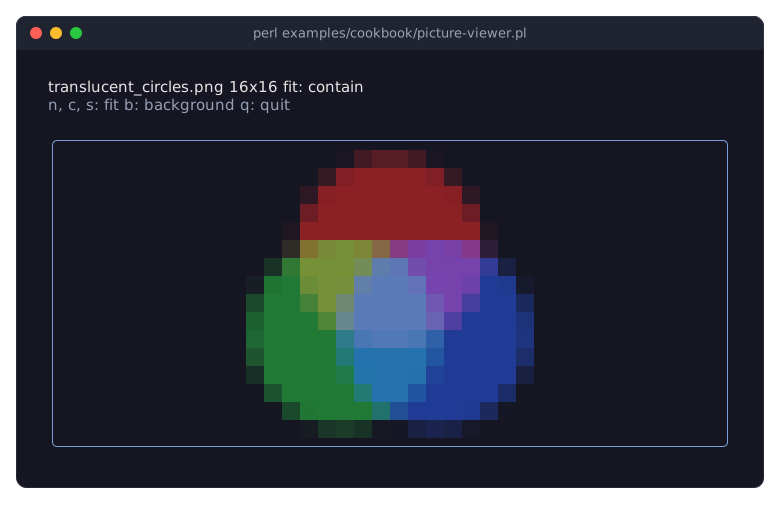
"Show a picture file (Image, fit)" in Term::Fabulous::Cookbook::Canvases: the picture file named as the argument, or the example picture of three translucent circles, in the whole window; n, c and s switch the fit between none, contain and stretch, b the background between the screen's and white. Needs Imager.
- embedded-logo.pl
-
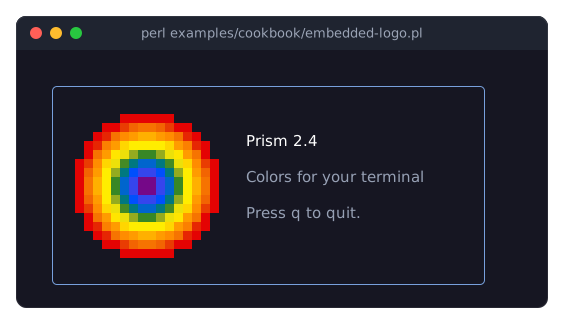
"Embed a logo in the program (Image, base64)" in Term::Fabulous::Cookbook::Canvases: an about box with a logo kept in the program as base64 text. Needs Imager.
- sixel-viewer.pl
-
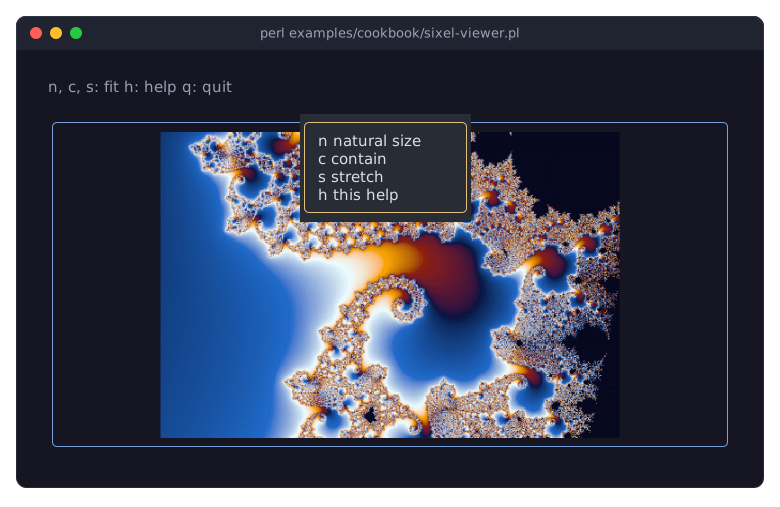
"Show a photo in sixel graphics (Sixel)" in Term::Fabulous::Cookbook::Canvases: the picture file named as the argument, or a detail of the Mandelbrot set, in sixel graphics in the whole window; n, c and s switch the fit between none, contain and stretch, h shows and hides a help box over the picture. The picture shows it after pressing h. Needs Imager, Imager::File::SIXEL and a terminal that shows sixel graphics.
Output without a terminal
The programs of Term::Fabulous::Cookbook::Output.
- report-to-file.pl
-
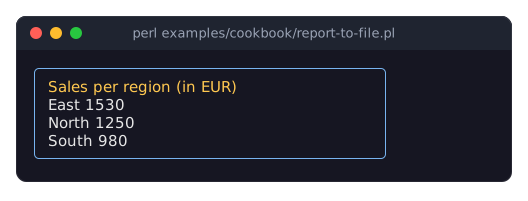
"Render a report to a file or pipe (Static)" in Term::Fabulous::Cookbook::Output; prints the report and also writes it to report.txt in the current directory.
- test-a-widget.pl
-
"Test a widget without a terminal" in Term::Fabulous::Cookbook::Output; a test script, run it with
prove.
Your own widgets and events
The programs of Term::Fabulous::Cookbook::Extending.
- examples/custom-widget.pl
-
The program of "Write a custom input widget (a toggle switch)" in Term::Fabulous::Cookbook::Extending; see its entry among the demo programs.
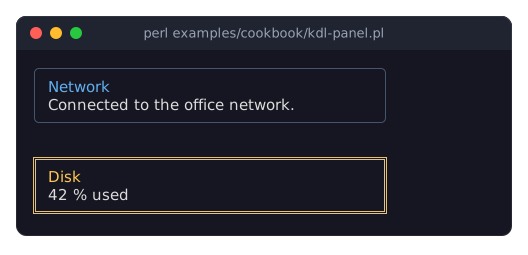
- kdl-panel.pl and lib/My/Panel.pm
-
"Make a widget usable from KDL" in Term::Fabulous::Cookbook::Extending: a panel class of your own, used from a KDL layout; prints the result and ends.
- custom-events.pl
-
"Fire your own events" in Term::Fabulous::Cookbook::Extending; prints what the listeners hear.
PICTURES OF YOUR OWN PROGRAMS
The pictures on this page are taken with tools/screenshot from the distribution, which takes one of any Term::Fabulous program, as SVG or PNG. It runs the program in a pseudo terminal of a given size, sends it the keys, text and mouse actions you give, and records what the terminal shows. Time is simulated, so animations and clocks come out the same on every run. From a built copy of the distribution:
perl -Mblib tools/screenshot --size 100x30 --output form.svg examples/form.pl
perl -Mblib tools/screenshot --steps 'type "Ada"; key "Tab"' --output form.png my-program.pl
perl -Mblib tools/screenshot --help lists the options. PNG output needs Imager with PNG and FreeType support; tools/README.md describes the tools.
SEE ALSO
Term::Fabulous, Term::Fabulous::Manual, Term::Fabulous::Cookbook.